

If clicked on a question:
 |
| ------------------------------------------------------------------------------------------------------------------------------------------------ | --------------------------------------------------------------------------------------------------------------------------------------------------------------------------------------------------------------------------------------------------------------------------------------------------- |
|
|
| ------------------------------------------------------------------------------------------------------------------------------------------------ | --------------------------------------------------------------------------------------------------------------------------------------------------------------------------------------------------------------------------------------------------------------------------------------------------- |
| If clicked on an answer:
 |
> **Reorganize**
It is also possible to **reorganize questions and answers in the tree** by using drag and drop feature:
|
|
> **Reorganize**
It is also possible to **reorganize questions and answers in the tree** by using drag and drop feature:
|  |
| ----------------------------------------------------------------------------------------------------------------------------------------------------------------------------------------------------------------------------------------------------------------------------------------------------------------------------------------------------------------------------------------------------------------------------------------------------------------------------------------------------------------------------------------------------------------------------------------------------------------------------------------------------------------------------------------------------------------------------------------------------------------------------------------------------------------------------------------------------- | ------------------------------------------------------------------------------------------------------------------------------------------------------------------------------------------------------------------------------------------------------------------------------------------------- |
***
> **Create product lists**
Each answer can either be the starting point for a new question or contain a product list.
**Product lists** management can be accessed by clicking **Product List** button in **Answer** edit pop-up

**Select products** pop-up will open

There is a radio button list with the following options allowing to incorporate static or dynamic product lists into the answer:
* Upselling
* Cross Selling
* Similar products
* Product List
* Textfield input Product List
* Product Search
Only single products list option can be added to an answer.
For detailed information about each Product list option please see **Product selection** section at [Product campaigns article](/docs/discovery/campaigns/product-campaigns.md).
***
> **Exclude products**
Products can be excluded from the campaign based on geo-policies
|
|
| ----------------------------------------------------------------------------------------------------------------------------------------------------------------------------------------------------------------------------------------------------------------------------------------------------------------------------------------------------------------------------------------------------------------------------------------------------------------------------------------------------------------------------------------------------------------------------------------------------------------------------------------------------------------------------------------------------------------------------------------------------------------------------------------------------------------------------------------------------- | ------------------------------------------------------------------------------------------------------------------------------------------------------------------------------------------------------------------------------------------------------------------------------------------------- |
***
> **Create product lists**
Each answer can either be the starting point for a new question or contain a product list.
**Product lists** management can be accessed by clicking **Product List** button in **Answer** edit pop-up

**Select products** pop-up will open

There is a radio button list with the following options allowing to incorporate static or dynamic product lists into the answer:
* Upselling
* Cross Selling
* Similar products
* Product List
* Textfield input Product List
* Product Search
Only single products list option can be added to an answer.
For detailed information about each Product list option please see **Product selection** section at [Product campaigns article](/docs/discovery/campaigns/product-campaigns.md).
***
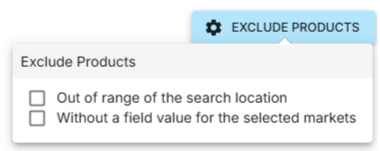
> **Exclude products**
Products can be excluded from the campaign based on geo-policies
| Exclude products button lets you exclude from the campaign products which are:
Outside of these options, search location and market selection have no influence on the campaign.
| |
| ---------------------------------------------------------------------------------------------------------------------------------------------------------------------------------------------------------------------------------------------------------------------------------------------------------------------- | --------------------------------------------------------------------------------------------------------------------------------------------------------------------------------------------------------------------------------------------------------------------------------------------------- |
#### **Complete campaign**
To complete the process, a name, a category and a description should be assigned to campaign, as well as activity period set up.
Please see **Name and options** section at [Common Campaign configuration steps](/docs/discovery/campaigns/common-campaign-configuration-steps.md) article for details.
---
# Agent Instructions
This documentation is published with GitBook. GitBook is the documentation platform designed so that both humans and AI agents can read, navigate, and reason over technical content effectively. Learn more at gitbook.com.
## Querying This Documentation
If you need additional information that is not directly available in this page, you can query the documentation dynamically by asking a question.
Perform an HTTP GET request on the current page URL with the `ask` query parameter, and the optional `goal` query parameter:
```
GET https://docs.fact-finder.com/docs/discovery/campaigns/advisor-campaigns.md?ask=
|
| ---------------------------------------------------------------------------------------------------------------------------------------------------------------------------------------------------------------------------------------------------------------------------------------------------------------------- | --------------------------------------------------------------------------------------------------------------------------------------------------------------------------------------------------------------------------------------------------------------------------------------------------- |
#### **Complete campaign**
To complete the process, a name, a category and a description should be assigned to campaign, as well as activity period set up.
Please see **Name and options** section at [Common Campaign configuration steps](/docs/discovery/campaigns/common-campaign-configuration-steps.md) article for details.
---
# Agent Instructions
This documentation is published with GitBook. GitBook is the documentation platform designed so that both humans and AI agents can read, navigate, and reason over technical content effectively. Learn more at gitbook.com.
## Querying This Documentation
If you need additional information that is not directly available in this page, you can query the documentation dynamically by asking a question.
Perform an HTTP GET request on the current page URL with the `ask` query parameter, and the optional `goal` query parameter:
```
GET https://docs.fact-finder.com/docs/discovery/campaigns/advisor-campaigns.md?ask=