> For the complete documentation index, see [llms.txt](https://docs.fact-finder.com/llms.txt). Markdown versions of documentation pages are available by appending `.md` to page URLs; this page is available as [Markdown](https://docs.fact-finder.com/docs/discovery/campaigns/feedback-campaigns.md).
# Feedback campaigns
#### **Summary**
> Feedback campaigns return a result with banners, texts and products defined by you when a search query is made (or other triggers ). They are particularly suitable for pushing products , i.e. highlighting them in particular for certain search queries.
>
> Feedback campaigns can also be used to place videos, point to brand shops or areas, or create “zero-hit pages.”
>
> In this article, you will learn how to create a new feedback campaign and configure it correctly.
#### **Creating new Campaign**
***
> **Create a new feedback campaign and define name, time frame and trigger**

The first three steps in creating a campaign are always the same, regardless of the campaign type. See also: [(1)](/docs/discovery/campaigns/campaigns-grids.md) [(2)](/docs/discovery/campaigns/common-campaign-configuration-steps.md)
To create a **Feedback campaign**, select **New Campaign** as if you were creating a **Product campaign**.
The first two steps let you select the **area** and **trigger** for the campaign — they correspond to steps in [Product campaigns](/docs/discovery/campaigns/product-campaigns.md).
You can proceed to the next steps by clicking on "Next" at the bottom right.
***
> **Push products (optional)**

You have the option of highlighting products using the Feedback campaign.
Available options correspond to the pushing options described for [Product campaigns](/docs/discovery/campaigns/product-campaigns.md).
#### **Setting up Feedback**
***
> **Feedback Texts access**
At this point, you can focus on defining specific Feedback texts via using **Feedback Texts** button.
To add new Feedback text, click **Add Feedback Text** in newly appeared menu.
***
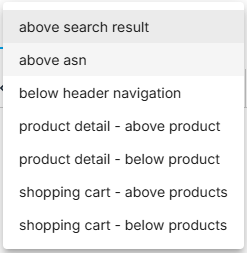
> **Feedback Text positioning**
For each Feedback text configured, separate **position** has to be defined.

The drop-down menu is filled with the available positions, only there something can be displayed.
| - above searchbar
- below searchbar
- above breadcrumb
- below breadcrumb
- above pushed product
- above search result
- below search result
- above asn
- below asn
- below each asn group
- html header
- pushed products header
- product detail - above product
- product detail - below product
- shopping cart - above products
- shopping cart - below products
|  |
| -------------------------------------------------------------------------------------------------------------------------------------------------------------------------------------------------------------------------------------------------------------------------------------------------------------------------------------------------------------------------------------------------------------------------------------------------------------------------------- | --------------------------------------------------------------------------------------------------------------------------------------------------------------------------------------------------------------------------------------------------------------------------------------------------------------------- |
If the menu is empty, no placeholders have been created from the templates in FactFinder.
You can access an overview of all existing placeholders using the toolbar on the left under the entry [*Campaigns / Feedback Texts*](/docs/discovery/campaigns/campaigns-grids.md) .
***
> **Content management**
Use the editing field to add text, images, videos, etc.
To display a graphic, text or video in the search results, enter the text or the desired HTML command in the text field.
You can also use **placeholders**, which FactFinder will then automatically fill in depending on the context.
To learn more, see the articles on using feedback text and placeholders.
If your integration doesn't support HTML commands, you can't use HTML tags.
***
> **Adding additional feedback texts (optional)**

You can add many additional feedback texts to the campaign. The counter is displayed right next to **Add Feed back Text** button.
***
> **Saving changes in Feedback Texts**
> Saving changes
>
> To confirm everything that’s made in "**Set Feedback Text**” modal, it’s **required** to hit  button in bottom right corner of the window!
#### **Complete Campaign**

The last step is the overview, where you can check all the settings again and adjust them if necessary. To do this, click on the individual links.
To complete the process, a name, a category and a description should be assigned to the campaign, as well as activity period.
You can learn the details of how to use **Positioning and Trigger** and **Name and options** available features in [Common Campaign configuration steps](/docs/discovery/campaigns/common-campaign-configuration-steps.md) article.
***
> **Applying the Campaign**
When everything is ready, to apply configuration to newly created Campaign record, use button.
Once it’s done, updated record will appear in [Campaigns grid](/docs/discovery/campaigns/campaigns-grids.md).
To secure new record, [confirming the transaction](/docs/user-interface/editing-configurations-managing-transactions.md) is required!
---
# Agent Instructions
This documentation is published with GitBook. GitBook is the documentation platform designed so that both humans and AI agents can read, navigate, and reason over technical content effectively. Learn more at gitbook.com.
## Querying This Documentation
If you need additional information that is not directly available in this page, you can query the documentation dynamically by asking a question.
Perform an HTTP GET request on the current page URL with the `ask` query parameter, and the optional `goal` query parameter:
```
GET https://docs.fact-finder.com/docs/discovery/campaigns/feedback-campaigns.md?ask=&goal=
```
`ask` is the immediate question: it should be specific, self-contained, and written in natural language.
`goal` is optional and describes the broader end goal you are ultimately trying to accomplish on behalf of the user. GitBook uses it to tailor the answer towards what is most useful for that goal.
The response will contain a direct answer to the question and relevant excerpts and sources from the documentation.
Use this mechanism when the answer is not explicitly present in the current page, you need clarification or additional context, or you want to retrieve related documentation sections.
|
| -------------------------------------------------------------------------------------------------------------------------------------------------------------------------------------------------------------------------------------------------------------------------------------------------------------------------------------------------------------------------------------------------------------------------------------------------------------------------------- | --------------------------------------------------------------------------------------------------------------------------------------------------------------------------------------------------------------------------------------------------------------------------------------------------------------------- |
If the menu is empty, no placeholders have been created from the templates in FactFinder.
You can access an overview of all existing placeholders using the toolbar on the left under the entry [*Campaigns / Feedback Texts*](/docs/discovery/campaigns/campaigns-grids.md) .
***
> **Content management**
Use the editing field to add text, images, videos, etc.
To display a graphic, text or video in the search results, enter the text or the desired HTML command in the text field.
You can also use **placeholders**, which FactFinder will then automatically fill in depending on the context.
To learn more, see the articles on using feedback text and placeholders.
If your integration doesn't support HTML commands, you can't use HTML tags.
***
> **Adding additional feedback texts (optional)**

You can add many additional feedback texts to the campaign. The counter is displayed right next to **Add Feed back Text** button.
***
> **Saving changes in Feedback Texts**
> Saving changes
>
> To confirm everything that’s made in "**Set Feedback Text**” modal, it’s **required** to hit  button in bottom right corner of the window!
#### **Complete Campaign**

The last step is the overview, where you can check all the settings again and adjust them if necessary. To do this, click on the individual links.
To complete the process, a name, a category and a description should be assigned to the campaign, as well as activity period.
You can learn the details of how to use **Positioning and Trigger** and **Name and options** available features in [Common Campaign configuration steps](/docs/discovery/campaigns/common-campaign-configuration-steps.md) article.
***
> **Applying the Campaign**
When everything is ready, to apply configuration to newly created Campaign record, use button.
Once it’s done, updated record will appear in [Campaigns grid](/docs/discovery/campaigns/campaigns-grids.md).
To secure new record, [confirming the transaction](/docs/user-interface/editing-configurations-managing-transactions.md) is required!
---
# Agent Instructions
This documentation is published with GitBook. GitBook is the documentation platform designed so that both humans and AI agents can read, navigate, and reason over technical content effectively. Learn more at gitbook.com.
## Querying This Documentation
If you need additional information that is not directly available in this page, you can query the documentation dynamically by asking a question.
Perform an HTTP GET request on the current page URL with the `ask` query parameter, and the optional `goal` query parameter:
```
GET https://docs.fact-finder.com/docs/discovery/campaigns/feedback-campaigns.md?ask=&goal=
```
`ask` is the immediate question: it should be specific, self-contained, and written in natural language.
`goal` is optional and describes the broader end goal you are ultimately trying to accomplish on behalf of the user. GitBook uses it to tailor the answer towards what is most useful for that goal.
The response will contain a direct answer to the question and relevant excerpts and sources from the documentation.
Use this mechanism when the answer is not explicitly present in the current page, you need clarification or additional context, or you want to retrieve related documentation sections.