 | Feedback texts include all forms of content that are not products. Videos, links, graphics, etc. can be included here. |
| ---------------------------------------------------------------------------------------------------------------------------------------------------------------------------------------------------------------------------------------------------------------------------------------------------- | ------------------------------------------------------------------------------------------------------------------------------------------------------------------------------------------------------------------------------------------------------------------------------------------------------------------------------------------------------ |
| | |
|
| Feedback texts include all forms of content that are not products. Videos, links, graphics, etc. can be included here. |
| ---------------------------------------------------------------------------------------------------------------------------------------------------------------------------------------------------------------------------------------------------------------------------------------------------- | ------------------------------------------------------------------------------------------------------------------------------------------------------------------------------------------------------------------------------------------------------------------------------------------------------------------------------------------------------ |
| | |
| 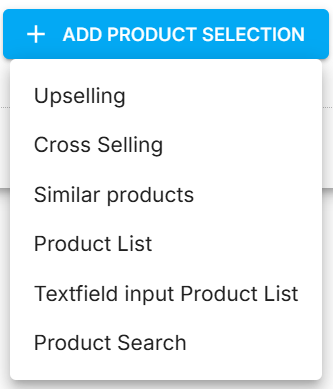 |
| This button opens dropdown list with the following options allowing to incorporate static or dynamic product lists into the campaign:
Details for each option described below.
| > **Product list** Selecting the **Product list** option for adding products to a campaign will open the **Assemble Product List** pop-up. It lets you set up a fixed list of products to be added to the campaign by searching and filtering.   **Search -** search for products  **Filter by facets** section **-** shows a list of facets applicable for searched products and lets you filter found products  **Products found** section - shows list of searched products found.  **Sorting** button **-** lets you sort found products by Price or Title  **Filter button** - lets you filter found products by the selected field. * Filtering can be done in all fields * Filtering can be done in specific field selected in the dropdown among all available fields. * `AND` and `OR` operators can be used to combine multiple values for filtering  **Selected products** section - shows list of products to be added to the campaign  **Select products** button - lets you add checked products to the Selected products section  **Unselect all** button **-** lets you remove all products from the Selected products section in one click  **Position in search result -** affects the positioning of selected products in the search result: * Products that are already in the search result can be placed higher up in the result, but not lower down. * Products that were not in the search result before the campaign was applied can be freely placed by this option.  **Personalized** checkbox **-** enables personalization for selected products when checked  **Sort by ranking** checkbox **-** sorts selected products by ranking, when checked  **Ignored facets -** lets you add one or multiple facets to be ignored by selected products After selecting products and pressing **Save** button, **Assemble Product List** pop-up will be closed and selected products will be added to the campaign. > **Textfield input Product list**   **Manual product input** section **-** lets you manually add products  **Reference field** dropdown **-** lets you select a field to search products: * MasterArticleNumber * ArticleNumber * EAN * Searchkeys **List of inputs** textbox - lets you enter values to search for products within the selected **Reference field** * Found products will be immediately added to **Product list** section * Products not found by entered values will be shown as “not available” placeholder tiles in **Product list** section * Use “Enter” key to enter multiple values * It is possible to search for products only within single **Reference field** **Position in search result -** affects the positioning of selected products in the search result: * Products that are already in the search result can be placed higher up in the result, but not lower down. * Products that were not in the search result before the campaign was applied can be freely placed by this option. **Personalized** checkbox **-** enables personalization for selected products, when checked.  **Sort by ranking** checkbox **-** sorts selected products by ranking, when checked.  **Ignored facets -** lets you add one or multiple facets to be ignored by selected products.  **Product List** section **-** shows list of all products entered in **List ofinputs** textbox. After pressing **Save** button, **Assemble Product List** pop-up will be closed and selected products will be added to the campaign. > **Product search** Selecting **Product Search** option for adding products to a campaign will open **Assemble Product Search** pop-up. It lets you set up a **dynamic list of products** to be added to the campaign by searching and filtering.   **Set search parameters** section **-** lets you set up search attributes  **Search -** search for products  **Limit number of products to** - lets you set the maximum number of products to be shown  **Replace query from user** checkbox **-** lets you replace the user query with this product list query  **Filter search results in** - lets you filter found products by the selected field. * Filtering can be done in all fields * Filtering can be done in specific field selected in the dropdown among all available fields. * `AND` and `OR` operators can be used to combine multiple values for filtering  **Sort results by** - lets you sort found products by Price or Title  **Position in search result -** affects the positioning of selected products in the search result: * Products that are already in the search result can be placed higher up in the result, but not lower down. * Products that were not in the search result before the campaign was applied can be freely placed by this option.  **Personalized** checkbox **-** enables personalization for selected products, when checked  **Ignored facets -** lets you add one or multiple facets to be ignored by selected products  **Filter by facets** section **-** shows a list of facets applicable for searched products and lets you filter found products  **Preview** section **-** shows **dynamic** list of products according to currently applied **Search parameters** and **Facets.** After pressing **Save** button, **Assemble Product List** pop-up will be closed and selected products will be added to the campaign. > **Upselling** Selecting **Upselling** option for adding products to a campaign will open **Assemble Upselling** pop-up. It lets you set up parameters for showing **recommended products with a higher price** as part of the campaign In a search result campaign, the up-selling products are generated to match the first hit in the search result (the first hit before any filtering). In a product campaign, the products are generated for the displayed product.   **Set upselling parameters** section **-** lets you set up upselling attributes  **Max. product count -** lets you set the maximum number of upselling products to be shown. Fewer products can be displayed if there are not as many products available. 0 products is also possible.  **Min. %** - lets you set the minimum percentage for the range of higher-price recommended products  **Max. %** **-** lets you set the maximum percentage for the range of higher-price recommended products ***Example:*** *If a product with a price of €30 is displayed,* `min.%` *is 10%,* `max.%` *is 20%, products in a price range of €33 to €36 will be displayed.*  **Position in search result -** affects the positioning of selected products in the search result: * Products that are already in the search result can be placed higher up in the result, but not lower down. * Products that were not in the search result before the campaign was applied can be freely placed by this option.  **Personalized** checkbox **-** enables personalization for selected products, when checked  **Ignored facets -** lets you add one or multiple facets to be ignored by selected products After pressing **Save** button, **Assemble Upselling** pop-up will be closed and upselling set up will be added to the campaign. Generated products can be previewed at **Products Preview section** (see **Selected Products preview** below) > **Cross selling** Selecting **Cross Selling** option for adding products to a campaign will open **Assemble Cross Selling** pop-up. It lets you set up parameters for showing **recommended products purchased together with the reference product** as part of the campaign.   **Max. product count -** lets you set the maximum number of cross-selling products to be shown. Fewer products can be displayed if there are not as many products available. 0 products is also possible.  **Position in search result -** affects the positioning of selected products in the search result: * Products that are already in the search result can be placed higher up in the result, but not lower down. * Products that were not in the search result before the campaign was applied can be freely placed by this option.  **Personalized** checkbox **-** enables personalization for selected products, when checked  **Ignored facets -** lets you add one or multiple facets to be ignored by selected products After pressing **Save** button, **Assemble Cross Selling** pop-up will be closed and cross selling set up will be added to the campaign. Generated products can be previewed at **Products Preview section** (see **Selected Products preview** below) > **Similar products** Selecting **Cross Selling** option for adding products to a campaign will open **Assemble Similar products** pop-up. It lets you set up parameters for showing **recommended products similar to the reference product** as part of the campaign.   **Max. product count -** lets you set the maximum number of similar products to be shown. Fewer products can be displayed if there are not as many products available. 0 products is also possible.  **Position in search result -** affects the positioning of selected products in the search result: * Products that are already in the search result can be placed higher up in the result, but not lower down. * Products that were not in the search result before the campaign was applied can be freely placed by this option.  **Personalized** checkbox **-** enables personalization for selected products, when checked  **Ignored facets -** lets you add one or multiple facets to be ignored by selected products After pressing **Save** button, **Assemble Similar Products** pop-up will be closed and similar products set up will be added to the campaign. Generated products can be previewed at **Products Preview section** (see **Selected Products preview** below) #### **Selected products preview** Product selections added to the campaign are immediately reflected at **Product selection** tab after adding.   **Select Pushed products** section - shows all the **Product selections** added to the campaign: * one or more **Product selections** can be added * each selection has its own color code to distinguish selections and products within each selection * each selection described with selection type, short description and number of products * it is possible to reorganize the order of **Product selections** (and their products) shown within the campaign by drag and drop (using “**grip dots**” icon ) * it is possible to remove **Product selection** and it’s products by clicking “**cross icon**” * it is possible to edit **Product selection** by clicking on it  **Preview** section - shows products generated or selected within each **Product selection**: * each product has it’s color code  (same color as **Product selection** within the product is selected or generated) * each product has position within count of products within it’s **Product selection** (i.e. 1/3, 2/3, etc.)  * If none or not enough products can be found for **Products selection**, these are missing in the preview. If only the desired number of products cannot be found, the counting of the products stops. ***For example***\*, if 65 products were set up and only 16 could be found, the count would stop at 16/65.\* * products displayed and their counter can vary for **Cross Selling**, **Upselling** and **Similar products**, as they are found on the basis of products that originate from the search triggering the campaign and such search is available for the preview. * each product represented with image and description  * the preview may differ from the configured **Product selections** as it is being influenced by the campaign triggers.  **Exclude products** button lets you exclude from the campaign products which are: * Out of range of the search location * Without a field value for selected markets  **Sequence** dropdown lets you order products across all **Product selections**: * **Consecutive** - products will be grouped by **Product selections** and ordered in the same way as **Product selections** ordered * **Alternating** - products will be altered across **Product selections** with specified Rhythm #### **Complete campaign** To complete the process, a name, a category and a description should be assigned to the campaign, as well as activity period. Please see **Name and options** section at [Common Campaign configuration steps](/docs/discovery/campaigns/common-campaign-configuration-steps.md) article for details. --- # Agent Instructions This documentation is published with GitBook. GitBook is the documentation platform designed so that both humans and AI agents can read, navigate, and reason over technical content effectively. Learn more at gitbook.com. ## Querying This Documentation If you need additional information that is not directly available in this page, you can query the documentation dynamically by asking a question. Perform an HTTP GET request on the current page URL with the `ask` query parameter, and the optional `goal` query parameter: ``` GET https://docs.fact-finder.com/docs/discovery/campaigns/product-campaigns.md?ask=