***
{% columns %}
{% column %}
{% embed url="" %}
{% endcolumn %}
{% column %}
#### Iain explains Atlas AI
Join Iain as he succinctly unfolds the capabilities of Atlas AI. This video delves into the intricacies of personalization within B2B and B2C sectors, illustrating how Atlas AI revolutionizes the shopping experience by providing tailored search results.
Watch the Video
{% endcolumn %}
{% endcolumns %}
***
### Contact Us
Please reach out to our support team if you would like further assistance:
For general information and to view our product suite visit [fact-finder.com](https://www.fact-finder.com/).
How can we help you?
# About FactFinder NG
## Introduction
Search, analytics, personalization, and much more – a suite of solutions to maximize your conversion. Product Discovery is the foundation of our solution, delivering extensive eCommerce features in one central module. The additional modules work to further enhance the customer experience and can be easily added, so as your business needs change, FactFinder changes with them. AI ensures the modules work together seamlessly and continuously improve one another.
We are Europe's leader in product discovery. Helping you and your customers discover the things they love and need, fast & personalized.
We understand the intent of every customer by leveraging a combination of AI and human intelligence in every product discovery.
## FactFinder NG: AI-Driven eCommerce Product Discovery and Search platform
FactFinder NG isn’t just a search engine, it’s a comprehensive, AI-driven platform designed to help your customers quickly find what they’re looking for while driving higher sales and improved profitability:
* Our technology helps millions of shoppers easily find the most relevant products every day.
* Unique combination of AI and human control allows businesses to surface the right products across multiple touchpoints, from search and navigation to recommendations, merchandising and more.
* Our platform comprises of a comprehensive suite of modules, that can deliver results on any use case.

What’s special about FactFinder is that you have full transparency and control of the AI.
Unlike more rigid AI solutions that often act as a “black box”, with FactFinder you can apply weightings to influence the AI, alongside other business priorities such as margin, stock-level or ratings.
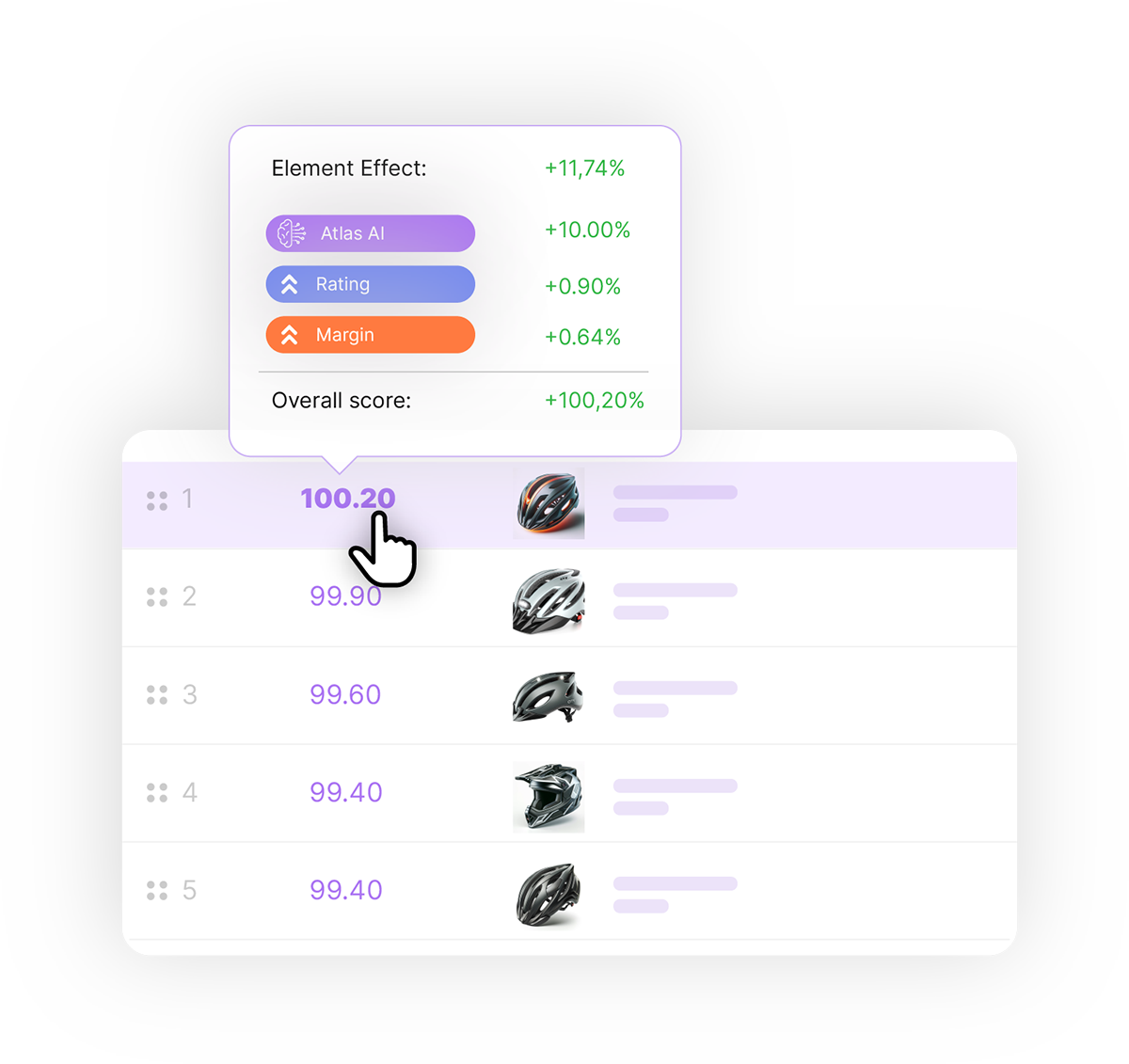
Read more about Atlas AI [here](/docs/readme/atlas-ai).
## Seamless Integration and Compatibility
Whether it’s an in-house development or a ready-made standard solution, FactFinder can be integrated into any shop:
* With an **API-based approach**, any development language has the possibility to make queries to FactFinder, returning all the results you need to display to your customers.
* The logic behind which results are shown and how, can be easily managed from our **simple and intuitive management user interface**.
* From consulting and implementation to after-sales support, our FactFinder **team is ready to help** at every step of our collaboration.
Our platform comprises of a comprehensive suite of modules, that can deliver results on any use case. Providing the tools and functionalities that help shoppers easily find what they are looking for, and business users the ability to create bespoke discovery experiences that distinguish them from the competition.

Read more on on how to integrate FactFinder here: [Integration via API (REST)](https://docs.fact-finder.com/integration/)

## Need Assistance?
This documentation walks you though every aspect of the platform.
Don’t forget to use our **Ask** button to help you navigate the content and find the most useful information.
# FactFinder NG
FactFinder NG is an advanced eCommerce product discovery and search platform.
Our technology helps millions of shoppers easily find the most relevant products every day.
We combine AI with human control to surface the right products across every touchpoint — from search and navigation to recommendations, merchandising, and more — resulting in more sales and higher profitability.
Our platform comprises a comprehensive suite of modules that deliver results for a wide range of use cases.

What’s special about FactFinder is the transparency and control you have over the AI. Unlike rigid “black box” solutions, FactFinder lets you apply weights to influence the AI alongside other business priorities such as margin, stock level, or ratings. Read more about Atlas AI [here](/docs/readme/atlas-ai).

This documentation walks you through every aspect of the platform.
# Atlas AI
## Real-time 1:1 personalized experiences
Atlas AI delivers personalized experiences in real time. By leveraging your vectorized product data, it extracts key features and attributes using embeddings. This builds a network of neural models that serves as an in-depth representation of your entire product assortment.
## How Atlas AI works
### Data training
* The model is trained on your vectorized product data.
* It uses embeddings to capture every product feature and attribute.
* A network of neural models is created, representing your product range in detail.
### Contextual product mapping
* Products are grouped by similar contexts to form a visual "map" of your assortment.
* Distances on the map indicate differences between products along specific dimensions.
* Initial layers might group products by category (e.g., smartphones); deeper layers differentiate features like screen size and price.
[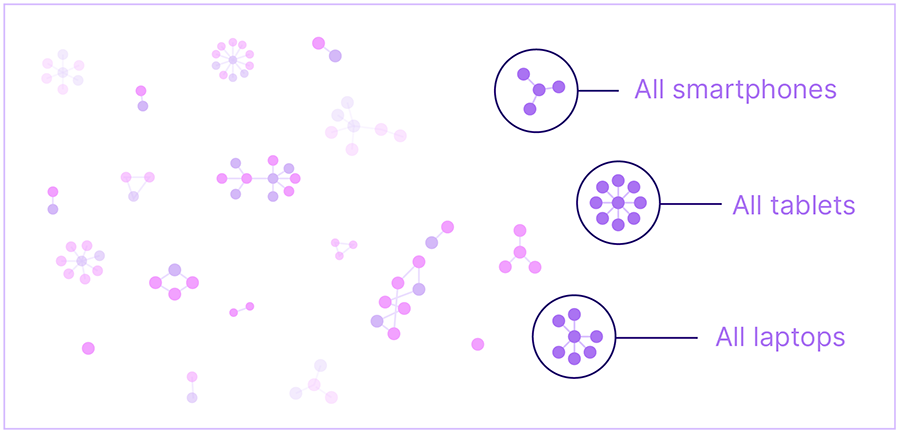](https://www.fact-finder.com/blog/wp-content/uploads/2023/07/Deep_Learning-01-2.png)
### Granular understanding
* Multiple neural map layers allow the model to grasp product relationships at a granular level.
* The depth of mapping depends on the complexity of your catalog, resulting in a human-like understanding of your assortment.
### Interactive learning
* When shoppers browse your store, they interact with the Atlas AI model rather than static product listings.
* The model learns from every interaction — even a single click — to improve relevance instantly.
## Atlas AI advantage
Atlas AI goes beyond traditional segmentation with a three-step approach designed to deliver precise, personalized shopping experiences:
### 1. General relevance based on shoppers' behavior
* What it does: Atlas AI optimizes search results and recommendations based on shoppers' behavior, including search queries and interaction patterns.
* Benefit for you: Reduces the need for manual search optimization.
### 2. Relevance based on the current shopping intent
* What it does: Adapts results based on the shopper's immediate session behavior and signals of buying intent.
* Benefit for you: Provides a natural shopping experience by displaying only contextually relevant products.
### 3. Relevance based on personal preferences
* What it does: Analyzes individual preferences through past purchases, product views, and specific interaction patterns.
* Benefit for you: Enhances precision, resulting in a personalized shopping experience that boosts conversion rates.
## Short summary
Atlas AI transforms customer engagement by using advanced neural networks to understand your product assortment in a human-like way.
Its layered approach to mapping and relevance creates a tailored, real-time shopping experience that drives higher engagement and revenue.
Want to learn more? Watch our short video below:
# Compatibility
Whether it’s an in-house development or a ready-made standard solution, FactFinder can be integrated into any shop. With our API-first approach, any programming language can query FactFinder and return all the data you need to display to your customers. The logic behind which results are shown — and how — can be easily managed in our intuitive Management UI. From consulting and implementation to after-sales support, our FactFinder team is at your side every step of our collaboration.
Our platform comprises a comprehensive suite of modules that deliver results for any use case, providing the tools shoppers need to find what they are looking for and giving business users the ability to create bespoke discovery experiences that stand out from the competition.

Read more on how to integrate FactFinder here: [Integration](https://docs.fact-finder.com/integration/)

# Getting Started Guide

## Welcome to our **customer onboarding guide**!
We are excited to guide you through onboarding and prepare you for a successful **go-live** with FactFinder.
Below is an overview of the **key steps in our implementation process**. For each step, you'll find what to expect, how we work, and recommendations to prepare your team.
Use the sections below to get started:
* [Preparations](/docs/getting-started-guide/preparations)
* [Requirements](/docs/getting-started-guide/requirements)
* [Data Feed](/docs/getting-started-guide/data-feed)
* [Configuration](/docs/getting-started-guide/configuration)
* [Integration](/docs/getting-started-guide/integration)
* [Training](/docs/getting-started-guide/training)
* [Testing and QA](/docs/getting-started-guide/testing-and-qa)
* [Go-live and life after Go-live](/docs/getting-started-guide/go-live)
# Preparations

We are delighted to have you on board! As soon as the contract is signed, one of our Project Managers will contact you to initiate onboarding and prepare for the first kickoff meeting.
During the project kickoff, we will get to know each other and outline the purpose, goals, and plan. This meeting also gives all team members the opportunity to ask questions and clarify next steps.
**Let's work together to ensure a successful project launch!**
## Mobilize Your Team
It is important to identify roles and responsibilities for your project. Depending on company size, one person can fulfill multiple roles:
|
Data feed analysis, basic configuration, and training of users
|
Technical Consultant
Support around the topic of integration
|
Want to get more familiar with FactFinder?
Watch our [Training Week videos (English)](https://www.youtube.com/playlist?list=PLkzWo_c5k8zS9_HjEAHpjAWIds-KIzlMv), explore the [FactFinder documentation](/docs), or jump to [Integration](https://docs.fact-finder.com/integration/).
## Your First Meeting with FactFinder
In our kickoff with all relevant participants, we define success criteria and next steps. We clarify whether there is already a go-live date and which dependencies we should consider in planning.
Furthermore, we highlight the factors that are crucial for a successful project with FactFinder and address the following:
* The size of your [data feed](/docs/getting-started-guide/data-feed)
* How you will provide the feed (URL or SFTP)
* Keeping data up to date: in addition to full imports, support for delta updates
* The number of search requests you have per month
* The module scope for the go-live
* Contact person for the FactFinder credentials
* Weekly meetings (around 30 min – 1 hour): to ensure project progress and success, we recommend weekly meetings with the project team.
# Requirements

To set the right expectations for the project, it is crucial to define and prioritize requirements early and establish a shared understanding of your goals.
We will discuss these in a requirements workshop shortly after project start. This gives us deeper insight into your preferences and ensures that desired features are implemented smoothly during integration.
By understanding your goals, we can help you create the appropriate data feed and tailor our training to your needs.
To prepare, consider the topics below.
## What Do You Want to Achieve?
When we created FactFinder, our primary goal was to ensure that website visitors could find what they are looking for as quickly and efficiently as possible. This forms the core of FactFinder but is just the beginning. **What are your goals?**
***
### Product Discovery
FactFinder **Product Discovery** helps you tailor the search experience to your preferences and business objectives across the following areas:
1. **Search Result Prioritization:** Would you like to prioritize certain products at the top of your search results? This could include brands or your top-selling items.
2. **Filtering Options:** What filters do you want to make available? Will you use numerical sliders, and should there be a "reset all filters" feature?
3. **Search Suggestions:** Beyond product recommendations, should your search include suggestions for brands, categories, or even content such as blog entries or guidebooks?
4. **Product Variants:** Do your products come with variants like colors or sizes? Should all variants be displayed in search results, or just one with the ability to choose others?
5. **Advanced Search:** Can customers search using criteria like brands, manufacturer numbers, or EAN codes in addition to product names?
6. **Content Search:** Do you have supplementary content such as guides, blog entries, or user manuals that should be searchable alongside products?
7. **Analytics:** Do you want insights into what customers search for to optimize search and product offerings? Our analytics tool can help.
> By customizing these aspects of your search experience, you can enhance user satisfaction and align your search functionality with your business goals.
***
### Merchandising Module
The **Merchandising Module** helps you engage customers and provide guidance with options such as:
* **Advisor Campaigns:** Interact with your customers and guide them through more complex purchasing decisions.
* **Feedback Campaigns:** Would you like to integrate banners, products, or additional information into your search results? Our feedback campaigns can help you achieve this. It's even possible to tailor your search results to align with your specific business objectives.
* **Redirect Campaigns:** Help customers easily find FAQs, terms and conditions, shipping information and more. You can also use these redirect campaigns to prevent zero results pages.
> By considering these options, you can enhance the overall user experience, align your search capabilities with your business strategy, and provide valuable assistance to your customers.
***
### Navigation Module
How about your shop navigation? Do you want to manage two separate backends? With the FactFinder **Navigation Module** you can consolidate them into a single backend.
You can customize your navigation as you would after-search navigation. Control which filters are visible, the order in which products are displayed, and create campaigns for both navigation and search results.
***
### Personalization
Do you want search results to reflect each customer's past behavior and preferences?
FactFinder **Personalization** helps you:
* creating search results based on your customers' past interactions,
* delivering search outcomes tailored to their preferences.
***
### Recommendations
Do you want to assist your customers in finding relevant products that match their search results? Are you interested in upselling by presenting the right products?
Our **Recommendation** module can be of assistance.
***
### Geo
Our **Geo** module helps customers find available products nearby.
> Useful if you operate physical stores in addition to your online shop or offer regional assortments.
***
### Customer-Specific Information
Do you have various customer groups with distinct pricing or product needs? Do you work with numerous manufacturers, and do you want your customers to be able to search for manufacturer numbers and obtain accurate results?
Our **Customer Specific Info** module can be a valuable solution for you.
***
### Predictive Basket
Do your customers consistently purchase the same items?
Simplify their shopping experience with our **Predictive Basket** module.
## UX Design Principles
Before you begin your FactFinder integration, we recommend creating a preview of what your search results should look like in the future. Here you find some useful questions to consider for your UX design principles. However, please note that we are not responsible for design services.
***
### What Should Your Search Look Like in the Future?
* Consider the placement of your search bar.
* Where should it be located, and should it have animation?
***
### What Should Occur Before a Customer Begins Typing?
* Should the search bar be empty, or should there be a predefined text inside, such as "Please enter your search query," "What are you looking for," or perhaps your top search query from the past days?
***
### What Should Happen When a Customer Clicks in the Search Bar?
* Should the Suggest feature automatically open and display some predefined pages, the most frequently searched terms, or even your most popular categories?
***
### What Happens After Customers Start Typing?
* Do you want to display product suggestions? Would you like to showcase more than that? This could include brands and/or their logos, categories, additional content such as blog entries or guidebooks, search terms, or anything else you have in mind.
***
### What Does Your Search Results Page Look Like?
* Is there an after-search navigation that allows customers to narrow results using filters? Where is it located?
* What kinds of filters will you show (e.g., numerical slider, multi-select)?
***
### How Should Your Search Results Be Displayed?
* On one page with infinite scrolling, or on multiple pages?
* Do you want to show the total number of results and pages to help customers navigate?
* Can users sort results (e.g., by relevance, price, alphabetically)?
> **There are plenty of additional customization options that FactFinder can offer for your search page.**
You have the flexibility to position banners above, below or within your search results. You can also utilize recommendations, which can be showcased on both the product detail page and the shopping basket page.
FactFinder is here to help you enhance your search experience. Consider your vision—we'll bring it to life together.
# Data Feed

> The data feed is a file containing product/content data and is the **foundation of good search**. It enables search optimization.
For FactFinder to display optimal search results, it must be set up with your product/content information.
We need the product data in an ordered structure—the data feed—which will be imported into FactFinder.
> Provide the data feed in CSV format; our consultants will import it.
## Example data feed
In general, the more data FactFinder has available, the better search results can be optimized.
Your data feed should at least contain:
* *Product number*
* *Item number*
* *Title/Name*
Other attributes such as:
* *color*
* *size*
* *brand*
* *price*
* *stock information*
* *description*
also help FactFinder improve search results.
**Ask your Project Manager for an example feed** to see how to structure yours. Learn how to optimize your data feed [here](/docs/import/ff-search-integration-how-to-optimize-your-datafeed).
## Data feed analysis
Once you provide the data feed, we analyze its quality and decide which data can be used for which FactFinder modules.
After the analysis, we provide recommendations on how to optimize your data.
* Which feed data can be used for which FactFinder module
* Data quality compared with ideal product feed setup
* Recommendations on missing fields to achieve optimal results
# Configuration

Once we receive the data feed and successfully import it into the FactFinder setup, we begin configuring FactFinder according to the requirements defined earlier.
> The basic configuration establishes initial settings so FactFinder delivers high‑quality results from the start. These settings combine best practices with your input and are tailored to your needs.
To achieve high-quality results, we typically perform the following during basic configuration:
* Optimize your top search terms
* Set field weights (which fields are most relevant for results)
* Configure at least two best‑practice ranking rules
* Set up best‑practice campaigns
* Configure thesaurus, blacklist, and synonym basics
## Prepare for configuration
As the product experts, you can assess whether a search result is of high quality or requires refinement. We rely on your input to achieve relevant results. Ideally, please provide the following to set up the basic configuration:
**Your top 50 search terms**
* Examples: product names, brand names, long‑tail keywords
* Exclude article or ID numbers
***
**Your most important business rules**
* For example: private‑label products to promote, sale items to highlight
***
**Further details relevant for search results, e.g.:**
* List of synonyms
* Redirects for certain search terms
* Other items specific to your domain
Once the basic configuration is established, one of our Business Consultants will provide an overview of the settings and discuss the results with you.
# Integration

Integration is a key part of implementation and requires support from your team. There are two primary ways to integrate your eCommerce site with FactFinder:
## REST API
Integrate server-side using the FactFinder REST API. FactFinder returns JSON with everything you need to render for your customers.
Swagger documentation can be found [here](https://api-docs.ff-labs.de/)
## Client SDK/Library
Use Swagger Codegen to generate a client SDK for our APIs in your preferred language. Documentation can be found [here](https://swagger.io/tools/swagger-codegen/)
The full FactFinder integration documentation can be found [here](https://docs.fact-finder.com/integration/)
## Tracking integration
***
### What is this and why is it important?
Tracking allows FactFinder to learn from user behavior, improving search results and providing personalized recommendations.
Tracking requires data such as:
* product clicks
* shopping cart events
* purchase/checkout events
* login events
Using this data with FactFinder is key to increasing sales and conversion rates and providing the best user experience.
***
### For which features is tracking crucial?
* **Analytics:** Without tracking, FactFinder receives far less data and you miss actionable insights for search optimization.
* **A/B testing:** Not possible without tracking.
* **AI/ML features:** Work only to a very limited extent without tracking. This negatively affects ASO, Semantic Enhancer, Recommendations, and Personalization and requires significantly more manual effort to maintain.
Read more [here](/integration/tracking-interface/tracking-interface-integration) about sending tracking data to FactFinder.
# Training

FactFinder helps both you and your customers find exactly what you need. To achieve exceptional results, FactFinder benefits from ongoing adjustments and improvements.
To empower your team to make adjustments independently, we provide training sessions before and after go-live. These sessions cover FactFinder concepts, the user interface (UI), and available capabilities.
The content of these training sessions includes the following topics:

## Who should take part?
The initial training is relevant to most team members who interact with FactFinder (e.g., Web Shop Managers, eCommerce Managers, Online Marketing). Subsequent sessions are tailored for your key users.
## Online Academy
For a quick start, explore our [Online Academy](https://www.fact-finder.de/ressourcen/online-academy-player.html) (German) or our [Training Videos in English](https://www.youtube.com/playlist?list=PLkzWo_c5k8zS9_HjEAHpjAWIds-KIzlMv). These offer learning paths covering search optimization, analytics, and more.
# Testing and QA

You're almost there! Your data feed is imported, the basic configuration is complete, and your integration is in place. Just a few more steps until go-live.
One of the most important steps before go-live is FactFinder quality assurance (QA) and testing. Your Technical Consultant will QA your integration—including all modules and tracking—and highlight any topics to address before go-live.
Depending on the modules you selected, our Technical Consultants conduct QA using a detailed checklist and generate a report with findings and recommendations.
## What will be tested?
The testing process is primarily centered around two key aspects:
* Does the webshop frontend display the same search results as the FactFinder UI?
* Is the technical integration set up correctly (e.g., parameters)?
## When will it be tested?
As soon as you let us know we can start QA, we will schedule testing accordingly.
## What can you do to speed up the process?
It greatly accelerates the process if you and/or your integration partner perform a QA assessment before granting approval for testing.
The following checklist provides **examples** of test scenarios:
| **Example test scenarios** | **Expected behavior** | **Result** |
| ------------------------------------------------------------------------------------------ | ------------------------------------------------------------------------------------------------------------------------------------------------------------------------------ | ---------- |
| Make a search | The search works and the products from the FactFinder backend match the products in the shop | |
| Type something in suggest and compare shop result with FactFinder Backend | Suggest works and the same suggestion will be shown in the shop and in the FactFinder backend | |
| Check paging or scrolling |
Paging or "scrolling" in the result overview page is implemented and page count is displayed.
Same result shown when moving to next page and back to previous one
| |
| Sorting options available | Sorting works and by default the results are sorted according to relevancy | |
| Article Number Search - Take some article numbers and randomly check by searching for them | Only one product is found | |
| Make search and use ASN |
Filtering works.
Every filter type can be selected without loss of already chosen filters
| |
This is a brief overview of typical use cases. For a more comprehensive QA process, contact our Technical Consultants for assistance and guidance.
## After QA
Once QA is completed, you will receive a report indicating whether you're ready for go-live and any outstanding issues to address.
# Go-live

Congratulations on reaching the final stage! Upon completion of the tasks outlined above, your onboarding process is complete.
If you are prepared for the go-live phase, please inform your Project Manager of your intended go-live date. Fridays are not recommended, as we want to provide you with full support using all available resources.
Your Technical Consultant will arrange monitoring before go-live to promptly address any potential issues. We strongly recommend a configuration freeze at least two days prior to go-live to ensure a smooth transition from test to live.
## Life after go-live

Our support doesn’t end at go-live! We will initiate a feedback call to assess our delivery and understand how we can enhance collaboration.
You will also be assigned a Customer Success Manager who will support your product discovery journey.
***
## Feedback call
Your feedback is important. At project closure we will arrange a feedback call to discuss communication, expectations, internal effort, and how we supported you—and how we can support you further.
## Resources
***
### Customer Portal
In our customer portal you will find most answers and resources. You will receive login credentials from your Project Manager at the end of the project.
* **Digital support**: Self-service support via our solution assistant and knowledge base
* **User guide and manuals**: Basics of the FactFinder UI, channels, and personal settings
* **Online Academy**: Keep skills up to date or train colleagues. Online training provides a solid understanding of FactFinder basics, search optimization, analytics, and more. [Open Online Academy](https://www.fact-finder.com/resources/online-academy-player.html)
* **Release information**: New features, updates, and release notes
* **My Service Desk tickets**: Check the status of support requests and comment on them
* **SaaS status**: Live availability status of your FactFinder server
***
### Service desk
If you have questions or do not yet have access to the Customer Portal, you can reach us directly.
Your Service Desk team supports you Monday–Friday, 08:00–18:00.
[Phone: +44 1223 633330](tel:+441223633330)
[E‑mail: service-desk@fact-finder.com](mailto:service-desk@fact-finder.com)
## Additional services
Continuous improvement of your newly implemented products is crucial for optimizing processes, fostering innovation, staying competitive, and ensuring long-term sustainability. To enhance your product discovery process and enable you and your customers to fully realize the advantages of FactFinder, we offer additional services led by our Business or Technical Consultants. These include search optimization, competitive website comparisons, and more.
For further information about these additional services that can be tailored to meet your specific requirements, **please consult your Customer Success Manager.**

## Explore our modules
At this stage you should have at least implemented our core module, [Product Discovery](https://www.fact-finder.com/products/product-discovery.html), which includes Site Search, Suggest, Ranking Rules, Analytics, A/B Testing, and Filters.
Explore our other modules to expand conversion rates and increase sales:
* [Recommendations](https://www.fact-finder.com/products/recommendations.html)
* [Personalization](https://www.fact-finder.com/products/personalization.html)
* [Geo](https://www.fact-finder.com/products/geo.html)
* [Customer Specific Information](https://www.fact-finder.com/products/customer-specific-info.html)
* [Predictive Basket](https://www.fact-finder.com/products/predictive-basket.html)
Contact your Customer Success Manager with any questions.

First, select the **channel**  for which you want to edit settings. To run A/B tests, select the B‑configuration using the element to the right of the channel selector . Leave it at “Base configuration“ if you don’t want to use A/B testing.
You will find the **Edit Configuration** button in the header of the FactFinder NG user interface, right next to the A/B-Test configuration selection .
# User Interface
The user interface is the visual and interactive layer of the system. It helps users navigate, access features, and manage tasks efficiently.
This section introduces the core elements that remain visible throughout the product to ensure seamless interaction.
## Core Interface Elements
* [Header Bar](/docs/user-interface/the-header-bar) – Always visible at the top; quick access to channel, A/B tests, global actions, and user menu.
* [Sidebar](/docs/user-interface/the-side-bar) – Primary navigation organized by sections and features; supports customized menus.
* [Editing Configurations / Managing Transactions](/docs/user-interface/editing-configurations-managing-transactions) – How to enter edit mode, lock settings, and manage changes.
# Header Bar
The header bar is always shown at the top of the page:

## Header Bar Elements
### Channel Selection

Select the active channel from the dropdown. Learn more in [Channel Management](/docs/basic-settings/factfinder-ng-channels).
### A/B‑Test Selection

Choose an A/B‑test configuration from the dropdown. The base configuration is the default. Learn more in [A/B Tests](/docs/modules/ab-tests/ab-test).
### Edit Configuration

Release a channel for editing and make [changes to the configuration](/docs/user-interface/editing-configurations-managing-transactions).
### New Element

Quickly add new entities such as [campaigns](/docs/discovery/campaigns), [ranking rules](/docs/discovery/ranking-rules), and [search term rules](/docs/discovery/search-term-rules).
### Search the Configuration

Search for entities and elements across the configuration.
### Open Support Request Ticket

Open the support request form to report issues or impaired functionality. Provide required details (email, subject, affected channel, description) and clear steps to reproduce to ensure faster resolution.
### User Menu

Open the user menu to log out and access [User Settings](/docs/system-maintenance-and-security/user-settings).
# Sidebar
## Sidebar Overview
The **Sidebar Menu** provides quick and easy access to all key sections of the platform. It is divided into different categories for streamlined navigation. This guide explains each section and its functionalities.
The **Sidebar Menu** is located on the left side of the interface. It consists of:
* Menu configurator - see details below
* Menu sections - high-level categories (e.g., Discovery, Analyze or Tasks for customized menu variants)
* Menu items - specific features within each section.
**Navigation Tips:** Click a menu item to open its page. Expandable sections have an arrow icon to show or hide submenus.

## Menu Sections and Features Quick Overview
### Discovery
Features that help you explore and refine search functionality.
* [**Cockpit**](/docs/discovery/cockpit) – Check and optimize search results.
* [**Diagnostic Search**](/docs/discovery/diagnostic-search) – Analyze and troubleshoot search behavior.
* [**Campaigns**](/docs/discovery/campaigns) – Manage various marketing campaigns.
* [**Search Term Rules**](/docs/discovery/search-term-rules) – Configure rules for handling search queries.
* [**Ranking rules**](/docs/discovery/ranking-rules) – Define ranking criteria for search results.
* [**Facets**](/docs/discovery/facets-and-after-search-navigation) – Manage filtering options for search results.

### Analyze
Tools for performance tracking and analytics.
* [**Analytics**](/docs/analytics) – View detailed search and user engagement reports.
* [**Demoshop**](/docs/analytics/the-demoshop) – Test search configurations in a simulated environment.

### Import
Import and manage data sources.
* [**Import**](/docs/import) – Upload and process external data.

### Basic Settings
Core search configuration options.
* [**Search Algorithm**](/docs/basic-settings/search-algorithm) – Manage search behavior and logic.
* [**Result Listings**](/docs/basic-settings/result-listing) – Define how search results are displayed.
* [**Suggest**](/docs/basic-settings/suggest) – Configure autocomplete and search suggestions.
* [**Fields**](/docs/basic-settings/fields) – Manage fields for search queries.
* [**Channel Management**](/docs/basic-settings/factfinder-ng-channels) – Configure multiple product data channels.
* [**Recommendations**](/docs/basic-settings/recommendations) – Set up personalized search recommendations.

### Modules
Additional search‑enhancing features.
* [**ASO**](/docs/modules/aso) – Boost popular products in search results using tracking data and ranking rules to enhance conversions.
* [**Personalization**](/docs/modules/personalization) – Adjust search based on user preferences.
* [**Single Word Search**](/docs/modules/single-word-search) – Split multi-word queries to improve search results by matching individual terms.
* [**Semantic Enhancer**](/docs/modules/semantic-enhancer) – Enhance search by linking queries to relevant categories based on user behavior.
* [**Geo**](/docs/modules/geo) – Optimize search results based on customer location and stock availability.
* [**A/B Tests**](/docs/modules/ab-tests) – Test different multiple configurations to identify the most effective one.
* [**GPT Synonyms**](/docs/modules/gpt-synonyms) – AI-driven synonym suggestions for better search accuracy.
* [**Customer-Specific Info**](/docs/modules/customer-specific-info) – Displays individualized prices and data tailored for B2B customers.

### System Maintenance
Administrative tools for system upkeep.
* [**Notification Messages**](/docs/system-maintenance-and-security/notification-messages) – Manage alerts and messages.
* [**User Management**](/docs/system-maintenance-and-security/factfinder-ng-user-management) – Add, remove, or edit user access.
* [**System Information**](/docs/system-maintenance-and-security/system-information) – View system details.
* [**Backup**](/docs/system-maintenance-and-security/restore-backup) – Perform and manage system backups.

## Menu Configurator
### Overview
The **Menu configurator** allows users to switch between **default menu** representation and **customized menus**. This feature enhances usability by providing a streamlined interface tailored to individual workflows and specific frequent and occasional tasks.
### Accessing the Menu Configurator
1. Locate the Menu Selection dropdown at the top of the sidebar.
2. Click on the dropdown to view available menu configurations.
3. Select from the following options:
* Default Menu – standard sidebar with all available features.
* My tasks – a **customized menu** where users can personalize frequent and occasional tasks.
* Role-Specific Menus – a **customized menu** with predefined frequent and occasional tasks:
* Search Manager
* Campaign Manager
* Data Manager
* Basic Configuration

### Customizing "My Tasks"
My tasks is a **customizable menu** that lets users personalize both frequent and occasional tasks. It replaces default menu sections with two collapsible sections:
* Frequent Tasks
* Occasional Tasks
Such customizations offer the following benefits:
* Improved organization – Quickly access frequent tasks while keeping occasional tasks available without cluttering the interface.
* Efficiency – View only what is necessary, minimizing distractions.
* Flexibility – Easily adjust menu settings based on changing priorities.

To configure the **My Tasks** menu:
1. **Select "My Tasks"** from the Menu configurator dropdown.
2. Click the **edit icon (pencil)** to open the customization panel.
3. A list of all available **features** will appear, categorized into sections (e.g., Campaigns, Analytics, Import).
*Note: list of features includes not only menu items, but specific tabs for each item, making navigation even quicker*
4. Each **feature** in the list has a **color‑coded star system**:
* **Gray Star** – Not selected.
* **Yellow Star** – Marked as an **occasional task**.
* **Green Star** – Marked as a **frequent task**.
5. Hover over a **star icon** in the list to show options to change its color.
6. Clicking an option applies it to the feature.
7. The sidebar updates immediately, grouping tasks into "Frequent" or "Occasional" categories.
### Role‑Specific Menus
The **Role-Specific Menus** in the **Menu Configurator** provide predefined sidebar configurations tailored to specific job functions. These menus optimize navigation by including only the most relevant tasks and tools for each role.
*Note: Cockpit, Diagnostic Search, and Demoshop are core functionalities and shown for all customized menus.*
Frequent and occasional tasks for each role-specific menu are listed in the table below:
| Search Manager | Campaign Manager | Data Manager | Basic Configuration |
| ------------------------------------------------------------------------------------------------------------------------------------------------------------------- | ------------------------------------------------------ | ------------------------------------------------------------------------------------------------------------------------------------------------------------------------------------- | ------------------------------------------------------------------------------------------------------------------------------------------------------------------------------------------------------------------------------------------------------ |
|
|
# Editing Configurations - Managing Transactions
## Overview
Managing transactions lets you efficiently edit and configure settings related to search and recommendation functionalities. This guide explains how to enter edit mode, lock settings, and confirm or discard changes.
## Transactions and locks
### Select a channel and activate editing

First, select the channel  for which you want to edit the settings. You can select the base or a B-configuration, in case you want to run A/B-tests, with the selection element right to the channel selection . Leave the value at “Base configuration“ if you don’t want to use the A/B-test feature.
You will find the Edit Configuration button in the header of the FactFinder-NG user interface, right next to the A/B-Test configuration selection .
Click the Edit Configuration button  in the [header bar](/docs/user-interface/the-header-bar). The current channel enters edit mode and a transaction is opened for that channel. You can recognize this by the ✓ symbol and the bent arrow symbol next to the channel:

You can accept the changes in the transaction by clicking the ✓ symbol, or discard them by clicking the bent arrow at any time.

By clicking the pencil symbol within a configuration (right box) you can edit it directly. This configuration is automatically locked for other users (left box).
This symbol:  indicates that a property is locked. Hover your cursor over it to review additional details in a tooltip.
### Confirm your changes

Select  on the left to save changes made and close transaction. Confirmation is required.
Backup comment adding would be prompted, to ease the identification of the backup later.
Select  on the right to revert changes made and close the transaction. Confirmation is required.
## Managing transactions
Click the **Manage Transactions** button to the left of the channel selector (the cog icon marked with the light blue box), or the Manage Lock button while hovering over an active lock, to open a popup that shows your own locks and any changes made. (Note: this option is not available on every page.)

* On the left side of the popup you can see a list of your own locks and open transactions. Within a transaction you can disable or enable auto‑validation if "Advanced Mode" is enabled.
* The check mark (orange box) next to a lock saves its changes and releases it; the "x" releases the lock or transaction and discards all changes.
* In the right‑hand area, the changes for the lock currently selected on the left are displayed. The pen icon redirects you to the page that contains the change.
* In the header of the overview of changes, there is a search box and an option to group the changes by channel, setting, or not at all (dark green box).
* When clicking the edit button in the table header (green box), the view switches to edit mode and individual changes can be selected and removed or saved. This function is available only in "Advanced Mode".
## Important information
> When you are working on any settings, they are read‑only for other users until you click save or discard. Please save your changes as soon as possible to avoid locking out other users.
> Almost all of FactFinder's functions and settings are controlled via the Management Interface. Changes are only kept for the active channel; different [channels](/docs/basic-settings/factfinder-ng-channels) can have different configurations. It is not necessary to overwrite entries and settings in child channels before editing them. The inheritance status is set automatically when a change is made.
> Changes can build on each other and result in **validation errors** that prevent a single change from being reset.\
> **Example:** A new thesaurus entry is added and then changed. The overview now shows two changes for this entry. If you remove the first change (the addition), a validation error occurs because the second change would refer to a non‑existent entry.
# Discovery
Get to know the modules and features located within the **Discovery** menu section. These features help you explore and refine your search functionality.
* [Diagnostic search](/docs/discovery/diagnostic-search)
* [Cockpit](/docs/discovery/cockpit)
* [Campaigns](/docs/discovery/campaigns)
* [Search term rules](/docs/discovery/search-term-rules)
* [Ranking rules](/docs/discovery/ranking-rules)
* [Facets and after-search navigation](/docs/discovery/facets-and-after-search-navigation)
# Diagnostic Search
## Diagnostic Search Overview
The **Diagnostic Search** environment lets you quickly check search results and the general functionality of different modules.

By entering a search term in the search bar  and pressing **Enter**, FactFinder retrieves relevant results.
Results are listed in a grid, including every attributes for products. There are also Filters  and Toolbar  panels. Detailed description and available functions for the grid and panels are described in chapters below.
## Search Results Grid
### Sorting
* Sorting to the grid can be applied by clicking column headers.
* Only fields with sorting enabled in the [field settings](/docs/basic-settings/fields) can be sorted.
* Arrows indicate the current sorting mode.
* **Default sorting** is descending by **Score.**
### Displayed Fields Configuration
The fields displayed in the grid can be specifically configured. Irrelevant fields can be hidden or non-searchable fields that are important for ranking analysis can be added.

* Fields configuration window is opened by clicking **Edit field display (5)** button.
* Fields can be quickly configured by default options:
* Searchable fields - only searchable fields will be shown
* Fields with roles - only fields with roles assigned will be shown
* Custom selection - allow manually select fields to be shown
* It is possible to order fields representation in the grid by drag-n-dropping them by  icon
* Changes applied by clicking **OK** button or canceled by clicking **Cancel** button
### Sending Products to Trash
Products can be selected/unselected in the grid by clicking the checkbox
Selected products can be added to [Trash](/docs/discovery/search-term-rules/trash) directly from the grid using Trash option in Toolbar panel
### Checking Additional Info About a Product
Additional details for product score can be viewed by clicking **?** icon located in **Info** column:
* Overall score;
* Terms found;
* Field where search term is found
* Effect to the the score from the search term
* Effect of ranking
* Effect of ASO

### Substring Filtering
To quickly find specific results, **Substring filter** can be added to a field by using the filter input box in the header of the field.
It can also be used for queries that would not otherwise be possible and to create a more complex filtering:
* `___` can be used for `AND` operator,
* `~~~` for `OR` operator
* `!` for `NOT` operator
*For example, a filter that shows all products that do not contain the term "Women":*

If there is corresponding facet present, orange digit will be added to it in Filters panel indicating that substring filter is applied.

### Showing Blacklisted Products
Products added to the [Blacklist](/docs/basic-settings/suggest/suggest-blacklist) can be included into the search results in Diagnostic search by clicking checkbox located next to Edit field display button.

### Configure Weighting of Fields (Searchability)
It is possible to change the field weighting (searchability) of one or more fields directly from search results grid:
1. Enable [Edit configuration](/docs/user-interface/editing-configurations-managing-transactions) mode
2. Move the mouse over the respective column name and click on the **pencil icon** that appears

3. Input reduction percentage

4. Close to apply changes
> WARNING! This is a global change and will affect all searches.
## Filters Panel
**Filters panel** located on the left side of the Search results grid simulates filtering in the web-shop and can be used to filter out search results by various attributes.

* Filters panel can be **expanded** 
* Search, Navigation or None filter groups to be displayed can be selected with **Quick filter selection dropdown** 
* Additional filters can be added by **Add filter button** 
* Filters can be removed by **cross-icon** 
* Filters with applied values are highlighted with **green indicator** 
## Toolbar Panel
**Toolbar panel** is located to the right side of the Search results grid and allows direct and quick access to various FactFinder functions. It also indicates (with green digit) which rules has been triggered or which entries are used by the search term.

* **Result Adjustments -** lets you show/hide effects caused by search term rules, campaigns and ranking rules
* **Preprocessor -** shows [preprocessor](/docs/discovery/search-term-rules/preprocessor) search rules triggered by the search term and lets you add new preprocessor entries
* **Stop words -** shows [stop words](/docs/discovery/search-term-rules/stop-words) search rules triggered by the search term and lets you add stop words entries
* **Thesaurus -** shows [thesaurus](/docs/discovery/search-term-rules/thesaurus) search rules triggered by the search term and lets you add thesaurus entries
* **Campaigns** - shows [campaigns](/docs/discovery/campaigns) using any products within the search results and allows adding new campaigns
* **Trash** - shows [trash](/docs/discovery/search-term-rules/trash) search rules triggered by the search term and lets you add trash entries
* **Relevance** - provides quick access to [Search algorithm](/docs/basic-settings/search-algorithm) settings
* **A/B test** - opens [test mode](/docs/modules/ab-tests)
* **Personalization** - lets you input a specific `Session ID` or `User ID` to simulate personalized search
* **Location** - lets you input a location to simulate [Geo module](/docs/basic-settings/fields/geo-fields) distance rule settings
* **Market selection** - lets you select specific markets if they are available
* **Display as** - lets you represent search results as `JSON`.
* **Export as** - lets you export search results as a `.csv` file
* **Custom parameter** - lets you add custom parameters: `key` on the left input and `value` on the right.
# Cockpit
## Overview
The cockpit lets you check and optimize search results. The following detailed information can be found and analyzed:
* which search optimizations can be applied for a search term;
* whether rankings or campaigns intervene;
* which facets are transferred to the store.

By entering a search term in the search bar  and pressing **Enter**, FactFinder retrieves relevant results.
Results are listed in a grid. There are also Filters  and Toolbar . Detailed description and available functions for the grid and tools are described in chapters below.
## Search Results Grid
### NG Pills
In order to present the effects of the individual search settings as transparently as possible, the FactFinder **Cockpit** contains so-called "pills".
* Pills are color-coded.
* Each pill shows an icon to identify the associated property, followed by the name and ending with an eye symbol.
* Each pill can be edited directly by clicking on the name.
| Icon | Description |
| -------------------------------------------------- | ---------------------------------------------------------------------------------------------------------------------------------------------------- |
|  | Ranking rule pill |
|  | Campaigns pill |
|  | The associated effect can be hidden using the eye symbol. This allows you to see the difference between the rule/campaign being switched on and off. |
|  | If the pill is deactivated in the cockpit, it is displayed pale and the eye symbol is crossed out. |
|  | If there is currently an open transaction in which a pill has been changed, the edited pill is marked with "\*" until the transaction is saved. |
|  | Thesaurus entries |
|  | Preprocessor entries |
|  | Stop word entries |
The number of elements stored for the search term is displayed on the respective icon: 
### Score
* The score shows the final similarity value to the search term.
* This value includes all search optimizations such as thesaurus or preprocessor, as well as the influence of the ranking.
* Green upward arrow indicates score appreciation.
* Red downward arrow indicates score devaluation.
* Exact composition of the score can be checked by moving the mouse over the score.

### Adjust Search Results by Drag and Drop
* In cockpit it is possible to adjust position of any product in search results. A product can be dragged and dropped to any position by "**grip dots**" icon 
* "**Pin**" icon  appears instead of a score for a moved product.
* "Pinned products" dialog appears on the top of the screen, allowing you to create a [campaign](/docs/discovery/campaigns) for pinned products.

* It is also possible to delete (add to [Trash](/docs/discovery/search-term-rules/trash)) selected product from search results for a term, by dropping it into blue "delete" panel, which appears on top of the grid while dragging

### Product Details
Additional information about the product can be accessed by clicking on a product in the grid.

The following information is structured in tabs and is available in product details:
* **Overview** - shows the item image and description.
* **Base data** - shows all fields of the data feed for the product.
* **Variant data** - shows information about variants (i.e. color or different size variants), if the product has them.
* **Product recommendation** - shows product recommendations for the product, if [Recommendation module](/docs/basic-settings/recommendations) is activated and correctly configured.
* **Similar products** - shows similar products for the product, if the [Similar Products](/integration/generic-integration-topics/similar-products-integration) fields have been configured.
* **Campaigns** - shows [Campaign](/docs/discovery/campaigns) assignments of the products.
* **Ranking** - a list of all [ranking rules](/docs/discovery/ranking-rules) and their influence on the position of the product in the search results.
* **Geo information** - shows the lists the fields relevant to the [Geo module](/docs/modules/geo) and their content, if the Geo module is activated and configured.
* **Score** - shows exact composition of the score for the product in current search.
### Field Weighting
For some fields it is possible to change field weighting by clicking "adjustments" icon  located in the right corner of a field column title.

* This setting is only available for searchable fields.
* Only devaluations can be assigned.
* The default value is 0% devaluation.
Mouse hover on the icon shows tooltip with currently applied weightings.

## Second Search
For deeper analysis of how various actions affect search results, Cockpit lets you open two search dialogs side-by-side.
Second search dialog can be opened by clicking “**plus**” icon located next to the search bar 

* Second search mode has same set of functionalities as usual search.
* It is possible to have different search quires for each of the search dialogs.
* Second search can be closed (return to normal cockpit mode) by clicking "**cross**" icon located next to the second search bar 
## Facets
### Search Facets
It is possible to open "**Search facets**" drawer by clicking on the "Facets" button

Clicking on the "**Facets**" button displays the filters/facets that are applied to the search result.

* By default, only the "Shop" filters are displayed here, i.e. facets that are also passed on to the shop.
* It is possible to show all filters, by clicking "**Show all search facets**" toggle.
* Search results will be filtered out if any facet is selected.
* Search facets drawer can be closed by clicking "**cross**" icon located in the top right corner.
### Navigation Facets
Cockpit also lets you view Navigation facets (facets responsible for navigation) individually.
"**Navigation facets**" drawer can be opened by clicking on the "**Switch to navigation**" button, located next to the search bar (the button will change it's name to "**Switch to search**").
 
* Search query is dropped and disabled while Navigation facets drawer is opened.
* Search results will be filtered out if any facet is selected.
* Navigation facets drawer can be closed by clicking "**Switch to search**" button.
## Toolbar
The **Toolbar** at the top of the Search results grid lets you perform various actions related to the grid and its representation.

 Quick actions
 Modifiers
 Filtering
 Tile view
 Grid settings
Description of each toolbar item provided below.
### Quick actions
Quick actions include:
 **Export data -** lets you view current search results as `JSON` or export them as a `CSV` file.
 **Analyze user data** - opens [Analytics module](/docs/analytics/analytics/analytics-reports) to analyze user data for current search term.
 **GPT Synonyms suggestions** - opens dialog to generate and approve [GPT Synonyms](/docs/modules/gpt-synonyms) for current search term.
### Modifiers
Click on **modifiers** icon  opens a dropdown with list of various functions that can be added to the toolbar and used to affect current search results.

* **Result Adjustments -** lets you show/hide effects caused by search term rules, campaigns and ranking rules.
* **Relevance** - provides quick access to [Search algorithm](/docs/basic-settings/search-algorithm) settings.
* **Customer-Specific Info** - lets you simulate search results for a specific purchaser by providing a `Purchaser ID.`
* **Location** - lets you input a location to simulate [Geo module](/docs/modules/geo) distance rule settings.
* **Market selection** - lets you select specific markets if they are available.
* **Custom parameter** - lets you add custom parameters to the current search.
* **Personalization** - lets you input a specific session to simulate [personalized search](/docs/modules/personalization).
* Intelligent optimization - lets you enable and disable [ASO](/docs/modules/aso) and [Semantic enhancer](/docs/modules/semantic-enhancer).
### Filtering
Click on the **filtering** button opens a dialog to filter search results:

* Filtering can be done in all fields.
* Filtering can be done in specific field selected in the dropdown among all available fields.
* `AND` and `OR` operators can be used to combine multiple values for filtering.
### Tile View
Click on the **tile view** button switches grid view to tile view and exchange the button icon to 

Second click on the button will switch the view back to grid view
### Grid Settings
Click on the grid settings button opens dialog, where various changed to the presentation of the grid can be managed.

* Fields to be shown in the grid can be chosen from the list using checkboxes.
* Specific field can be found and in the list with “Find”.
* Predefined set of fields can be selected:
* Filterable fields
* Utility fields
* Fields with roles
* Allow suggest can be toggled on and off.
* Possibility to move columns in the grid by drag and drop can be toggled on and off.
* Reset columns widths to default can be done with button of the same name.
* Reset columns position to default can be done with button of the same name.
# Campaigns
#### **What are Campaigns?**
**Campaigns** are entities in FactFinder that allow you to configure what happens during a User’s journey when certain conditions are met or at a specific time.
Campaigns are a powerful tool for visual merchandising. One of their many functions is automatically redirecting to static pages for specific search terms, e.g. searching for "TOS" automatically redirects the user to the terms of service page. Even more importantly, campaigns allow for targeted placement of banners or the customization of search results.
All existing campaigns are displayed on the "**Campaigns**" tab, which can be found in the left-hand menu:

FactFinder provides the following campaign types:
* [Feedback campaigns](/docs/discovery/campaigns/feedback-campaigns): Display preset texts and banners with search results. Also used for using campaigns to push products.
* [Redirect campaigns](/docs/discovery/campaigns/redirect-campaigns-1): Redirect the user to specific pages for certain search terms.
* [Advisor campaigns](/docs/discovery/campaigns/advisor-campaigns): Manage questions and answers that are presented to the shop visitor. Answers lead to specific product sets.
* [Product campaigns](/docs/discovery/campaigns/product-campaigns): Place campaigns on product pages instead of search result pages.
To learn about campaigns and Feedback Text management, see [Campaigns grids](/docs/discovery/campaigns/campaigns-grids).
# Campaigns grids
#### **Campaigns overview**

The module capabilities are split into the tabs - [**Campaigns**](#campaigns-tab) and [**Feedback texts**](#feedback-texts-tab)
**Adding new Campaign** can be called from any place of webapp:
#### **Adding a new Campaign**
> Create new FactFinder campaigns with help from the Campaign Assistant. It will guide you through every step of the setup. This article shows how to add a new campaign and configure existing ones.
> **Go to the Campaigns section**

Click the Campaigns section to open the campaigns menu and go to the overview.
> **Select a Channel**

Select a [Channel](/docs/basic-settings/factfinder-ng-channels/channel-management) you want to add a campaign to.
> **Click + NEW ELEMENT and Select Campaign Type**

There are four main types of campaign, that’re nested under particular menu options:
 **Add a Campaign** - incorporates:
*  Product campaign type.
*  Feedback campaign type (a special kind of product campaigns).
 **Add an Advisor** - corresponds  Advisor campaign type.
 **Add a Redirect** - corresponds  Redirect campaign type.
When you select a campaign type, the campaign assistant will open and will guide you through the following steps.
> Inherited Trait
>
> Campaigns are inheritable, for further information, see [Channel Hierarchies](/docs/basic-settings/factfinder-ng-channels/identifying-parent-and-child-channels).
> Each campaign type has specific qualities and requirements. For additional information, please refer to the relevant chapters.
#### **Campaigns Tab**
The campaign overview page gives you an overview of all previously created campaigns. These can be edited, renamed, sorted, filtered or removed there.
It contains a **settings bar** allowing some configuration for what’s to be displayed.
> **Settings bar**

| ***24 entries*** record | Shows the number of all existing campaign entries. Regardless of whether they are activated, paused or stopped. |
| ---------------------------------------------------------------------------------------------------------------------------------------------------- | ------------------------------------------------------------------------------------------------------------------------------------------------------------------------------------------------------------------------------------------------------------------------------------------------------------------------------------------------------------------------------------------------------------------------------------------------------------------------------------------------------------------------------------------------------------------------------------------------------------ |
|
Prioritize search result
independent campaigns checkbox
| If Active: Campaigns that either do not contain a search result (redirect campaigns, feedback campaigns without a search result) or campaigns with a fully defined search result (search result mode) are triggered directly and reported to the frontend. The response from FactFinder NG is faster, but a regular search is no longer carried out. As a result, other potentially eligible campaigns are ignored. If no search result-independent campaigns are triggered, a regular search is carried out. Campaigns that change part of the search results are triggered and reported back to the store. |
|  **Download** button | Exports an .xlsx file which can be downloaded. This contains all campaign information which can also be viewed in the table below. |
| |
Filters the campaigns according to the following properties:
Campaign group
Campaign type
Used field
Time range
State
Product position
Pushed products type
Trigger
Trigger parameter type
Is ad-campaign
Has pushed products
Has feedback texts
|
|
| After selecting the property, you can choose from the values stored for it under "Filter". It is also possible to filter for several properties at the same time. |
| | The campaign search can be used to search for all information stored in campaigns. Matching results are displayed as results. |
| |
Options let you customize showing only required channel associations to the campaign.
Default: Show all associations except for those deleted here. You can find more information about channel management in FactFinder in this article.
|
> The Campaign Management Interface offers a dedicated section for the creation and customization of campaigns. Learn how to navigate to the section and use critical UI elements.
> **Campaigns grid**
**The interactive table** below shows an overview of the campaigns. It is divided into multiple columns.
Possible interactable and informative definitions are listed below in this section.

> **Campaigns List**
* An overview of all currently existing campaigns. Here you can clone, edit and add campaigns. **Important**: use this page to search for campaigns or filter them by category.
* For ease of use, the campaign manager limits the number of displayed campaigns to 10 by default. On the bottom right-hand side, this setting can be changed by increments of 10. For quickly finding specific campaigns, use the search bar at the top.
> **Lock Status**
| | |
| -------------------------------- | -------------------------------------------------- |
|  | Session Lock |
|  | Campaign can be edited |
|  | Campaign is edited by you. It is locked for others |
|  | Campaign is locked by another user |
> **In-table editing controls**
| |
Edit active status
While Edit is active, campaign group name or campaign name become editable right in table view.
|
| ------------------------------------------------------------------- | ------------------------------------------------------------------------------------------------------------------------------- |
| | Appears in Active column, allowing to enable/disable the Campaign. |
| | While Edit is active, click to Discard changes made. |
| | While Edit is active, click to Save changes made. |
> If you want to edit the whole campaign you have to click on the column of the campaign!
> **Sorting & associations**
 Show channel associations to the campaign.
 indicates that further information is available in this field. It appears on mouse cursor hover.
The following fields can be sorted alphabetically or by date in ascending  or descending  order:
* Type
* Campaign group
* Name
* Trigger
* Time period
* Modified
> **Status Display**
* A green dot shows the campaign is active. If the campaign is not currently active due to timing (hasn't started yet, has finished), the dot turns yellow. A red dot signifies an inactive or unreleased campaign. The release status can be set when [creating a campaign](#adding-a-new-campaign) or by clicking the colored dot.
| | |
| -------------------------------- | --------------- |
|  | Campaign status |
|  | active |
|  | expired |
|  | inactive |
> **Cloning, deleting and editing Campaigns**
* For each Campaign, ability to apply making a copy  deleting  and editing  individually to the Campaign is available.
* If you want to work on multiple campaigns at once, select them via the checkbox on the left 
* After one or more campaigns have been selected, options for cloning  or deleting  **multiple campaigns** appear next to ***N entries*** record.
***
#### **Feedback Texts Tab**

**Feedback texts** are predefined placeholders which are used in feedback and product campaigns.
The feedback text can be enriched with a wide variety of data and is filled in using a "What You See Is What You Get" editor.
Most use cases are:
* Banner/Pictures
* Videos
* Formatted text
> The front-end must be integrated accordingly in order to use the placeholders correctly.
> **Settings bar & Statuses**
| ***N entries*** record | Shows the number of all existing campaign entries. Regardless of whether they are activated, paused or stopped. |
| ------------------------------------------------------------------- | ------------------------------------------------------------------------------------------------------------------------------------------------------------------------------------------------------------------------------------------------------------------------------------------- |
| | The campaign search can be used to search for all information stored in campaigns. Matching results are displayed as results. |
| |
Options let you customize showing only required channel associations.
Default: Show all associations except for those deleted here. You can find more information about channel management in FactFinder in this article.
|
123
| | Session Lock |
| ------------------------------------------------------------------- | ------------------------------------------------------------------------------------------------------------------------------------------------------------------------- |
| | Feedback texts can be edited. |
| | Feedback texts are edited by you. It is locked for others |
| | Feedback texts are locked by another user |
| HTML | Editable checkbox value, enabling/disabling |
| Teaser | Editable checkbox value, enabling/disabling |
|  Used by campaigns |
Status is available for Feedback texts that’re currently in use.
Hover it with mouse cursor to learn what’re the actual dependencies for your Feedback text.
|
> **Cloning, deleting and editing Feedback texts**
* For each Feedback text, ability to apply making a copy , deleting  and editing  individually to the record is available.
* If you want to work on multiple records at once, select them via the checkbox on the left.
* After one or more records have been selected, options for cloning  or deleting  **multiple campaigns** appear next to ***N entries*** record.
| |
Edit active status
While Edit is active, Feedback label become editable right in table view.
|
| ------------------------------------------------------------------- | --------------------------------------------------------------------------------------------------------- |
| | While Edit is active, click to Save changes made. |
| | While Edit is active, click to Discard changes made. |
# Product campaigns
#### **Summary**
Product campaigns let you offer customers specific products, product lists, or content in a variety of ways. These campaigns differ by whether they are displayed in the search results or in a separate area on the page.
#### **Campaign display area**
The first step of Product campaign creation lets you select the area where the campaign will be displayed. It has two tabs.
> **On search results page**
This tab lets you select the location of the campaign on the search results page.

* **Start of the search result** - Products are sorted to the beginning of the search result.
* **Replace search result** - Products are displayed instead of the search result.
* **Promotion box & remove products from search result** - Products are displayed outside the search results in a promotion box. Products that normally appear in the search results will be removed.
* **Promotion box & leave products from search result** - Products are displayed outside the search results in a promotion box and are left in their original position in the search results.
> **On other page**
This tab lets you select the location of the campaign on other pages.

* **Shopping cart** - display campaign on the shopping cart page when products in the shopping cart correspond to certain patterns.
* **Shopping cart** - display campaign on the shopping cart page when products in the shopping cart correspond to certain patterns.
* **Landing page** - display campaign on a landing page with a fixed page ID.
#### **Campaign trigger**
After selecting display area, a trigger for the campaign should be selected.

* **Search and navigation result** - Campaign displayed if a query pattern is found in the search result or in the navigation.
* **Search result** - Campaign displayed if a query pattern is found in the search result.
* **Navigation result** - Campaign displayed if a query pattern is found in the navigation.
Next step of a product campaign configuration is setting up trigger conditions and is common for all campaign types, please [Common Campaign configuration steps](/docs/discovery/campaigns/common-campaign-configuration-steps) for details.
#### **Product selection**
Products for a campaign can be selected at “Product selection” tab.
One or more products selections can be added to a campaign.

| | Feedback texts include all forms of content that are not products. Videos, links, graphics, etc. can be included here. |
| ------------------------------------------------------------------- | ------------------------------------------------------------------------------------------------------------------------------------------------------------------------------------------------------------------------------------------------------------------------------------------------------------------------------------------------------ |
| | |
| |
This button opens dropdown list with the following options allowing to incorporate static or dynamic product lists into the campaign:
Upselling
Cross Selling
Similar products
Product List
Textfield input Product List
Product Search
Details for each option described below.
|
> **Product list**
Selecting the **Product list** option for adding products to a campaign will open the **Assemble Product List** pop-up.
It lets you set up a fixed list of products to be added to the campaign by searching and filtering.

 **Search -** search for products

**Filter by facets** section **-** shows a list of facets applicable for searched products and lets you filter found products

**Products found** section - shows list of searched products found.

**Sorting** button **-** lets you sort found products by Price or Title

**Filter button** - lets you filter found products by the selected field.
* Filtering can be done in all fields
* Filtering can be done in specific field selected in the dropdown among all available fields.
* `AND` and `OR` operators can be used to combine multiple values for filtering
 **Selected products** section - shows list of products to be added to the campaign

**Select products** button - lets you add checked products to the Selected products section

**Unselect all** button **-** lets you remove all products from the Selected products section in one click

**Position in search result -** affects the positioning of selected products in the search result:
* Products that are already in the search result can be placed higher up in the result, but not lower down.
* Products that were not in the search result before the campaign was applied can be freely placed by this option.

**Personalized** checkbox **-** enables personalization for selected products when checked
 **Sort by ranking** checkbox **-** sorts selected products by ranking, when checked
 **Ignored facets -** lets you add one or multiple facets to be ignored by selected products
After selecting products and pressing **Save** button, **Assemble Product List** pop-up will be closed and selected products will be added to the campaign.
> **Textfield input Product list**

 **Manual product input** section **-** lets you manually add products

**Reference field** dropdown **-** lets you select a field to search products:
* MasterArticleNumber
* ArticleNumber
* EAN
* Searchkeys
**List of inputs** textbox - lets you enter values to search for products within the selected **Reference field**
* Found products will be immediately added to **Product list** section
* Products not found by entered values will be shown as “not available” placeholder tiles in **Product list** section
* Use “Enter” key to enter multiple values
* It is possible to search for products only within single **Reference field**
**Position in search result -** affects the positioning of selected products in the search result:
* Products that are already in the search result can be placed higher up in the result, but not lower down.
* Products that were not in the search result before the campaign was applied can be freely placed by this option.
**Personalized** checkbox **-** enables personalization for selected products, when checked.
 **Sort by ranking** checkbox **-** sorts selected products by ranking, when checked.

**Ignored facets -** lets you add one or multiple facets to be ignored by selected products.

**Product List** section **-** shows list of all products entered in **List ofinputs** textbox.
After pressing **Save** button, **Assemble Product List** pop-up will be closed and selected products will be added to the campaign.
> **Product search**
Selecting **Product Search** option for adding products to a campaign will open **Assemble Product Search** pop-up.
It lets you set up a **dynamic list of products** to be added to the campaign by searching and filtering.

 **Set search parameters** section **-** lets you set up search attributes

**Search -** search for products

**Limit number of products to** - lets you set the maximum number of products to be shown

**Replace query from user** checkbox **-** lets you replace the user query with this product list query

**Filter search results in** - lets you filter found products by the selected field.
* Filtering can be done in all fields
* Filtering can be done in specific field selected in the dropdown among all available fields.
* `AND` and `OR` operators can be used to combine multiple values for filtering
 **Sort results by** - lets you sort found products by Price or Title

**Position in search result -** affects the positioning of selected products in the search result:
* Products that are already in the search result can be placed higher up in the result, but not lower down.
* Products that were not in the search result before the campaign was applied can be freely placed by this option.

**Personalized** checkbox **-** enables personalization for selected products, when checked

**Ignored facets -** lets you add one or multiple facets to be ignored by selected products

**Filter by facets** section **-** shows a list of facets applicable for searched products and lets you filter found products
 **Preview** section **-** shows **dynamic** list of products according to currently applied **Search parameters** and **Facets.**
After pressing **Save** button, **Assemble Product List** pop-up will be closed and selected products will be added to the campaign.
> **Upselling**
Selecting **Upselling** option for adding products to a campaign will open **Assemble Upselling** pop-up.
It lets you set up parameters for showing **recommended products with a higher price** as part of the campaign
In a search result campaign, the up-selling products are generated to match the first hit in the search result (the first hit before any filtering).
In a product campaign, the products are generated for the displayed product.

 **Set upselling parameters** section **-** lets you set up upselling attributes

**Max. product count -** lets you set the maximum number of upselling products to be shown. Fewer products can be displayed if there are not as many products available. 0 products is also possible.

**Min. %** - lets you set the minimum percentage for the range of higher-price recommended products

**Max. %** **-** lets you set the maximum percentage for the range of higher-price recommended products
***Example:*** *If a product with a price of €30 is displayed,* `min.%` *is 10%,* `max.%` *is 20%, products in a price range of €33 to €36 will be displayed.*

**Position in search result -** affects the positioning of selected products in the search result:
* Products that are already in the search result can be placed higher up in the result, but not lower down.
* Products that were not in the search result before the campaign was applied can be freely placed by this option.
 **Personalized** checkbox **-** enables personalization for selected products, when checked

**Ignored facets -** lets you add one or multiple facets to be ignored by selected products
After pressing **Save** button, **Assemble Upselling** pop-up will be closed and upselling set up will be added to the campaign. Generated products can be previewed at **Products Preview section** (see **Selected Products preview** below)
> **Cross selling**
Selecting **Cross Selling** option for adding products to a campaign will open **Assemble Cross Selling** pop-up.
It lets you set up parameters for showing **recommended products purchased together with the reference product** as part of the campaign.

 **Max. product count -** lets you set the maximum number of cross-selling products to be shown. Fewer products can be displayed if there are not as many products available. 0 products is also possible.

**Position in search result -** affects the positioning of selected products in the search result:
* Products that are already in the search result can be placed higher up in the result, but not lower down.
* Products that were not in the search result before the campaign was applied can be freely placed by this option.

**Personalized** checkbox **-** enables personalization for selected products, when checked

**Ignored facets -** lets you add one or multiple facets to be ignored by selected products
After pressing **Save** button, **Assemble Cross Selling** pop-up will be closed and cross selling set up will be added to the campaign. Generated products can be previewed at **Products Preview section** (see **Selected Products preview** below)
> **Similar products**
Selecting **Cross Selling** option for adding products to a campaign will open **Assemble Similar products** pop-up.
It lets you set up parameters for showing **recommended products similar to the reference product** as part of the campaign.

 **Max. product count -** lets you set the maximum number of similar products to be shown. Fewer products can be displayed if there are not as many products available. 0 products is also possible.

**Position in search result -** affects the positioning of selected products in the search result:
* Products that are already in the search result can be placed higher up in the result, but not lower down.
* Products that were not in the search result before the campaign was applied can be freely placed by this option.

**Personalized** checkbox **-** enables personalization for selected products, when checked

**Ignored facets -** lets you add one or multiple facets to be ignored by selected products
After pressing **Save** button, **Assemble Similar Products** pop-up will be closed and similar products set up will be added to the campaign. Generated products can be previewed at **Products Preview section** (see **Selected Products preview** below)
#### **Selected products preview**
Product selections added to the campaign are immediately reflected at **Product selection** tab after adding.
 
**Select Pushed products** section - shows all the **Product selections** added to the campaign:
* one or more **Product selections** can be added
* each selection has its own color code to distinguish selections and products within each selection
* each selection described with selection type, short description and number of products
* it is possible to reorganize the order of **Product selections** (and their products) shown within the campaign by drag and drop (using “**grip dots**” icon )
* it is possible to remove **Product selection** and it’s products by clicking “**cross icon**”
* it is possible to edit **Product selection** by clicking on it
 **Preview** section - shows products generated or selected within each **Product selection**:
* each product has it’s color code  (same color as **Product selection** within the product is selected or generated)
* each product has position within count of products within it’s **Product selection** (i.e. 1/3, 2/3, etc.) 
* If none or not enough products can be found for **Products selection**, these are missing in the preview. If only the desired number of products cannot be found, the counting of the products stops. ***For example***\*, if 65 products were set up and only 16 could be found, the count would stop at 16/65.\*
* products displayed and their counter can vary for **Cross Selling**, **Upselling** and **Similar products**, as they are found on the basis of products that originate from the search triggering the campaign and such search is available for the preview.
* each product represented with image and description 
* the preview may differ from the configured **Product selections** as it is being influenced by the campaign triggers.

**Exclude products** button lets you exclude from the campaign products which are:
* Out of range of the search location
* Without a field value for selected markets

**Sequence** dropdown lets you order products across all **Product selections**:
* **Consecutive** - products will be grouped by **Product selections** and ordered in the same way as **Product selections** ordered
* **Alternating** - products will be altered across **Product selections** with specified Rhythm
#### **Complete campaign**
To complete the process, a name, a category and a description should be assigned to the campaign, as well as activity period.
Please see **Name and options** section at [Common Campaign configuration steps](/docs/discovery/campaigns/common-campaign-configuration-steps) article for details.
# Advisor campaigns
#### **Summary**
Advisor campaigns let you store questions as text or graphics that are presented to shop customers in certain situations. A set of answers to the questions can also be provided. For each answer you can add a product set that the shop customer will see when selecting the answer. This helps quickly guide visitors with targeted questions to the products they are looking for.
#### Add Advisor campaign
To create new **Advisor campaign**, click **New Element** in the header bar to access the menu:

**Add an Advisor** - corresponds Advisor campaign type.
#### **Campaign trigger**
The first step of Advisor campaign creation lets you select a trigger for the campaign.

* **Search and navigation result** - Campaign displayed if a query pattern is found in the search result or in the navigation.
* **Search result** - Campaign displayed if a query pattern is found in the search result.
* **Navigation result** - Campaign displayed if a query pattern is found in the navigation.
Next step of a product campaign configuration is setting up trigger conditions and is common for all campaign types, please [Common Campaign configuration steps](/docs/discovery/campaigns/common-campaign-configuration-steps) for details.
#### **Set up Advisor**
Actual Advisor can be created at “Advisor” tab.
It takes the form of a decision tree that allows the customer to access specific lists of products via any number of questions.

To start adding the options, click **Add Root Question.**
Empty root question and empty answer for it will appear instead of placeholder tree.
***
> **Editing questions**
Click on any question in the tree will call editing form for the Question.
The form is WYSIWYG editor, allowing to input text, style it, add images and videos.

***
> **Managing questions and answers**
> **Add and delete**
Possibility to **add** and **delete** questions and answers can be found under the “kebab-menu” icon [](https://github.com/FACT-Finder/documentation/blob/main/ng/documentation/images/62483726-473d-4128-8255-514bdaea70b4.png)
|
| |
> **Reorganize**
It is also possible to **reorganize questions and answers in the tree** by using drag and drop feature:
|
Mouse over question or answer icon
Click, hold and drag question or answer to required destination
Allowed destinations will be highlighted with blue box
If it is not possible to drop item to the destination, it will be highlighted as red box
| |
| ----------------------------------------------------------------------------------------------------------------------------------------------------------------------------------------------------------------------------------------------------------------------------------------------------------------------------------------------------------------------------------------- | ------------------------------------------------------------------- |
***
> **Create product lists**
Each answer can either be the starting point for a new question or contain a product list.
**Product lists** management can be accessed by clicking **Product List** button in **Answer** edit pop-up

**Select products** pop-up will open

There is a radio button list with the following options allowing to incorporate static or dynamic product lists into the answer:
* Upselling
* Cross Selling
* Similar products
* Product List
* Textfield input Product List
* Product Search
Only single products list option can be added to an answer.
For detailed information about each Product list option please see **Product selection** section at [Product campaigns article](/docs/discovery/campaigns/product-campaigns).
***
> **Exclude products**
Products can be excluded from the campaign based on geo-policies
|
Exclude products button lets you exclude from the campaign products which are:
Out of range of the search location
Without a field value for selected markets
Outside of these options, search location and market selection have no influence on the campaign.
| |
| ---------------------------------------------------------------------------------------------------------------------------------------------------------------------------------------------------------------------------------------------------------------------------------------------------------------------- | ------------------------------------------------------------------- |
#### **Complete campaign**
To complete the process, a name, a category and a description should be assigned to campaign, as well as activity period set up.
Please see **Name and options** section at [Common Campaign configuration steps](/docs/discovery/campaigns/common-campaign-configuration-steps) article for details.
# AI Guided Selling
#### **Summary**
The **AI Guided Selling** feature is designed to enhance the online shopping experience by providing interactive, AI-powered product recommendations. It guides customers through a structured decision-making process, helping them find the most suitable product based on their needs and preferences. The main goal is to reduce decision fatigue, improve conversion rates, and enhance customer satisfaction by offering personalized and intuitive product discovery.
**AI Guided Selling** operates as an [Advisor campaign](/docs/discovery/campaigns/advisor-campaigns). It includes every standard Advisor features and adds the option to have the AI automatically generate the advisor decision tree.
> AI Guided Selling module should be enabled to use the feature
#### Generating AI guided selling campaign
1. Generation of AI guided selling campaign can be triggered by the button  in the [header](/docs/user-interface/the-header-bar).
2. Clicking the button opens a pop-up:

3. Type the keyword or phrase that the AI should use to build advisor decision tree. Choose broad, commonly used terms; avoid niche or highly specific terms that might produce little or no data. The term will also become the [search-term condition](/docs/discovery/campaigns/common-campaign-configuration-steps) for the entire Advisor campaign.
4. Click **Generate Campaign** button
5. A confirmation message appears in the lower-right corner, indicating that AI Guided Selling campaign is being generated. This process can take up to several minutes.

6. When generation finishes, a success message pops up in the lower-right corner. The toast shows the campaign name (identical to the search term you entered) and includes a **Create and Show Campaign** button.

7. Click **Create and Show Campaign** opens a new window with the newly created Advisor campaign.
#### Managing AI Generated Advisor Tree
The AI builds the advisor decision tree using the search term entered and available product catalog data (filters, facets, etc.).

Every time generation is run (even with the *same* search term) the AI produces a brand-new decision tree. If the first version isn’t quite right, generation can be repeated for new results.
The following **AI Guided Selling specific options** available while managing the advisor decision tree:
* **Add a New Root Question or new tree**: click the AI Guided Selling button to generate a new root question based on context term and the product data

* **Add a New question to the existing path:** click the three-dot menu on a answer node and use the **Generate more questions with AI** button to let the system generate relevant questions

* **Add New Answers to existing question:** click the three-dot menu on a question node use the **Generate more answers with AI** button to let the system generate additional answers

All [manual edits to the advisor](/docs/discovery/campaigns/advisor-campaigns) decision tree can still be performed and every [standard campaign configuration steps](/docs/discovery/campaigns/common-campaign-configuration-steps) should still be done for the AI Guided Selling campaign.
#### AI guided selling settings
**AI Guided Selling settings** is a menu item under “Basic Settings” section. For default menu structure it can be reached from **More settings…**

The **AI Guided Selling settings** page allows you to configure two aspects of the feature:
* General Settings
* Campaigns Queue
***
> **AI guided selling general settings**
**General settings** is an individual page tab and lets you manage essential system-level configurations required for AI Guided Selling to function properly:

* OpenAI Token - the token to identify OpenAI account
* Timeout - the duration is seconds a request may take until a timeout is reached. 0 disables timeouts
***
> **AI guided selling campaigns queue**
**Campaigns Queue** is represented as an individual page tab and provides an overview of all AI-generated advisor trees based on submitted search queries.

The grid allows the following:
* Track campaign generation **state:** see whether the AI tree has finished generating or is still in progress.
* **Delete:** remove any outdated or unnecessary campaign entries.
* View **campaign metadata:** search term (**Query**), **User**, generation **Date** and time and **Tree** structural data (e.g., number of questions, answers, and tree depth).
* **Preview the full advisor tree:** hover or click an entry in the grid to view the full question-and-answer structure generated for each query.
* The **Create and Show Campaign** button lets you initiate campaign creation directly from this view if the toast message for the campaign was missed.
> **Please note:** *Clicking this button will remove the tree from the overview. If the campaign is not completed and saved, the tree will be permanently lost. This action is final - there is no option to review the campaign and return later without committing.*
# Redirect campaigns
#### **Summary**
A redirect campaign is designed to redirect the user to another page for specific search terms (or other defined triggers ). E.g. on contact page or terms and conditions.
#### **Add Redirect campaign**
To create new **Redirect campaign**, click **New Element** in the header bar to access the menu:

 **Add a Redirection** - corresponds  Redirect campaign type.
#### **Campaign trigger**
The first step of Redirect campaign creation lets you select a trigger for the campaign.

* **Search and navigation result** - Campaign displayed if a query pattern is found in the search result or in the navigation.
* **Search result** - Campaign displayed if a query pattern is found in the search result.
* **Navigation result** - Campaign displayed if a query pattern is found in the navigation.
Next step of a product campaign configuration is setting up trigger conditions and is common for all campaign types, please see [Common Campaign configuration steps](/docs/discovery/campaigns/common-campaign-configuration-steps) for details.
#### **Set up Redirection**
Actual **Redirection** can be configured at “Redirection” tab.
[](https://github.com/FACT-Finder/documentation/blob/main/ng/documentation/images/8fe20c4f-d3f4-4d09-ab7b-dd155ad37b44.png)
* **Name** - set up name, that will be shown to user when redirect campaign is triggered
* **Target-URL** - set up URL, that will be shown to user when redirect campaign is triggered
* **Ignore if result has been previously replaced by another campaign** - lets you prioritize other campaigns over the current one if checked.
*Example of the triggered Redirect campaign, shown to user*

#### **Complete campaign**
To complete the process, a name, a category and a description should be assigned to campaign, as well as activity period set up.
Please see **Name and options** section at [Common Campaign configuration steps](/docs/discovery/campaigns/common-campaign-configuration-steps) article for details.
# Feedback campaigns
#### **Summary**
> Feedback campaigns return a result with banners, texts and products defined by you when a search query is made (or other triggers ). They are particularly suitable for pushing products , i.e. highlighting them in particular for certain search queries.
>
> Feedback campaigns can also be used to place videos, point to brand shops or areas, or create “zero-hit pages.”
>
> In this article, you will learn how to create a new feedback campaign and configure it correctly.
#### **Creating new Campaign**
***
> **Create a new feedback campaign and define name, time frame and trigger**

The first three steps in creating a campaign are always the same, regardless of the campaign type. See also: [(1)](/docs/discovery/campaigns/campaigns-grids) [(2)](/docs/discovery/campaigns/common-campaign-configuration-steps)
To create a **Feedback campaign**, select **New Campaign** as if you were creating a **Product campaign**.
The first two steps let you select the **area** and **trigger** for the campaign — they correspond to steps in [Product campaigns](/docs/discovery/campaigns/product-campaigns).
You can proceed to the next steps by clicking on "Next" at the bottom right.
***
> **Push products (optional)**

You have the option of highlighting products using the Feedback campaign.
Available options correspond to the pushing options described for [Product campaigns](/docs/discovery/campaigns/product-campaigns).
#### **Setting up Feedback**
***
> **Feedback Texts access**
At this point, you can focus on defining specific Feedback texts via using **Feedback Texts** button.
To add new Feedback text, click **Add Feedback Text** in newly appeared menu.
***
> **Feedback Text positioning**
For each Feedback text configured, separate **position** has to be defined.

The drop-down menu is filled with the available positions, only there something can be displayed.
|
above searchbar
below searchbar
above breadcrumb
below breadcrumb
above pushed product
above search result
below search result
above asn
below asn
below each asn group
html header
pushed products header
product detail - above product
product detail - below product
shopping cart - above products
shopping cart - below products
| |
| -------------------------------------------------------------------------------------------------------------------------------------------------------------------------------------------------------------------------------------------------------------------------------------------------------------------------------------------------------------------------------------------------------------------------------------------------------------------------------- | ------------------------------------------------------------------- |
If the menu is empty, no placeholders have been created from the templates in FactFinder.
You can access an overview of all existing placeholders using the toolbar on the left under the entry [*Campaigns / Feedback Texts*](/docs/discovery/campaigns/campaigns-grids) .
***
> **Content management**
Use the editing field to add text, images, videos, etc.
To display a graphic, text or video in the search results, enter the text or the desired HTML command in the text field.
You can also use **placeholders**, which FactFinder will then automatically fill in depending on the context.
To learn more, see the articles on using feedback text and placeholders.
If your integration doesn't support HTML commands, you can't use HTML tags.
***
> **Adding additional feedback texts (optional)**

You can add many additional feedback texts to the campaign. The counter is displayed right next to **Add Feed back Text** button.
***
> **Saving changes in Feedback Texts**
> Saving changes
>
> To confirm everything that’s made in "**Set Feedback Text**” modal, it’s **required** to hit  button in bottom right corner of the window!
#### **Complete Campaign**

The last step is the overview, where you can check all the settings again and adjust them if necessary. To do this, click on the individual links.
To complete the process, a name, a category and a description should be assigned to the campaign, as well as activity period.
You can learn the details of how to use **Positioning and Trigger** and **Name and options** available features in [Common Campaign configuration steps](/docs/discovery/campaigns/common-campaign-configuration-steps) article.
***
> **Applying the Campaign**
When everything is ready, to apply configuration to newly created Campaign record, use button.
Once it’s done, updated record will appear in [Campaigns grid](/docs/discovery/campaigns/campaigns-grids).
To secure new record, [confirming the transaction](/docs/user-interface/editing-configurations-managing-transactions) is required!
# Common Campaign configuration steps
#### **Overview**
Each campaign type has its own set of customization options and requirements, but there are basic configuration settings shared between all types Trigger, Name and Timeframe.
Those basic configuration steps described below.
#### Positioning and Trigger conditions
This step decides how campaign is triggered to go live.

**Positioning and Triggered by:**
* This section is unique to [Product campaigns](/docs/discovery/campaigns/product-campaigns)
* **Positioning** lets you select where the campaign should be displayed
**On search results page:**
* Start of the search result - Products are sorted to the beginning of the search result.
* Replace search result - Products are displayed instead of the search result.
* Promotion box & remove products from search result - Products are displayed outside the search results in a promotion box. Products that normally appear in the search results will be removed.
* Promotion box & leave products from search result - Products are displayed outside the search results in a promotion box and are left in their original position in the search results.
**On other page:**
* Shopping cart - display campaign on the shopping cart page when products in the shopping cart correspond to certain patterns.
* Shopping cart - display campaign on the shopping cart page when products in the shopping cart correspond to certain patterns.
* Landing page - display campaign on a landing page with a fixed page ID.
* **Triggered by** lets you select where the campaign conditions should occur to trigger the campaign
* Search and navigation result
* Search result
* Navigation result
***
> **Conditions**
**Condition for a campaign to be triggered is a setup of Parameters** **, Rules**  **and Values**  **for them**
 **Parameter-Type** lets you select specific conditions that trigger a campaign.
Available conditions depend on selected trigger:
| Condition | Description | Available for |
| ------------------------------------------ | ---------------------------------------------------------------------------------------------------------------------------------------------------------------------------------------------------------------------------------------------------------------------------------------------------- | ----------------------------------------------------------------------------------- |
| Search term | Checks for the entered search term. Only for campaigns active on search result pages. | Search result |
| Number of results | Checks number of found products. | Search result, Navigation result |
| Search results page | Checks which search result page the user is viewing (1,2,3,...). | Search result, Navigation result |
| Products per page | Checks page size selected by user. | Search result, Navigation result |
| Search field | Checks in which field the search was performed. This is only available for specific integrations. Normally, the whole database is searched instead of single fields. In that case, this parameter is empty. | Search result |
| The search IS an article number search | Checks if an article number search has been performed, e.g. the search term was identified as an article number. | Search result |
| The search is NOT an article number search | Checks if the search explicitely stated, that the search term was not an article number. | Search result |
| Number of filters | Checks the number of filters the user has active. | Search result, Navigation result |
| Selected filter | Checks for specific active filter values. | Search result, Navigation result |
| Parameter |
Checks for a specific parameter that was handed off to the search. This is only available for specific integrations. All URL parameters (Params.coustomParams for webservices) that were handed off to the search are remembered. This condition checks for those parameters.
| Search result, Navigation result |
| Distance to market | Checks the distance (in km) between the target market and the location of the user. | Search result, Navigation result, Product details page, Shopping cart, Landing page |
| Distance to location | Checks the distance (in km) between the selected location and the location of the user. | Search result, Navigation result, Product details page, Shopping cart, Landing page |
| Selected market entry | Checks if the ID of any market selected by the user matches the trigger. | Search result, Navigation result, Product details page, Shopping cart, Landing page |
| Always applies | Is always triggered. | Search result, Navigation result, Product details page, Shopping cart, Landing page |
| Article number | Checks for the article number of the displayed product. With shopping cart campaigns, at least one product must have this article number. | Product details page, Shopping cart |
| Field | Checks the field value of the displayed product. With shopping cart campaigns, at least one product must have this article number. | Product details page, Shopping cart |
| Page ID | Checks the ID of the displayed page. | Landing page |
***

**Rule** defines operator to be applied to the condition
Available operators depend on the chosen condition.
*For example, the search term condition allows for* `equal`*,* `similar`*,* `contains` *and* `does not contain` *operators. With a numbers-based condition (page number, number of results, etc.), the operators* `equal`*,* `not equal`*,* `greater`*,* `less`*, etc. are available.*

**Value** defines the values which will trigger the condition on specified parameter
***
> **Adding and removing conditions**
Additional conditions can be added by clicking the **AND/OR** button.
Conditions can be deleted by clicking **trash bin** icon.

#### **Name and options**
This step lets you set the campaign name, activity, and time restrictions.
 
**Campaign name** - name of the campaign, no fixed naming rules

**Campaign category -** specific group of the contain, existing group can be selected, or new one added

**Description** - text description of the campaign

**Activity** - checkbox defining if campaign is active or not

**Ad campaign** - available only for product-related campaigns; lets you mark products with an “Ad” tag
 
**Active from** - lets you set the date and time when the campaign becomes active

**Active until** - lets you set the date and time when the campaign becomes inactive

**Enable time restrictions -** lets you enable and set specific times and weekdays when the campaign is active

**Time restriction time frames -** set up from and until timeslot when campaign should be active

**Time restrictions weekdays -** set up weekdays when campaign should be active
 **Remove restriction -** trash bin icon, click to remove time restriction
 **Add restriction -** button, click to add new time restriction
#### **Campaign type specific steps**
All other steps are campaign type specific. For details see individual campaign type article:
* [Advisor campaigns](/docs/discovery/campaigns/advisor-campaigns)
* [Redirect campaigns](/docs/discovery/campaigns/redirect-campaigns-1)
* [Feedback campaigns](/docs/discovery/campaigns/feedback-campaigns)
* [Product campaigns](/docs/discovery/campaigns/product-campaigns)
# Search term rules
The **Search Term Rules** feature is designed to refine searches by adjusting word terms and their usage. Various options are provided to enhance search accuracy, including the addition, modification, or exclusion of specific terms, as well as the ability to ignore certain words.
The **Search Term Rules** feature can be found in the Sidebar menu under the **Discovery** section.
The feature includes the following functionalities:
* [**Thesaurus**](/docs/discovery/search-term-rules/thesaurus): Set up rules for synonyms (high similarity words) and antonyms (low similarity words).
* [**Preprocessor**](/docs/discovery/search-term-rules/preprocessor): Set up rules for replacing words or expressions with predefined alternatives.
* [**Stop words**](/docs/discovery/search-term-rules/stop-words): Manage a curated list of words that are excluded from search queries.
* [**Trash**](/docs/discovery/search-term-rules/trash): Exclude (blacklist) results for a given search term.

# Thesaurus
#### **Summary**
The **Thesaurus** function lets you define relationships between search terms, such as synonyms and antonyms. These settings affect how FactFinder assesses the similarity of records in the database.
> Such similarities can only be assigned to individual words: "jeans" can be specified to be similar to "trousers", but cannot be defined as similar to "blue cotton trousers". To work with multi-word terms, [Preprocessor](/docs/discovery/search-term-rules/preprocessor) should be used
**Thesaurus** is represented as an individual page tab for **Search term rules** page.

#### **When to add a Thesaurus synonym**
Routine singular and plural variants match automatically. They normally do not need a Thesaurus entry.
Add a Thesaurus synonym for genuinely different terms that should retrieve the same or closely related products. This is especially useful for specialized or domain-specific vocabulary that does not match automatically.
For example, `basket` and `baskets` do not need a manual synonym rule. Distinct terms such as `jeans` and `trousers` can need a Thesaurus relationship when they should return comparable results.
#### **Adding Thesaurus entry**
Thesaurus entries consist of word pairs (**Source word**  and **Target Word** ) that have **Relationship**  to each other to an extent that is defined by a **Direction**  and similarity **Devaluation** :
Default available **Relationships, Directions** and **Devaluations** are:
* **Synonym** - bidirectional - 0% Devaluation
* **Soft Antonym** - bidirectional - 100% Devaluation
* **Hard Antonym** - bidirectional - Excluded from search result
* **Hard Antonym (uni)** - unidirectional - Excluded from search result
* **Similar**- unidirectional - 5% Devaluation
* **Very similar** - unidirectional - 1% Devaluation
* **Generic term** - unidirectional - 0.1% Devaluation
* **Expert** - lets you manually set up **Direction** and **Devaluation**.
> **Tip:** the direction from a pointless to a useful entry should be unidirectional. If both entries are useful, then choose bidirectional.
After entering **Source word** and T**arget word**, selecting **Relationship**, **Direction** and **Devaluation**, adding optional **Comment** , new Thesaurus entry can be added by clicking **Add Entry** button .
#### **Managing Thesaurus entries**
All created Thesaurus entries are listed in the grid together with their attributes.
The grid lets you **filter** entries:
* hide/show entries deleted in this transaction 
* search for a specific entry 
The following **operations** are available for transactions in the grid:
* edit 
* clone to another channel 
* delete 
* bulk clone and delete operations are available for multiple selected (by ) entries
> Any creation or change to an entry will mark it as locked  and require [saving the transaction](/docs/user-interface/editing-configurations-managing-transactions).
**Transliterations setting** can be activated to consider common transliterations for the matching, e.g entry “tür” → “tor” would also be triggered for the input “Tuer”.
# Preprocessor
#### **Summary**
The **Preprocessor** lets you set up entries to replace search terms internally, so that FactFinder searches for the replacement term rather than the term originally entered by the customer.
The preprocessor lets you:
* replace multi-word terms ("dirt bike" → "dirtbike")
* use wildcards and a specialist search syntax (operators)
For example, search terms can be separated in order to increase search similarity, by `*` symbol. So an entry Mens\* -> Mens \* would ensure that instead of searching for `menswear` the system would search for `mens wear` instead.
> The Preprocessor has a greater effect on performance, and a large number of Preprocessor entries may slow down the search function. Poor search results should be attempted to be improved by usage of [Thesaurus](/docs/discovery/search-term-rules/thesaurus) entries first.
**Preprocessor** is represented as an individual page tab for **Search term rules** page.

#### **Adding Preprocessor entry**
After entering **Source word**  and **Target Word** , adding optional **Comment** , new Preprocessor entry can be added by clicking **Add Entry** button .
Preprocessor entries can be combined into **Groups**  to not be enabled at the same time:
* If a Preprocessor entry in a given group is found to apply, all further rules in the group are ignored.
* The Preprocessor attempts to apply the entries and groups in the sequence in which they are listed in the editor. This sequence can be changed by dragging and dropping.
#### **Managing Preprocessor entries**
All created Preprocessor entries are listed in the grid together with their attributes.
The grid lets you **filter** entries:
* hide/show entries deleted in this transaction 
* search for a specific entry 
The following **operations** are available for transactions in the grid:
* edit 
* clone to another channel 
* delete 
* bulk clone and delete operations are available for multiple selected (by ) entries
> Any creation or change to an entry will mark it as locked  and require [saving the transaction](/docs/user-interface/editing-configurations-managing-transactions).
**Transliterations setting** can be activated to consider common transliterations for the matching, e.g entry “tür” → “tor” would also be triggered for the input “Tuer”.
# Stop Words
#### **Summary**
The **Stop word** list defines words that the search engine should ignore, either completely or largely. The reason for using this is that search phrases may often contain words that are not relevant for the search function. For example, if a customer searches for `Jacket made from leather`, the key terms are `jacket` and `leather`; the words `made` and `from` can be ignored.
**Stop words** are represented as an individual page tab for **Search term rules** page.

#### **Adding Stop word entry**
Stop word entries consist of **Word** itself  and **Relevancy** 
The checkbox **Relevant**  decides, whether the term is a **function word** (checkbox is checked) or a **stop word** ( checkbox is not checked).
**Function words** (the, what, who, a, an, etc.) do not contain information that is relevant to the search process, and can be largely ignored.
**Stop words** are words that should not be found. For example expletives or terms that are subject to trademark laws.
> **Tip:** words `with` or `without` should not be considered irrelevant. The search for `milk without lactose` should not be reduced to the combination `milk lactose` because in the worst case this will produce all non-lactose free milk products. The lactose-free products might also be among the results, but as a result of luck, not by the clever use of stop words.
After entering **Word**, selecting **Relevancy**, new Stop word entry can be added by clicking **Add Entry**  button
#### **Managing Stop word entries**
All created **Stop word** entries are listed in the grid together with their attributes.
The grid lets you **filter** entries:
* hide/show entries deleted in this transaction 
* search for a specific entry 
The following **operations** are available for transactions in the grid:
* edit 
* clone to another channel 
* delete 
* bulk clone and delete operations are available for multiple selected (by ) entries
> Any creation or change to an entry will mark it as locked  and require [saving the transaction](/docs/user-interface/editing-configurations-managing-transactions).
# Trash
#### **Summary**
The **Trash** function can be used to manually remove items from the search results for a specific search term. Such entries are not deleted from the product base; they are simply no longer found in this specific search. For example, this lets you exclude `whiteboard markers` from the list of products resulting from the `whiteboard` search query.
**Trash** entries are represented as an individual page tab for **Search term rules** page.

#### **Adding Trash entry**
Information about Trash entries is represented with **list of entries**  and **Search term**  where trash entries are excluded
Products can be added to **Trash** in the [Cockpit](/docs/discovery/cockpit) by dropping it into blue “delete” panel, which appears on top of the grid while dragging a product

#### **Managing Trash entries**
All created **Trash** entries are listed in the grid together with their attributes.
The grid lets you **filter** entries:
* hide/show entries deleted in this transaction 
* search for a specific entry 
The following **operations** are available for transactions in the grid:
* clone to another channel 
* delete 
* bulk clone and delete operations are available for multiple selected (by ) entries
> Any creation or change to an entry will mark it as locked  and require [saving the transaction](/docs/user-interface/editing-configurations-managing-transactions).
# Ranking Rules
#### **Summary**
Using ranking rules, you can change the order of search and category results as you wish. This procedure results in a soft sorting of the results and various business rules can be mapped with it.
If, for example, your target group can be described as bargain hunters, it is worth using the ranking to push discounted products, i.e. place them higher up in the search results.\
If internal costs for returns cause you a headache, products with a low return rate can be pushed. Rankings can work permanently or in a specific period of time, e.g. B. tied to an action.
Ranking rules are intended as a global approach (concerning the entire product range or all search results); for individual, targeted interventions we recommend using [Campaigns](/docs/discovery/campaigns).
#### **General Settings**
When checking the ranking, upper and lower case does not matter.
Ranking rules are part of the basic settings

When you open the ranking view, you will first see an overview of all the rules created:

| | |
| ----------------------------------------------------------------------------------------------------------------------------------------------------------: | -------------------------------------------------------------------------------------------------------------------------------------------------------------------- |
| Indication | Function |
| [](https://github.com/FACT-Finder/documentation/blob/main/ng/documentation/images/d873dd13-0276-47ae-9ba4-9ff67340c344.png) | Indicates that the respective entry is currently locked by a user or blocked by an open transaction |
| [](https://github.com/FACT-Finder/documentation/blob/main/ng/documentation/images/f5c1996e-0cea-4155-8da6-adf92ddc54d9.png) | Select multiple ranking rules |
| [](https://github.com/FACT-Finder/documentation/blob/main/ng/documentation/images/9de7cd49-a627-4195-98dd-6b0fe78b3907.png) | Edit existing ranking rules |
| [](https://github.com/FACT-Finder/documentation/blob/main/ng/documentation/images/9cb3faa9-b68c-4bba-b408-06df70e7f0c5.png) | Shows whether the ranking rule is active or inactive |
| [](https://github.com/FACT-Finder/documentation/blob/main/ng/documentation/images/66fc0879-fede-412f-895b-60f339549dc0.png) | Show and hide entries that were deleted within a transaction. Only works in an active transaction and only applies to the deletion of entries within the transaction |
|  | The search allows you to quickly find entries in order to edit them, for example |
| [](https://github.com/FACT-Finder/documentation/blob/main/ng/documentation/images/392de20b-9e12-4388-bc20-d04186d86187.png) | By clicking on the arrow, the campaigns can be sorted alphabetically in ascending or descending order. |
#### **Creating new Rule**
If you want to create a new rule, click on the **NEW RANKING RULE** button at the top right of the overview page.
***
> **Triggers and effects**
**In the Triggers and adjustments** tab you can specify how the rule should work:

* Detailed information about how **conditions** work can be found on the sub-page [Available condition types](/docs/discovery/ranking-rules/available-condition-types) and under [Combine conditions](#combine-conditions).
* You can use the **DELETE RANKING RULE** button to remove the open rule.
***
> **Scope**
Here you can decide which areas the ranking rule applies to - search, navigation, suggestion or a combination of the three.

By default, search and navigation ranking rules are configured.
To use a ranking rule for a suggest type , the type must be linked to all fields that are set for the rule under 'Triggers and Effects'. You can add the fields on the [Suggest Import page](/docs/import/selecting-suggest-product-and-search-data).
***
> **Name and period**
**I**n the **Name and Period** tab you can configure general settings for your ranking rule:

* In the **Rule name** field, you specify the name that is displayed in the overview. Use clear names so that other users know immediately what the rule does.
* The **validity period** determines the period in which the rule applies. It is determined by the start and end dates. If you do not make any changes to it, the rule applies immediately and permanently as there is no end date set.
* You can activate or deactivate the rule by checking **Active.**
#### **Combine conditions**
You have the option to combine different conditions.
There are basically two ways to evaluate this: with **AND** or with **OR**. **AND** means that all conditions must be met for the rule to apply. **OR** means that only one condition must be met for the rule to apply.
In practice, this means that for **OR**-valued conditions, after the first condition is fulfilled, the subsequent ones are no longer checked!
The conditions in FactFinder are color-coded. Conditions colored green are always **OR**-valued, while conditions colored red are **AND**-valued.
***
> **Adjustment management**
You can add a new effect using the **plus symbol** under an effect. These are OR-valued, so the first applicable adjustment is applied.

***
> **Adding Conditions**
If your mouse cursor is over the condition, a button will appear on the right that you can use to add another condition for the effect:

These conditions are **AND**-valued, so they must all be met for an effect to be applied:

Additional **AND**-weighted conditions can be added using the red **plus symbol :**

Instead, you can also add another **OR**-weighted condition using the **Alternative Condition** button :

In this way, very complex conditional constructs can be created that achieve the effects you want. Below you will find an example of what this might look like in practice.
> **Example: category-specific brand ranking**
You want to build category-specific brand rankings. In the backpacks category, you want to push Adidas products the most (3%), The North Face products the second most (2%), and Deuter products the third most (1%). All other manufacturers or brands should be treated normally. The ranking created would then look like this:

#### **Live Ranking**
You can also apply ranking rules to **CSI** or **Geo** fields. Since the contents of these fields are customer-specific, the ranking is not calculated in advance (during import), but rather at the moment of the request (live).
Depending on the amount of data and other factors, live rankings have an impact on performance, i.e. on loading times. Live rankings should definitely be tested or discussed with the FactFinder team before being transferred to a productive system.
# Available Condition Types
#### **Constant adjustment**
With constant adjustment, the content of the selected field is compared with a criterion. If this criterion is met, the data record receives the defined increase or decrease in value or can be completely excluded from the search result.
In the following example, the manufacturers excluding Crocs is upgraded by -1%:

* Use the **Field selection**  to select the field from the data feed that contains the information to be used for the ranking.
* The **Operator**  defines the condition for the ranking. Different choices are available, depending on the field type (numeric or text field).
* Clicking on the field **Value/Content**  opens a dropdown that displays the first 2000 field contents of the selected field. This can be filtered by partially entering the content you are looking for.
* The **Type of adjustment**  field contains the selected condition type.
* The **Effect**  indicates the degree of adjusting up (positive values) or down (negative values). The value entered here is added to or subtracted from the score calculated for the individual items and thus influences the sorting of the items in the search results.
* To completely remove an item from the results, tick **Exclude product**  and leave the **Effect**  field empty.
#### **Time adjustment**
The time adjustment offers the possibility to revaluate or devaluate data records based on a date or time range.
If you want to use this condition type, a corresponding **date field** (e.g. creation date) must exist in your data. FactFinder checks the current date during import and calculates the difference.
To edit the configuration, you must first click on the **Edit** button, which appears when the mouse pointer hovers over the entry:

In the following example, new products (max. 1 month old) are revalued by 1 % and older products (older than 3 months) are devalued by 5%:

* The **Type of adjustment**  field contains the selected condition type.
* Use the **Field selection**  to select the field from the data feed that contains the information to be used for ranking.
* Under **Time periods**  you can define the up- or down-ranking for any number of periods in the past. The starting point is always today.
* You can define any intervals via the selection options **Amount** and **Time period** (day, week, month, year).
* Via **Adjustment** you define the revaluation (positive values) or devaluation (negative values). The value entered here is added to or subtracted from the score calculated for the individual items and thus influences the sorting of the items in the search result.
* The **Preview**  shows a graphic overview of the effect of the set values.
> By defining several time ranges, you can also define an exponential revaluation or devaluation rule. In the same way, you can realize steps over changing time periods: 1-13 days with 0.01 % devaluation, 14 days 1 % devaluation. Then nothing happens for 13 days, after which it goes down significantly.
#### **Value adjustment**
The value adjustment is especially intended for numerical fields and offers the possibility to define a linear, logarithmic or stepwise gradation of the adjustment.
To edit the configuration, first click on the **Edit** button, which appears when the mouse pointer is over the entry (see → [Time adjustment](#time-adjustment)).
In the following example, products with higher ratings (rating: 1-5 stars) has decreased value by up to 1%:

* The **Type of adjustment**  field contains the selected condition type.
* Use the **Field selection**  to select the field from the data feed that contains the information to be used for ranking.
* The **Mode of adjustment**  determines whether the gradation should be linear, logarithmic or stepwise.
* The **Top value**  and **Worst value**  define the range in which the condition should take effect. The choice of values depends on the value range of the field and the goal of the ranking.
* The **Adjustment**  specifies the degree of upgrading (positive values) or downgrading (negative values). The value entered here is added to or subtracted from the score calculated for the individual items and thus influences the sorting of the items in the search result.
* The **Preview**  shows a graphic overview of the effect of the set parameters.
# Facets and After Search Navigation
The **Facets and after-search navigation** feature lets you choose which product facets are shown in navigation or in the filters after a search is made (also known as after-search navigation).
You can find this feature in the Sidebar menu under the **Discovery** section.
The feature includes the following functionalities:
* [Filters](/docs/discovery/facets-and-after-search-navigation/filters): Manage configuration of filters and navigation.
* [Facet order](/docs/discovery/facets-and-after-search-navigation/facet-order): Quickly change the order of search and navigation facets.
* [Filter preview images](/docs/discovery/facets-and-after-search-navigation/filter-preview-images): Set up images for specific navigation elements and filters to be shown.

# Filters
#### **Summary**
Navigation and the filtering options for **After Search Navigation** are generated dynamically by FactFinder on the basis of the product data. They may be configured identically, to produce a uniform setup for navigation and filtering, but navigation filters are usually less detailed.
The **Filters** feature lets you choose which product facets are shown in navigation (not searching for a term) or in the filters after a search is done — also known as after-search navigation.
This is available as an individual page tab on the **Facets and after-search navigation** page.

#### **List of Filters**
Detailed information about all the filters in the product base are shown in the grid:
* **Source field**  : The field of the record to which the filter refers.
* **Field type**  **:** The field type of the field which is used for this facet.
* **Search**  : Enable or disable the filter for the search output.
* **Filter label**  : Name the filter for the search output.
* **Navigation**  : Enable or disable the filter for the navigation output.
* **Filter label**  : Name the filter for the navigation output.
The following actions available:
* **Search**  for specific Filter
* Show all entries that are **deleted in current transaction** 
* **Delete** single filter  or multiple selected filters 
* **Clone** single filter  or multiple selected filters  to another channel.
* **Add filter** : see dedicated [Add Filters section](#add-filters) for details.
* **Update order**  : see dedicated [Update order section](#update-order) for details.
[Edit configuration](/docs/user-interface/editing-configurations-managing-transactions) mode should be entered to add, clone, delete or update order.
#### **Add Filters**
To add a new filter group click the **Add filter** button. A new dialog window opens.

* Enter the desired name of the filter under **Specify filter label**.
* **Select source field** from the database to base the filter on.
* Select **ADD AND CLOSE** to create the filter with the default settings.
* Select **ADD AND EDIT** to go directly to the editing interface to adjust the settings of the filter.
#### **Update order**
The position of the group can be determined below the filter overview using **drag and drop** by  .

By clicking on the **link symbol** [](https://doku.fact-finder.de/doc/files/ng3.1/48269781/48269804/1/1617289592481/2021-04-01+15_05_59-Filter_Navigation+-+FACT-Finder-Management.png) search and navigation can be edited in a unified way for linked Search and Navigation entries:

#### **Edit Filter**
Edit filter window allows to set up and change different setting for filters as Search and Navigation.
 
***
> **Filter dependence**
In order not to overwhelm the customer with many filter options right from the start, there is the option of using dependencies between filter groups to only display them after a certain pre-selection.
In the dropdown list for **filter is dependent on** **,** it is possible to choose from all fields for which a group already exists. The link between search and navigation can be assigned by clicking on the **chain symbol**  .
In some cases it is also desired to group several fields together (e.g. “category” and “subcategory”). To do this, it is only necessary to give them the same group name and set the dependency accordingly.
If product data has a multi-attribute field and is correctly configured in the advanced options (content multi-attribute), this line setting can be used to set settings for all resulting groups. Multi-attribute fields are color-coded. However, to give certain attributes from this field different settings, own group should be created using the **Add filter** button and specified with the corresponding attribute name. FactFinder then informs that this group uses the Text data type. If a numeric filter is needed, a virtual field must be created first.
***
> **Filter element selection**
Allows to choose selection type for Text based fields using the selection type drop-down menu :
* Default: Single (hide unselected)
* Single (show unselected)
* Single (hide unselected)
* Multi (Select OR)
* Multi (Select AND)
***
> **Filter group**
Allows to set up specific filter attributes related to filter groups:
* **Max. number of displayed filter elements**  : Sub-elements are summarized in a drop-down menu according to the set number
* **Min. number of filter elements**  : Controls whether/from when the filter element is displayed. By default, filter groups with only one sub-object are hidden. The default value of 2 means that a filter group must have at least 2 filter elements for that group to be displayed. *Example, a filter group “Color” with the default value 2: If there are at least 2 colors to which the search result can be filtered, the color group is displayed. However, if there is only one color because all products in the search result have the same color, the “Color” filter will not be displayed.*
* **Max. number of filter elements**  : The default is -1, which means there is no limit.
* **Min. number of results per filter element**  : If fewer search results are assigned to the filter than set here, the filter will be hidden.
***
> **Filter element display condition**
Allows to set up specific filter attributes responsible for availability of the filter:
* **Show ASN preview images**  : disabled (default)/enabled.
* **Hide filter when the search term contains one of the elements**  : disabled (default)/enabled.
* **Display other filters only when this filter has been selected**  : disabled (default)/enabled.
* **Do not display this filter when it’s largest element is at least N times larger than the second**  : Default: 0.
* **Minimum result share for this group to be displayed**  : Select **relative** and **absolute** from the drop-down menu . The default is relative.
* **Relative (percentage) or absolute share (number of results) of the results**  : This condition depends on  .
***
> **Filter element sorting**
Allows to determine how the elements of the filter are arranged.
**Sort by**  :
* Ascending - sorts items from the lowest value to the highest value.
* Descending - sorts items from the highest value to the lowest value.
* Number of results - sorts groups based on how many items they contain.
* Relevance (default) - sorts by match the search query.
* Explicit - pre-defined, fixed order that isn't based on alphabetical/numerical sorting or calculated relevance
* Energy label comparator - Sorts items by their efficiency rating
* Alphanumeric comparator - Sorts items with letters and numbers logically
***
> **Breadcrumb text settings**
Allows to configure how the filter is shown in in the breadcrumb trail.
**Text that is displayed in the breadcrumb trail**  **:**
* Enter the desired text format in the field.
* Dynamic placeholders can be used to automatically show the relevant filter information:
* `{NAME}`: Displays the name of the filter (e.g., "Color", "Price")
* `{VALUE}`: Displays the specific value selected or entered for the filter (e.g., "Blue", "100-200").
* `{UNIT}`: Displays the unit associated with the filter's value (e.g., "€", "kg"), if applicable.
*Example: If the filter name is "Size", the selected value is "Large", filter breadcrumb text setting is* `{NAME}: {VALUE}` *, the breadcrumb trail will display "Size: Large".*
> Any new or changed entry will be marked it as locked  and require [saving the transaction](/docs/user-interface/editing-configurations-managing-transactions).
# Facet order
The **Facet order** feature lets you quickly change the order of search and navigation facets shown in the web shop.
This is available as an individual page tab on the **Facets and after-search navigation** page.

All the facets configured for FactFinder are shown in two grids:
 Search facets

Navigation facets
Each facet is represented with:
* Name - Facet name.
* Field name - Name of the field responsible for a facet.
* Linked - attribute defining if a facet is linked to another Navigation or Search facet.
The following **operations** are available for entries in the grid:
* changing entry order by drag and dropping entries. Changing order of a linked entry will move the corresponding entry as well.
* highlight specific entries by using Find field 
* link or unlink entries by clicking “edit” icon  and than “link”  or “unlink”  icons
* bulk link edit operation is available for multiple selected (by ) entries
> Any change to an entry will mark it as locked  and require [saving the transaction](/docs/user-interface/editing-configurations-managing-transactions).
# Filter preview images
The **Filter preview images** feature lets you select images for each filter and for each filter element by specifying the URL where the image may be retrieved.
This is available as an individual page tab on the **Facets and after-search navigation** page.

[Edit configuration](/docs/user-interface/editing-configurations-managing-transactions) mode should be entered to start adding **filter preview images**:
* Select a **Filter**  *Note: that only filters with Show ASN preview images setting enabled will be available for selection.*
* Select **Filter element** 
* Enter I**mage URL** 
* Check **image preview** 
* Hit **Add entry** button 
Added **Filter preview images** entries will be shown in the **Summary** grid  with possibility to edit them.
> The images will be available as soon as the cache has been cleared, enhancing the shop's appearance.
> Any new or changed entry will be marked it as locked  and require [saving the transaction](/docs/user-interface/editing-configurations-managing-transactions).
# Analyze
Use this module to explore your shop data. Preview channel settings in the **Demoshop** and dive into key performance indicators (KPIs) in **Analytics**.
* [Demoshop](/docs/analytics/the-demoshop)
* [Analytics](/docs/analytics/analytics)
# Demoshop
In addition to the Cockpit, FACT-Finder offers a practical Demoshop to test campaigns and filter settings directly—often more intuitively than the technical view in Diagnostic Search.

The **Demoshop** mirrors a real shop environment using FactFinder [Web Components](https://web-components.fact-finder.de/). These lightweight components provide features such as:
* suggestions
* filtering
* recommendations
* similar products
* personalization
* product detail pages
* shopping cart
* and more
# Analytics
The **Analytics** tool provides an overview of all key performance indicators (KPIs) and related metrics collected from your shop.
At first glance, the data can seem overwhelming. Once you understand the tool’s structure and basic workflows, Analytics reveals deep insights into customer behavior. With built‑in machine learning, it helps you optimize the shop experience and sustainably grow revenue.
* [Customer Journey](/docs/analytics/analytics/the-customer-journey)
* [Smart algorithms](/docs/analytics/analytics/smart-algorithms)
* [Personalize search and product view](/docs/analytics/analytics/analytics-personalise-search-and-product-view)
* [How to analyze a search term](/docs/analytics/analytics/how-do-i-analyse-a-search-term)
* [Analytics Reports](/docs/analytics/analytics/analytics-reports)
* [Analytics KPIs](/docs/analytics/analytics/analytics-kpis)
# Customer Journey
The focus of the new analytics is the complete mapping of every customer journey that takes place in your shop. The analyzable core of the Customer Journey, i.e. the path from the front page of your shop to leaving the page, ideally after the purchase is completed, is the **Click Through Rate (CTR)**. Essentially, it represents the proportion of customers who have clicked on an article or advertising material and is displayed in the analytics tool as follows:
A certain amount of loss at each step of this process is completely normal in most cases, even unavoidable, but outliers can provide important clues for improvement. Your goal is to keep the exit rate, i.e. the percentage of customers who leave your shop before making a purchase, as low as possible.
Your shop's stock is also relevant for the interpretation of the values. A shop for branded clothing will generally have a CTR between 0% and 100% at all steps, whereas a shop for mechanics, where you can buy nuts and bolts individually, could have a shopping basket click rate of well over 100%. In such cases it is often appropriate to look at the individual user session.
In the following you will find some explanations of the most important KPIs displayed in the Analytics Tool and initial interpretation approaches for them.
## Search
Clicks per search should generally remain relatively constant across all products, especially for shops with a specialized range of products. However, if, for example, a search term has a high number of searches, but only a low percentage of clicks, you can check the following potential exit reasons, for example:
* Product is not offered
* Product is out of stock
* Product was not found
Point one leaves you only one option for action, but point two could be improved, for example, by devaluating out-of-stock articles more strongly in the search results. Point three might be an indication of an error in the search logic of your shop, e.g. by which accessories for an article are weighted over the actual product and displace it from the top results.
## Shopping Cart
If a much sought-after term has an acceptable CTR, but an unusually large number of users finish their shopping without adding the item to their shopping cart, you should first check the most common sources of error in this case as well.
* Product is out of stock
* Product exists in different sizes/colors/etc. - most popular is out of stock
* Product has special conditions
* Product details / pictures are not sufficiently available
The first two points are similar to the search step - perhaps the delivery status or time is only displayed on the product page or can only be filtered by size there. Here it is also important to know the customer base: If your customers are looking for fan shirts of a metal band and these are marked as generally available in the search view, the high exit rate could be due to the fact that only sizes XS and S are available. FactFinder's **Personalization module**, suitable ranking rules for variants, and frequent delta updates of product data can help here.
Special delivery conditions apply to products such as Amazon Plus items, i.e. an item that appears attractive at first glance can only be purchased together with another, or is only available from a certain total purchase value. Here you can maximize customer goodwill and minimize exit rates by clearly marking such special conditions on the search results page.
Last but not least, the product detail page must of course also convince the visitor. Can they find the exact specific product data for technical products? Are clothing articles equipped with sufficient, high-resolution product images from all angles on models? Are there any product preview videos for DIY products that give the customer an insight into the construction?
## Purchase
The last and most important step in the customer journey. Dropouts in this phase are primarily due to three reasons:
* Payment methods
* Shipping
* Lengthy registration process
If, for example, the only payment options you offer are credit card and advance payment by bank transfer, you will particularly discourage younger customers (credit card) and generally all urgent buyers (advance payment). If the customers are jumping off in rows despite PayPal and invoice as an option, the problem could also be with your shipping conditions. If you still charge 8€ for shipping even with a three-figure value of goods, this can quickly drive your customers into the arms of the competition, even if you offer the best prices.
Last but not least, a lack of user-friendliness could also drive the potential buyer away. The user has worked out the perfect trouser + shoe combination in 90 minutes, but between him and the dopamine boost of the purchase made there is now a multi-page questionnaire with a manually entered invoice address, delivery address and various decisions, e.g. newsletter, data processing, etc.
As with payment options, the speed of the process is becoming increasingly important today. Sometimes it is better to pay the 3% surcharge for PayPal Express Checkout, just to avoid having to type in your own address twice - without umlauts, of course.
## Conclusion
Of course, all this was only an extremely superficial view of the world of data-driven online shops. The KPIs collected in the shop can directly help you to fine-tune functions of your site, such as suggest and campaigns, and to track the results of your tuning in real time.
# Smart algorithms
Analytics includes background algorithms that proactively highlight search terms worth a closer look. We use two machine learning approaches that provide different signals: trend analysis and outlier analysis.
## Trend analysis
The **trend analysis** is represented by a small gray arrow next to each KPI. The arrow points either upwards for an upward trend or downwards for a downward trend. The respective intensity of the algorithm is visualized by the intensity of the gray tone. In the following example, we looked at the top search terms in our channel and noticed that there is an upward trend for the search term "tragus":

If we pull up the search term and select the comparison period at the top right, the trend can be clearly seen. The dashed line represents the previous period:
[](https://github.com/FACT-Finder/documentation/blob/main/ng/documentation/images/09173498-a0f4-4dcc-8fc0-36f2f12ab660.png)
The search volume for the current week is significantly higher!
## Outlier analysis
The **outlier analysis** works in a similar way by always calculating whether a search term has an unusual outlier compared to the lead time:

In a direct comparison of the preliminary period in the graph view, the outliers can be seen at a glance. The dashed line shows the previous week:

The outlier analysis is particularly helpful in **identifying bots** that make extremely high numbers of searches at certain times of the day or click through many products but don't buy anything. Here you should look at the sessions in detail again and compare the transmitted session ID with the one in the server logs in order to possibly blacklist the IP.
# Personalize search and product view
The search view provides an overview of the search terms received and their most important KPIs over a chosen period of time.

The search terms are grouped by channel and can be sorted by KPIs. To sort, left‑click the column header. The entire channel appears above the search terms as a comparison value.
KPIs are divided into groups whose values can be collapsed or expanded by clicking the group name.
You can visualize your data with different diagram types.
### Hourly diagram

The data can be visualized as an hourly diagram (above) or as a daily diagram (below).
### Daily diagram

### 24h diagram
You can choose the 24h diagram for a block view.

The KPI dropdown lets you set all search terms displayed in the diagram to a single KPI (e.g., searches or clicks).
The last option switches from an absolute to a relative view. This is useful, for example, to compare individual search terms against the daily trend.
### How to apply filters?
In the default setting all products or search terms are listed. However, it is also possible to filter this view.
You can apply filters by clicking the funnel icon below the KPI’s name:

Define one or more filter conditions, e.g., only show products with high search volume.
Click Apply filter to apply.
### Compare values
You can compare all possible metrics in the diagram. Just click and hold the desired value and drag it to one of the color fields in the diagram.

You can also compare several values of a search term, e.g. click and add-to-cart rate.

# How to analyze a search term
One of the most powerful features of the Analytics UI is the detailed analysis of search terms and sessions. Let’s take one of the most searched terms—“tunnel”—as an example:

Hover next to a count to reveal the **three dots** menu. Click it to open **sessions per attribute** or **products for that search term**.

The **sessions per attribute** view lets you choose the sort order. For example, selecting **number of clicks** sorts sessions by click count.

You can also sort by **clicks**, **shopping carts**, and more using the buttons above the list.
Selecting a session shows a **timeline** on the right with all session events in chronological order.

You can identify the type of event by looking at the node icons.
**Important:** Sessions that are not manually terminated end automatically at 03:00.
# Analytics reports
After logging into the **NG analytics** area, a total of **five tabs** are available at the top—the last one opens the **Reports** area.\
Here, you can create reports to analyze and visualize analytics data. You can also save report templates to reuse the same KPIs.
Click **New** to create a report from scratch. Click **From template** to start from an existing template. In the latter case, give the report a new name first so the original template is not overwritten when you save.
**Note:** Change the name before saving.
The terms “report” and “template” are interchangeable here. Any report can be used as a template, and every report appears in the templates list.

NG provides a ready‑made Standard Report with common analyses such as search and click history, most‑searched terms, top revenue terms, and more.
## Create a report
After clicking **New**, an empty report opens. Give it a name first.

Each report element consists of two parts:
1. presentation type (a "building block" such as text or table)
2. data source
Drag and drop a building block into the canvas, then link it to data from the history or favorites.
Further editing options are available. For example, use the gear icon on the top-right of a table to configure which KPIs are visible.

Existing reports/templates can be revised and adapted in the same way.
## Background and application examples
It is very important to keep an eye on certain key figures at all times in order to be able to derive optimization measures and thus continuously improve important target values for the online shop.\
Since in most cases the same key figures are considered, the report function proves to be useful. This means that analyses can be created once and viewed again as needed.
Which key figures are analyzed is a customer-specific decision. **NG** offers a variety of options in the analytics area (this requires fully integrated tracking). An overview of all key figures can be found here: [Analytics KPIs](/docs/analytics/analytics/analytics-kpis).
In principle, however, it makes the most sense to focus primarily on the most frequently searched terms, as these have the greatest financial leverage.\
In addition, it is always worthwhile to compare two key figures with each other. Only then does it become possible to derive sensible optimization measures. Alternatively, looking at a key figure over time can also show optimization potential.
A possible approach could therefore look like this:
1. Consideration of the top 50 search terms, i.e. the 50 most frequently searched terms.
2. Consideration of the key figures clicks and searches. These two key figures are already compared by **NG** as standard, and the resulting key figure is the click rate.
3. Determining a benchmark to define which search terms need optimization. The average click rate is suitable here. **NG** already provides this in the search term overview for all key figures (top row of the table).\
For example, all search terms with a below-average click rate could be defined as needing optimization.
4. By setting a filter, the different search terms clicked on can be viewed and recorded in a report. This way, they can be accessed again at any time.
In the same way, other key figures can now be compared (searches and purchases, searches and number of hits, etc.) to identify further optimization potential and increase important target figures such as sales or the conversion rate.
# Analytics KPIs
NG Analytics lets you evaluate shop performance using Key Performance Indicators (KPIs). Different areas expose different KPIs. This page lists the KPIs and briefly explains each where helpful.
## Dashboard
| | |
| --------------------------------------------------- | ------------------------------------------------------------------------------------------------------------------------------------------------------------------------------------------------------------------------ |
| Searches | Number of initial searches in the online shop. |
| Search time ∅ | Average search time in the online shop. |
| Sales volume | Total sales from all tracking events transmitted to the NG. |
| Revenue from searches | Total search revenue based on tracking events. |
| Sales/Searches ∅ | Average revenue per search. |
| Filter usage | |
| ∅ Filter depth | Average number of filters used when using filters. |
| Filter usage rate for search queries | Percentage of searches where filters were used |
| Search: Top Filter Groups | An overview of filter usage in relation to search queries. In this context, the filter groups are shown in absolute numbers as well as with the relative share of the total number of filter selections. |
| Search: Top Filter Elements | An overview of filter usage in relation to search queries. In this context, the specific filter elements are shown in absolute numbers as well as with the relative share of the total number of filter selections. |
| Navigation: Top filter groups | An overview of filter usage in relation to navigation requests. In this context, the filter groups are shown in absolute numbers as well as with the relative share of the total number of filter selections. |
| Navigation: Top filter elements | An overview of filter usage in relation to navigation requests. In this context, the specific filter elements are shown in absolute numbers as well as with the relative share of the total number of filter selections. |
| Diagrams | |
| Top 10 search terms of the selected 8 days | 10 most searched terms in the selected period |
| Top 10 search terms yesterday | 10 most searched terms last full day |
| Revenue from searches | Revenue per day in the period related to search, based on tracking events (see Search Revenue) |
| Top 10 trending search terms of the selected 8 days | 10 search terms that had a significant increase in queries (compared to previous time, regardless of the selected time period) |
| Searches | Total number of searches by day in the selected period |
| Flop-10 search terms of the selected 8 days | 10 search terms that had a significant decrease in queries (compared to previous time, regardless of the selected time period), counterpart to top-10 trending |
| Views per search results page | How many users were on page 1, 2, 3 etc. |
| Click number per page number | How many clicks happened on which page number |
| Number of searches per search term set | Overview of search term length by word |
| Average loading time per number of search terms | Speed of search for term length in words |
| Top \[1000] Search Count Longtail | Relative share of the 1000 most frequent searches in the total volume |
| Top \[1000] Click Longtail | Relative share of clicks on the 1000 most common search terms in the total volume |
| Top \[1000] Shopping Cart Longtail | Relative share of shopping carts for the 1000 most common search terms in the total volume |
| Top \[1000] Purchases-Longtail | Relative share of purchases for the 1000 most common search terms in the total volume |
## Search terms
| | |
| ------------------------------------------------------------------------------------------------------------------------------------------------------------------------------------------------ | ----------------------------------------- |
| Number of initial searches for the individual search term. | |
| Number of clicks for each search term. | |
| Number of ASN clicks for the individual search term. | |
| Number of navigation clicks for each search term. | |
| Number of unique clicks for each search term. | |
| Number of shopping carts for the individual search term. | |
| Number of purchases for each search term. | |
| Number of clicks per number of searches for the individual search term in percent. | |
| Number of shopping carts per number of clicks for the individual search term in percent. | |
| Number of purchases per number of shopping carts for the individual search term in percent. | |
| Number of purchases per number of clicks for each search term in percent. | |
| Number of purchases per number of searches for the individual search term in percent. | |
| Represents the ratio of clicks on products following a search query to the total number of search queries, with each user being counted only once, regardless of how often they click on a link. | (=Unique Clicks/Searches) |
| Sales resulting from searches in the online shop for the individual search term. | (Based on tracking events, see dashboard) |
| Sales resulting from search queries in the online shop per search for the individual search term. | (Based on tracking events, see dashboard) |
| Revenue resulting from search queries in the online shop per number of clicks for the individual search term. | (Based on tracking events, see dashboard) |
| Average number of hits found for a search term. | |
| Average best similarity of the entered search term to the found articles. | The following applies: 10,000≈100% hits |
| Average click position in the search result. | |
## Products
| | |
| --------------------------------------------------------------------------------------------- | ----------------------------------------- |
| Number of ASN clicks for a specific product. | |
| Number of navigation clicks for a specific product. | |
| Number of unique clicks for a specific product. | |
| Number of shopping carts for a specific product. | |
| Number of purchases for a particular product. | |
| Number of shopping carts per number of clicks for a specific product in percent. | |
| Number of purchases per number of shopping carts for a specific product in percent. | |
| Sales resulting from searches in the online shop for a specific product. | (Based on tracking events, see dashboard) |
| Sales resulting from searches in the online shop for a specific product per number of clicks. | (Based on tracking events, see dashboard) |
### Campaigns
| KPI | Description | Notes/Formula |
| --------------------------- | ---------------------------------------------------------------------------------------------------------------------------------------------------------------------------------------------------------------------------------------- | ----------------------------------------- |
| Searches# | Number of initial searches that trigger a specific campaign. | |
| Unique Search# | Number of unique searches that trigger a specific campaign. | |
| Clicks# | Number of clicks on a specific campaign. | |
| Unique clicks# | Number of unique clicks on a specific campaign. | |
| Baskets# | Number of shopping carts through a specific campaign. | |
| Purchases# | Number of purchases through a specific campaign. | |
| Ø Featured products | Average number of products highlighted by a specific campaign. | |
| Rates | | |
| Clicks/Search | Number of clicks per number of searches for a specific campaign in percent. | |
| Unique Click Rate | Represents the ratio of unique clicks on products triggered by a specific campaign to the total number of searches for that specific trigger, with each user being counted only once, regardless of how many times they click on a link. | (=Unique Clicks/Searches) |
| Bounce Rate | Percentage of visitors who only triggered a search query in the shop, this campaign was played and then left again. | |
| Exit rate | Percentage of sessions that did not interact with the shop after this campaign and left it. | |
| Baskets/Clicks | Number of shopping carts per number of clicks for a specific campaign in percent. | |
| Purchases/Clicks | Number of purchases per number of clicks for a specific campaign in percent. | |
| Purchases/Search | Number of purchases per number of searches for a specific campaign in percent. | |
| Purchases/Baskets | Number of purchases per number of shopping carts for a specific campaign in percent. | |
| Sales KPIs | | |
| Sales/Search | Revenue resulting from a specific campaign in the online shop per search query. | (Based on tracking events, see dashboard) |
| Revenue/Click | Revenue generated from a specific campaign from search queries in the online shop per number of clicks. | (Based on tracking events, see dashboard) |
| Average shopping cart value | Average shopping cart value achieved by a specific campaign. | (Based on tracking events, see dashboard) |
| Sales volume | Revenue resulting from a specific campaign. | (Based on tracking events, see dashboard) |
# Import
## Summary
If you create or modify elements such as the [Thesaurus](/docs/discovery/search-term-rules/thesaurus) or [Ranking Rules](/docs/discovery/ranking-rules), you must re-import product data so your changes take effect in the search index. You can start an import for a single channel or for all channels.
> Please note that an import may take significant time (especially for Suggest or a considerable amount of Recommendation data). For this reason, single-channel imports should be preferred in most cases.
In some cases you may also need to re-import **Suggest** or **Recommendation** data. For **Suggest**, re-import whenever **Suggest settings** or the **Suggest import** configuration change. This includes any changes to the **blacklist** and/or **whitelist**.
If you use the **Recommendation Engine**, re-import whenever the matrix is modified or a new matrix is added. FactFinder generates the new relationships and makes them available only after the data is imported.
If you select **Product import from source file**, FactFinder downloads the configured source file and loads it into the staging database, then rebuilds the search index. If you leave this option unchecked, only a re-import from the staging database to the search index is performed.
* [How to optimize your data feed](/docs/import/ff-search-integration-how-to-optimize-your-datafeed)
* [Product data export](/docs/import/product-data-export)
* [Product data import](/docs/import/product-data-import)
* [Manual import: Product data](/docs/import/manual-import-product-data)
* [Configuring product data import](/docs/import/configuring-product-data-import)
* [Selecting Suggest, product and search data](/docs/import/selecting-suggest-product-and-search-data)
## Product data import
For FactFinder NG to run search queries, it needs a search index built from your product data. Once the product data has been imported, NG generates the associated search index automatically; users can then carry out search queries.
> Changes to your product data are only available to FactFinder after a re-import.\
> To refresh your search index outside the normal update interval, start a [manual data import](/docs/import/manual-import-product-data).
# How to optimize your Datafeed
## Summary
To set up FactFinder with your product information, product data must be provided in a uniform structure. A **CSV text file** is the standard format. Other formats like **XML** and **JSON** are supported as well. Contact us for details.
## Fundamental Concepts
***
### File format and encoding
* Export product data in **CSV text format** with fields separated by a designated character (for example, semicolon `;`).
* **UTF-8 encoding** is recommended. If you use a different encoding, notify us in advance.
***
### File compression
* To reduce transmission bandwidth, files can be compressed in **ZIP** format.
* Other supported compression formats: **GZip**, **BZip**, **GZip+TAR**.
* **RAR and other archive formats** are **not supported** for automatic data updates.
***
### File naming and multi-shop support
* If FactFinder is used simultaneously in multiple shops or in different languages, create a separate file for each channel (shop and/or language).
* Include the **channel name** in the filename (for example, `FFF_export_en.csv`).
* Multiple files can be included in the **same archive** or **separate archives**.
***
### Data structure guidelines
* Each product (record) must appear in a **separate row**.
* **No line breaks** within a field (for example, product descriptions).
* Each row must contain **the same number of fields**.
* **Field separators:** Use **tabs** or **semicolons** (`;`), **not** `|` (pipe) or `#` (hash).
* **Field delimiters:** If separators appear in data, enclose values in **quotation marks** `""`.
***
### Handling fields
* A separator must be included for **empty fields** (for example, `content1;content2;;content4;` has five fields, in which fields three and five are empty.)
* The first row must contain **field names**, structured identically to data rows.
* Maximum fields per row: **128** (consider using **multi-attribute fields** if exceeding this limit).
***
### Character and size limitations
* Individual **field content is not limited** in length.
* Maximum size of the complete data record: **100,000 characters** (removable in special cases via custom FactFinder package).
***
### Data structure examples
**Without field delimiters**
```
ProductID;ProductName;Description;Price
000002101;LG T-6000;HD-Ready LCD-TV with cable tuner;699.00
000002102;Samsung P-4000;HD-Ready LCD-TV with cable tuner;499.00
```
**With field delimiters**
```
"ProductID";"ProductName";"Description";"Price"
"000002101";"LG T-6000";"HD-Ready LCD-TV with cable tuner";"699.00"
"000002102";"Samsung P-4000";"HD-Ready LCD-TV with cable tuner";"499.00"
```
## Field Requirements
***
### Mandatory field
> **ProductID or article number**
*Description/rules:* Must be the **first field** in the export file.
> *Developer info:* The field should be named as one of the following: `Artikelnummer`, `ArtikelNr`, `ArticleNumber`, `ProduktNummer`, `ProductNumber`.
***
### Recommended fields
#### Master article number
*Description/rules:* Needed for variant products (for example, color or size) to prevent duplicate display when searched
> *Developer info:*
>
> * If no variants exist, populate this field with the `ProductID`.
> * Name the field the same as “Article Number”, but prefixed with `Master` (for example, `MasterArticleNumber`).
#### Product name
*Description/rules:* Short, concise product title
*Developer info:* The field should be named as one of the following: `Name`, `Title`, `Titel`
> *Developer info:* The field should be named as one of the following: `Name`, `Title`, `Titel`
*Example:* `Brand Name; Organic Cotton Sweater`
#### Price
*Description/rules:*
* Numeric value;
* Use a dot `.` as the decimal separator;
* Do not use currency symbols
> *Developer info:*
>
> * The field should be named as one of the following: `Price`, `Preis`.
> * Use individual fields for separate prices (`Price_EUR; Price_US` or `Price_Dealer; Price_Final_Customer`)
*Example:* `|EUR=32.34|USD=40.32|GBP=23.54|`
***
### Optional fields
#### Short description
*Description/rules:* Concise, keyword-rich text to improve search results.
> *Developer info:* The field should be named as one of the following: `ShortDescription`, `KurzBeschreibung`.
#### Long description
*Description/rules:* Detailed marketing text (not recommended for direct search indexing).
> *Developer info:* The field should be named as one of the following: `Description`, `Beschreibung`.
#### Manufacturer
*Description/rules:* Useful for filtering and ranking by brand.
> *Developer info:* The field should be named as one of the following: `Manufacturer`, `Brand`, `Hersteller`, `Marke`
#### Filter attributes
*Description/rules:*
* Defines characteristics such as color, size, or genre.
* Use multi-attribute fields in the following format: `|Attribute1=Value|Attribute2=Value|`
* `|` must appear between attributes as well as at the beginning and end of the field content
* Attributes have multiple values (e.g. colors or sizes), must be stored multiple times in the field (they can be strung together by using the `#` sign or written completely one after the other)
* To specify a unit separate the attribute name and the unit with double tilde `~~`. There can be only one unit per attribute name.
> *Developer info:*
>
> * The field should be named as one of the following: `Attribute`, `MultiAttribute`
> * A multi-attribute field is treated as a "text field". For later use in your filter display in the store, you can assign an individual data type such as text, integer or decimal number to each individual attribute. Depending on the data type, different display formats can be selected for the filter.
*Examples:* `|Capacity=50|Speed=7200|`, `|Color=Red#Yellow#Blue|` or `|Color=Red|Color=Yellow|Color=Blue|`
#### Search attributes
*Description/rules:* Additional keywords or technical terms to refine search results\*.\*
> *Developer info:* The search attributes should be separated by a single consistent character
#### Category
*Description/rules:*
* Used for filtering and navigation
* Use a slash `/` for category levels.
* Use a pipe `|` to separate multiple paths.
> *Developer info:* The field should be named as one of the following: `Category`, `Kategorie`.
*Example:* `Bicycle/Lighting|Accessories/Bicycle Lamps` A product is assigned to the paths **"bicycle/lighting"** and **"accessories/bicycle lamps"**
#### Sales rank
*Description/rules:* A numeric ranking used to prioritize products in search results.
#### Availability
*Description/rules:* Indicates whether the product is in stock, influencing its ranking in search results
#### Margin
*Description/rules:* Represents the product margin
> *Developer info:* Can be passed in real numerical values or specified in clustered form
*Examples:* `42%` or `0-5%=a`
#### ISBN, EAN, GTIN
*Description/rules:* Standardized product identifiers
> *Developer info:*
>
> * The field should be named as one of the following: `GTIN`, `EAN`, `ISBN`
> * Supported formats: `ISSN-8`, `ISBN-10`, `ISMN-10`, `ISSN-13`, `ISMN-13`, and `ISBN-13`
#### Deeplink
*Description/rules:* A URL that directs the user to the product detail page
> *Developer info:* The field should be named as one of the following: `Deeplink`, `ProductURL`, `ProduktURL`
*Examples:* `www.exampleshop.de/picture/article/123`
#### ImageURL
*Description/rules:*
* The link to the product image
* Preview image for the search result, not the high-resolution image that is displayed on the product detail page
* In case there is no image available at the moment, a dummy URL with the same name or the link to an image that shows "no image for this item yet" should be used here
> *Developer info:*
>
> Do not leave this field blank
>
> The field should be named as one of the following: `ImageURL`, `ImgURL`, `BildURL` , `BildLink`, `PictureURL`, `PicURL`
*Examples:* `www.exampleshop.de/picture/brand/bild.jpg`
#### Accessory
*Description/rules:* An indicator for accessory products (typically a True/False or 0/1 value)
> *Developer info:* The field should be named as one of the following: `Accessory`, `Zubehor`
#### Promotion/Sale
*Description/rules:* Indicates whether the product is part of a promotion or sale
> *Developer info:* The field should be named as one of the following: `Sale`, `Aktion`
#### Brand URL
*Description/rules:* Directs users to a brand store page
> *Developer info:* The field should be named as `BrandURL`
#### Brand Image
*Description/rules:* Displayed in brand filters and search suggestions
> *Developer info:* The field should be named as one of the following: `BrandImage`
*Examples:* `www.exampleshop.de/picture/brand/bild.jpg`
#### Stock
*Description/rules:* Used to rank products lower if stock is limited
> *Developer info:* The field should be named as one of the following: `Quantity`, `StockQuantity`, `Stock`, `StockStatus`
#### Rating
*Description/rules:*
* Display user ratings (e.g., 1-5 stars)
* Use this data field only in conjunction with RatingCount
> *Developer info:* The field should be named as one of the following: `RatingScore`, `Rating`
#### Rating count
*Description/rules:* Integer value indicating the number of ratings (see Rating).
> *Developer info:* The field should be named as `RatingCount`
#### Season/ Event
*Description/rules:* Devalue items that are not currently in season or that do not belong to a particular event so that they are displayed far down in the search
> *Developer info:* The field should be named as one of the following: `Saison`, `Event`
#### Return rate
*Description/rules:* Used to devalue the items with a high return rate
> *Developer info:* The field should be named as one of the following: `ReturnData`, `RetourCount`, `Retour`
# Product Data Export
> Product data export forms the basis for search. This export is later imported into FactFinder and becomes searchable.
## Creating
To achieve the best results, make all search-relevant information available to FactFinder. In addition, meta-information such as sales rank or inventory should also be exported. Using this data, the search result can later be controlled based on rules (for example, best-selling articles first).\
For structure, required data, and tips, see [How to optimize your data feed](/docs/import/ff-search-integration-how-to-optimize-your-datafeed).
## Updating
Since product data is constantly changing, it is very important that the search is constantly provided with updates of exported product data. Otherwise products may not be able to be found because they are not available in the (outdated) export, or products may be found that are no longer available. To avoid this, FactFinder offers two automatic update options.
***
### Pull
In this variant your export data is stored in a location reachable **via a URL**. The data is automatically downloaded and imported by the FactFinder search server at defined intervals (for example, daily at 5:00 am). If an update is necessary outside these intervals, it can be initiated via the Management Interface or by a **REST API** call. You can be notified by email of any import errors. This method requires the least effort.
If, for data protection reasons, it is not possible to make product data available via a publicly accessible URL, use the **Push** procedure.
***
### Push
In the second option, you store the data at a defined location (such as via **FTP**) and initiate the FactFinder import by calling the **REST API**. This approach is suitable if FactFinder runs on its own server or if you want the result from the import interface to be automatically evaluated.
# Product Data Import
For FactFinder NG to run search queries, it needs a search index built from your product data. Import your product data first; NG then generates the associated search index automatically so users can perform searches.
> Changes to your product data are only available to FactFinder after a re-import. To refresh your search index outside the normal update interval, start a [manual data import](/docs/import/manual-import-product-data).
# Manual Import: Product Data
> Learn how to manually import product data to your NG search index.
> Coordinate with Professional Services to set up automatic imports (for example, nightly). Manual import is usually only needed outside the regular schedule.
## 1. Open the Import Page

Click **Import** in the menu bar.
## 2. Choose a Channel

Select a channel from the dropdown menu, or choose **All channels**.
## 3. Select "Data"

From the dropdown menu, select **Data** and check **Product import from source file**. If a download URL is configured and you want to fetch fresh data as part of this import, also check **Download product data**.
Note: The **Product import from source file** checkbox only controls the central product data CSV. If the Geo or CSI module is enabled, a complete import from all CSV files may also be necessary, including **Price import from source file** and/or **Geo import from source file**. Enable the corresponding checkboxes if required.
## 4. Start the Import
FactFinder collects the data based on the channel configuration and re-imports it.

Click **START IMPORT**.
If you also want to update Suggest, select **Suggest** after the product import finishes and click **START IMPORT** again.
# Configuring Product Data Import
Learn how to configure product data imports.
## 1. Go to Import Settings

From the menu bar, select **Import**, then switch the tab in the working area to **Import Settings**.
> The import and database settings specify when and from where data files are retrieved. You can also configure minimum sizes for imported files.
>
> FactFinder can automatically import data on a fixed schedule. You can configure the location of data file(s) as well as the dates and exact times when the data is imported.
>
> The size of the data file can also be verified. Normally, FactFinder generates a new search index once the data file has been retrieved. If the file does not pass validation (for example, it is too small or does not contain enough records), FactFinder continues to use the previous index. This ensures that a damaged or partial file is not used to generate a partial database.
>
> In the expert settings, a cron pattern can be used to specify the import schedule.
## 2. Select a Channel and Click Edit

Once you have selected a channel from the dropdown menu, click **Edit configuration**.
## 3. Customize Import Settings (optional)
> These settings are usually implemented during FactFinder integration and rarely need to be changed later. If you do make changes, note that they directly influence FactFinder performance. Only change them if you understand the impact. The FactFinder Service Desk can answer questions.

The following options influence your import:
1. **Trim whitespace:** Removes spaces from the beginning and end of the entry, and collapses duplicate spaces between terms.
2. **Remove HTML code:** Replaces HTML code with spaces and decodes HTML entities. Start and end tags are removed completely; multiple tags are replaced with single spaces.
3. **Replace special characters with ISO counterparts:** Replaces special characters with ISO equivalents.
4. **Deduplicate field values:** Removes duplicate values from return data so each value is unique.
5. **Import on startup:** Imports this channel on system startup. If the global "import on startup" module is deactivated, this setting has no effect and cannot be edited.
## 4. Select Import File and Settings
> This step is only required if you have not licensed **Channel Management**.
>
> If your FactFinder has **Channel** functionality, you can find the settings for import files under **Channel Management → Channel editing**.

The following options influence your import:
**URL:** Location of the source file to download and parse.
**Frequency:** How often the import should be triggered.
**Use interval as import trigger:** Triggers imports on a fixed interval.
**Delimiter:** Field separator used in the import file.
**Enclosing (quote) character:** Character (for example, ") that encloses field contents when needed (optional).
**Escape character:** Character that escapes the delimiter if it occurs in field contents (optional).
**Min. file size:** Minimum acceptable file size. The current file size is also shown.
**Expires after:** How long a previously downloaded file remains valid before a new download is forced.
## 5. Set Database Settings

**Min. amount of records:** Minimum number of records required for the import to be considered successful. If the threshold is not met, the previous index is kept.
## 6. Set Language and Encoding

**Disable Unihan similarities:** By default, FactFinder takes identical readings (for example, 架 and 价 both read jià) and readings with different tones (for example, 支 zhī and 至 zhì) into account when working with Unihan. Disable this to turn that behavior off.
**Phonetic definition:** For security reasons, you cannot define a custom value via the UI. You can set custom values directly in the search configuration XML or select one of the predefined values (derived from the phonetic definitions directory).
## 7. Save changes
Click **Save** to apply your changes.
# Selecting Suggest Product and Search Data
## Summary
The **Suggest import** page lets you specify how and where Suggest obtains its data.
**Suggest import** appears as a dedicated tab on the **Suggest** page.
> Note: Re-import Suggest data for any changes on this page to take effect.
## Product database
In this section you specify the sources used to generate suggestions. Suggestions from selected sources can be assigned to specific groups (suggestion types).
*For example: select the type* `Brand` *for the field* `brandName`*, then the Suggest window will display "Brand" after each brand (or manufacturer) name obtained from that field.*
[](https://doku.fact-finder.de/doc/files/ng3.1/65040137/65040138/1/1659541649583/image2022-8-3_15-47-29.png)
 **Active:** if checked, the sources configured below are used in Suggest.
 **Prevent zero-hit suggestions:** enable to use search ranking rules and Suggest ranking rules to avoid zero-hit suggestions. Disable to use only Suggest ranking rules.
*Example: If this is enabled, no brands are suggested if all of their products have been excluded by ranking rules. If disabled, the brand could still be suggested, but clicking it would result in a zero-hit search because no product was found.*
 **Limit fields used in the product database:** search only the "Product Name" field and fields configured in "Additional Search Data". Otherwise, all searchable fields are used. This can speed up suggestions and prevent, for example, unwanted brand suggestions when the term appears only in the description.
 **Product data field:** select a field whose data Suggest should use.
 **Type of suggestion:** select the Suggest type. Standard types are `productName`, `brand`, `category` and `searchTerm`.
 **Add source field:** add the selected field and its suggest type to the import.
## Search history
Suggest can also use data from the **log files of recent days**.

* **Deactivate** this option to remove user-generated search terms from suggestions.
* **Minimum score** sets the minimum relevance for suggestions.
* **Minimum number of characters** sets the minimum query length before suggestions appear.
* **Required filters:** if chosen, only suggestions in which one of these filters has been used are added, and the corresponding `field` + `value` pair is included as an attribute.
## Duplicate removal

By default, duplicates of existing products are removed from suggestions. You can disable this by clearing , or limit duplicate removal to within a suggest type using .
## Extended priority determination

Normally, suggestions are ordered by FactFinder similarity. If this option is active, the order is determined by frequency of use.
## Hit count and preview image calculation
By default, **hit counts and preview images** are calculated based on a ranked search database.

You can disable this setting.
## Suggest import settings

These options directly influence the import:
 **Min. amount of records:** minimum number of imported suggestions needed for the import to be considered successful. Note: Product suggestions aren't imported during the suggest import if the setting 'Response with product suggestions from search database' is active.
 **Trim Whitespace**: Removes spaces from the beginning and end of the entry, as well as duplicate spaces between terms.
 **Remove HTML code**: Replaces HTML code with a space and decodes the HTML elements. Start and end tags are removed completely, multiple tags are replaced with spaces.
 **Replace special characters with ISO counterparts**: All special characters are replaced with ISO characters.
 **Deduplicate field values**: Duplicate values are removed from the return data, so they are unique.
 **Deduplicate suggest search content**: Removes duplicates from additional search data fields.
 **Import on startup:** Import this channel on system startup. Even if it is activated by default, the setting has no effect and cannot be edited if the global import on startup module is deactivated.
 **Import suggest in product import interval**: By setting this checkbox a Suggest import is conducted along with the product data in its update interval.
## Suggest data manual import
Like the search database, the Suggest database is usually updated automatically, making a manual import only necessary for configuration changes.
> Calculating result counts and displaying preview images during Suggest import is resource intensive. Avoid doing this during peak activity periods.

***
> **1. Go to Import**
In the menu bar, go to **Import**.
***
> **2. Choose a Channel**
Choose a channel from the dropdown menu or select **All Channels**.
***
> **3. Select Suggest**
From the left-hand dropdown menu, select **Suggest**.
***
> **4. Start import**
FactFinder re-imports the data based on your Suggest configurations.
## Version 2.0 and earlier
How to determine the FactFinder [version](/docs/readme/what-is-factfinder)
***
> **Product database**
[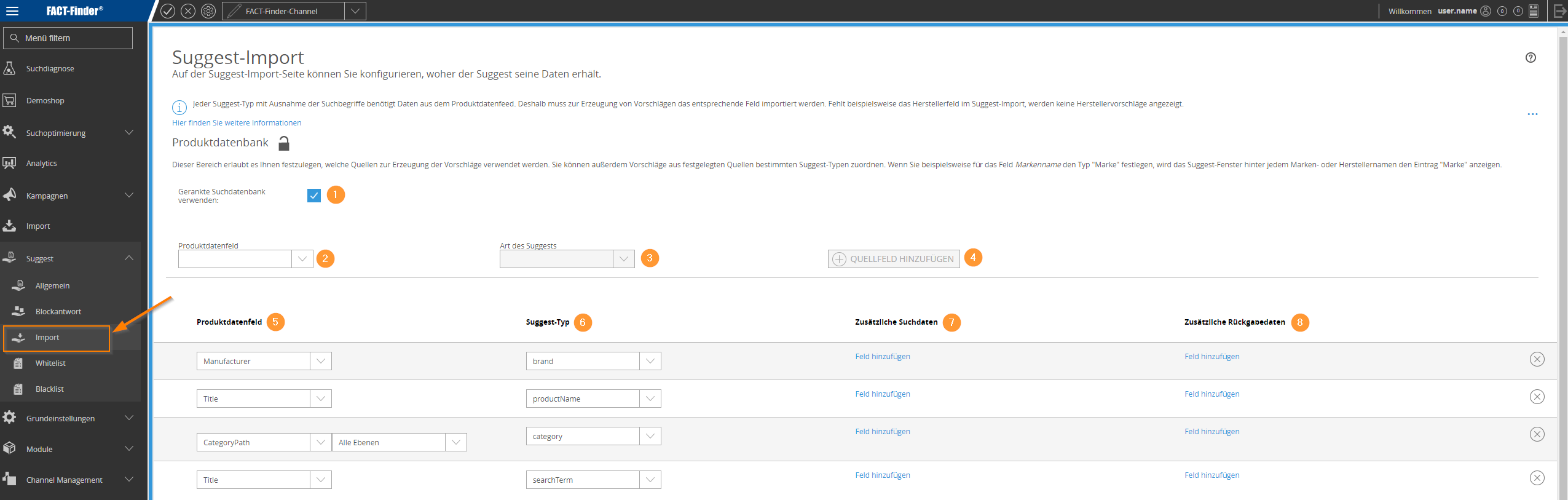](https://doku.fact-finder.de/doc/files/ng3.1/65040137/65040152/1/1659541645134/2021-04-09+13_53_35-Import+-+FACT-Finder-Management.png)
| | |
| --------------------------------------------------------------- | ------------------------------------------------------------------------------------------------- |
| **Use ranked search database**  | If enabled, ranking rules will be taken into account in the suggest. |
| **Product data field**  | Select a field whose data the Suggest should use. |
| **Type of suggestion**  | Select the Suggest type. Standard types are `productName` , `brand` ,`category` and `searchTerm`. |
| **Add source field**  | Add the selected field and its suggest type to the import. |
| **Product data field**  | Overview of the product data fields used. Changes can be made directly in edit mode. |
| **Suggest type**  | Overview of the suggested types used. Changes can be made directly in edit mode. |
| **Additional search data**  | Add another product data field. |
| **Additional return dates**  | |
***
> **Remove search history and duplicates**
[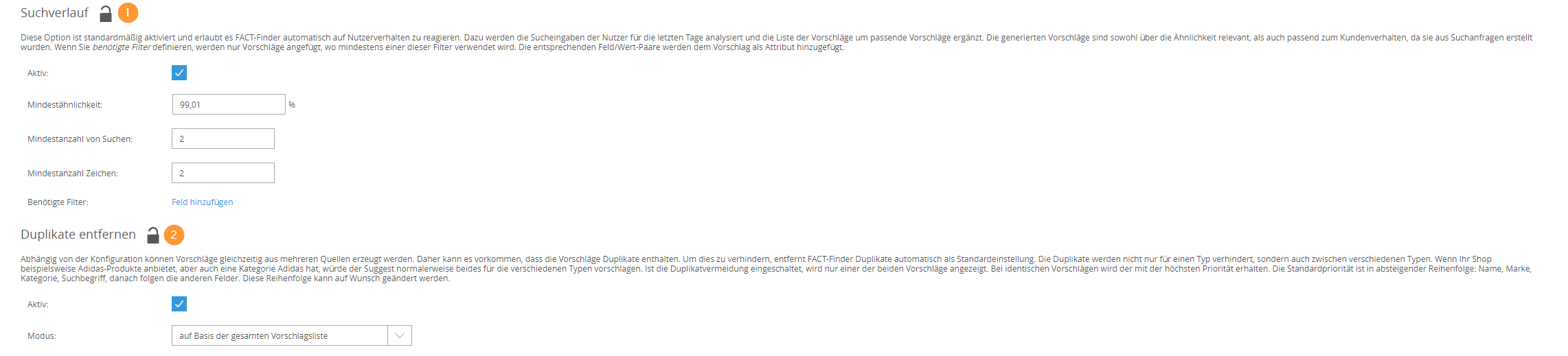](https://doku.fact-finder.de/doc/files/ng3.1/65040137/65040154/1/1659541645120/2021-04-09+14_43_43-Import+-+FACT-Finder-Management.png)
In addition to its own search database, Suggest also gets its data from the **log files of the last few days**. **Search history**  can be used to determine how many should be included in the import. **Deactivate** this source to exclude search terms from shop visitors as suggestions.
By default, duplicates are **removed**  . The function can be disabled or customized by changing the mode. The options are:
* **based on the entire list of suggestions**
* **based on proposals of the same type**
***
> **Advanced priority determination, determination of the exact number of results and preview images & suggest import settings**
[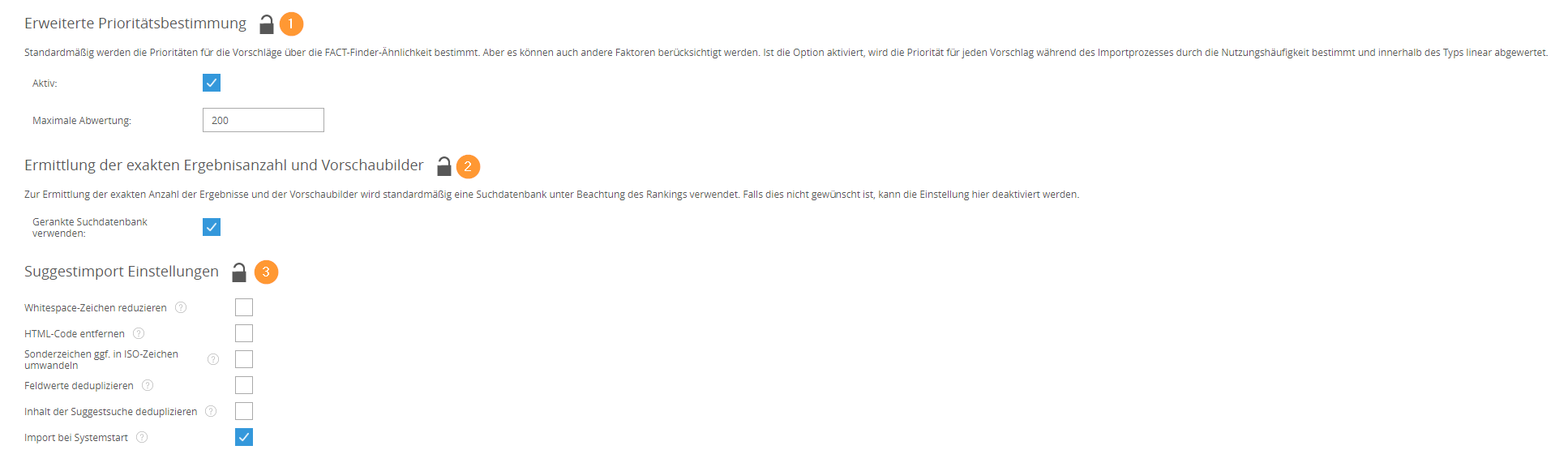](https://doku.fact-finder.de/doc/files/ng3.1/65040137/65040153/1/1659541645128/2021-04-09+14_24_36-Import+-+FACT-Finder-Management.png)
By default, priorities for suggestions are determined by NG similarity. If the **extended priority determination**  is active, the priority for each suggestion is determined during the import process by frequency of use and is linearly downgraded within the type. You can configure the maximum downgrading.
To determine the exact number of results and preview images , a ranked search database is used by default, taking the ranking into account. If this is not desired, you can deactivate the setting.
For the **Suggest import settings** , the following customization options are available:
* **Reduce whitespace characters -** removes spaces at the beginning and end of the entry as well as multiple spaces between terms.
* **Remove HTML code -** replaces HTML code with a space and decodes the HTML elements. Start and end tags are completely removed, multiple tags are replaced with a space.
* **Convert special characters to ISO characters if necessary -** special characters such as typographic quotation marks are converted to ISO characters.
* **Deduplicate field values -** multiple-occurring values in the return data are deduplicated, i.e. removed, so that they only occur once.
* **Deduplicate content of the suggest search -** removes duplicates from the additional search data fields.
* **Import at system startup -** if active, suggest database will be imported at system startup.
> Settings made here take effect only after the Suggest data has been imported again.
# Basic settings
## Summary
**Basic settings** is a section in the FactFinder application where you configure core functionality, data presentation, and interactions.
More details for each functionality can be found in appropriate documentation sections:
* [Search algorithm](/docs/basic-settings/search-algorithm)
* [Result listings](/docs/basic-settings/result-listing)
* [Suggest](/docs/basic-settings/suggest)
* [Fields](/docs/basic-settings/fields)
* [Channel Management](/docs/basic-settings/factfinder-ng-channels)
* [Recommendations](/docs/basic-settings/recommendations)

# Search algorithm
### **Summary**
Search Algorithm is a menu item under the Basic settings section. In the default menu structure, it can be reached from More settings…

The **Search Algorithm** allows to specify and fine-tune FactFinder search algorithm settings.

Enter [Edit configuration](/docs/user-interface/editing-configurations-managing-transactions) mode to edit settings.
### **Minimum score**
The **Minimum score**  setting defines the minimum score (which measures the similarity to the search term) that any product must have to be included in the search results.
The similarity of the individual products of a search result can be easily calculated by the "Search term effect" value displayed in the [Cockpit](/docs/discovery/cockpit):
The score for the product in the example screenshot is 100% + (-5.14%) = 94.86%.
* If the minimum score is set to 94% or lower, this product with the example search term "bike lock" will appear in the search result.
* If the minimum score is set to 95% or higher, this product with the example search term "bike lock" will not appear in the search result.
### **Percent from top (Result score spread)**
The **Percent from top**  parameter can also be seen as a form of dynamic minimum score, ensuring that only the best matches are shown:
* The **Percent from top** can also be described as a dynamic minimum similarity. This value determines at which similarity, measured against the best hit, the results should be cut off.
* For example, if the best hit has a similarity of 100% and the spread is set to 8%, all hits with less than 92% will be excluded.
* With a best hit similarity of 80% and a spread of 10%, all hits with less than 72% (= 80% - (10%\*80%)) will be excluded.
* This setting helps to "separate the wheat from the chaff" and thus ensures a consistent quality level of the results.
* Typical values are approximately 10% to 12%.
* The spread is applied to the scores resulting from the search term, and will thus not consider other effects on scores, like adjustments of ranking rules.
### **Performance vs. Quality**
**Performance vs. Quality**  controls the precision used to search for results:
* In general, the search quality improves as this value increases, but search speed decreases at the same time.
* Default value is 4.
* 3 or less significantly reduces the quality of the search result while it improves the overall speed
* 5 or more will improve the quality, but reduce the speed
## **Search timeout**
The **Search timeout (in seconds)** parameter sets the maximum allowed time for a search.
### **Default Mode for Exact Search**
**Exact search**  matches query terms exactly to the values in a specified field—no spelling correction, no partial matching, and no fuzzy logic is applied.
For example, if a product has the name **"MB 502E"**:
* An exact search for **"MB 502E"** will return it.
* An exact search for **"502E"** or **"MB502E"** will **not** return it, since those **don’t exactly match** any field values.
**It’s best combined with fuzzy search** to balance precision and flexibility.
* **Disabled**: Exact search is off; only fuzzy search is used.
* **Only exact search**: Returns results with fields exactly matching query words. **May yield zero results** if no exact matches are found in the database.
* **Exact or fuzzy fallback**: Tries exact search first; falls back to fuzzy if no matches found.
* **Exact + fuzzy on full query**: Combines exact and fuzzy results. Uses query words for exact match and full query for fuzzy.
* **Exact + fuzzy on remainder**: Combines results; performs fuzzy search only on unmatched parts of the query.
* **Article number search**: Uses legacy ANS logic. If compatible, performs exact search on ANS fields.
Exact Search is a new lookup function replacing Article Number Search (ANS). [Here you can learn more about exact search.](/docs/basic-settings/search-algorithm/exact-search)
### Max. Search Runtime
Maximum search runtime defines the upper limit for how long a search request can run. Setting this limit helps prevent timeouts on long-running queries.
{% hint style="info" %}
Save the transaction for your changes to take effect. See [Saving the transaction](/docs/user-interface/editing-configurations-managing-transactions).
{% endhint %}
# Exact search
Exact search is a lookup feature. It matches query terms exactly to values in fields marked for exact search. It does not apply spelling correction (including diacritics), partial matching, or fuzzy logic.
For example, if a product has the article number **"MB 502E"**:
* A search for **"MB 502E"** will return the product.
* A search for **"502E"** or **"MB502E"** will **not** return it. Those values do **not** match exactly.
Exact Search is useful when:
* You want precise control over matches, for example article numbers, SKUs, or keywords.
* You want to avoid false positives from fuzzy matching.
* Performance matters, and strict matching reduces the result size.
**Combine it with fuzzy search** to balance precision and flexibility.
### Modes
The **exact search mode** setting defines the default behavior. This applies when the request does not set a mode.
Available modes:
* **Disabled**: Exact search is off; only fuzzy search is used.
* [**Article number search (ANS)**](#article-number-search-ans): Uses the ANS legacy compatibility mode (see below).
* **Only exact search**: Returns results only from exact matches. **You may get zero results** if nothing matches. In this mode, no [Fallback Vector Search](/docs/modules/vector-search/fallback-vector-search) will run (if active).
* **Exact search or fuzzy search as a fallback**: Tries exact search first; falls back to fuzzy search if no matches are found.
* **Exact search + fuzzy search on entire query**: Combines exact and fuzzy results. Uses all query words for exact match and the entire query string for fuzzy search.
* **Exact search + fuzzy search on remaining parts of the query**: Combines results; performs fuzzy search only on query parts that did not produce an exact hit.
{% hint style="warning" %}
**Important:** Exact Search only checks fields that are [configured](https://docs.fact-finder.com/docs/basic-settings/fields#field-types) for “exact search”.
{% endhint %}
### Field configuration and compatibility
To use a field for Exact Search, enable it in your [field configuration](/docs/basic-settings/fields). Use the **exact search** checkbox in the field editor.
In the fields overview, you will see:
* **Exact search** (orange): whether a field is enabled for exact search.
* [**Article Number Search (ANS)**](#article-number-search-ans) (purple): whether an ANS pattern exists.
If you already use ANS, FactFinder tries once to enable exact search for those fields. In many setups, you do not need to enable fields manually.
#### Supported field types (current limitations)
Right now, exact search supports only a subset of field configurations. Supported fields include:
* Fields of type `ALPHANUMERIC`
* CSI fields of type `TEXT`
* Faceted fields that are not used for [Geo](/docs/modules/geo)
* Filterable fields of type `GTIN` per product
* Fields with a value that is unique for that channel
Fields with multiple values, such as list fields with a configured value delimiter, are not supported. Virtual fields are also not supported.
Because of these limits, some ANS fields may need manual updates.
### Shop Integration & Configuration
#### Setting the default mode
A default mode can be selected on the [Search algorithm](/docs/basic-settings/search-algorithm) page.
#### Overwriting the mode per request
The mode can be overwritten per search and Suggest API requests using the `exactSearchMode` parameter.
### Testing in the Cockpit
You can test exact search modes in the Cockpit. This does not overwrite your saved settings. Use it to pick a good default for your shop.
{% hint style="info" %}
**Info:** A similarity of 100% in fuzzy search is not the same as an “exact match” in Exact Search.
{% endhint %}
Exact hits will be clearly marked as such in the scorecards:
### Article Number Search (ANS)
Article Number Search (ANS) is an **older search method**. Exact search replaces it over time.
To make the transition easier, **Article number search** mode keeps your current setup. It also lets you benefit from exact search.
If you used ANS before, FactFinder uses `LEGACY` behavior by default. Each response also returns `exactSearchMode`. This tells you what was applied.
#### Supported use cases (and why exact search replaces ANS)
Legacy ANS has a few limitations:
* It depends on regex patterns that must fully define the format. This is not always realistic.
* It offers limited control over search behavior.
* For multi-part queries, it often requires explicit logical operators (`||`) to split query parts.
Exact search addresses these limits with word-wise lookups. It does not need regex patterns.
#### How it works with exact search
When you select **Article number search**, the system tries **exact search** first. It uses it instead of the legacy ANS method.
**Behind the scenes:**
* The system selects the ANS fields as usual, depending on the ANS mode.
* It then checks whether *all* those selected fields are also enabled for exact search.
* Only if all required fields are enabled for exact search, the request is translated from ANS to exact search.
**Which ANS fields are considered:**
* If ANS was set to **NEVER**, no fields are considered.
* If ANS was set to **ALWAYS**, all configured ANS fields are considered.
* If ANS was set to **DETECT**, only ANS fields that match the query via the configured regex are considered.
**Which exact search mode is applied (if translation is possible):**
* ANS **NEVER** → **Disabled**
* ANS **ALWAYS** → **Only exact search**
* ANS **DETECT** → **Exact search + fuzzy search on remaining parts of the query**
**How to tell what happened:**
* If exact search was applied instead of ANS, the result flag `isArticleNumberSearch` will be set to `false`.
* The search response includes `exactSearchMode` that shows the exact-search mode that was actually applied.
{% hint style="warning" %}
**Note:** Searches that used to count as ANS may now count as **exact search**. This can affect [campaign criteria](#campaigns) such as “The search is an article number search”.
{% endhint %}
**Behavior differences (improvements) in `LEGACY` mode:**
* ANS **DETECT** does not require `||` operators anymore to achieve the same behavior as before.
* With ANS **ALWAYS**, products that match the query exactly but do not match any ANS pattern can still be found via exact search, which reduces the chance of zero-hit results.
{% hint style="info" %}
**What this means for you:** You can keep your integration as-is. You still benefit from the improved exact search behavior. No code changes are needed.
{% endhint %}
### Module interactions
#### Suggest
Exact search only applies to “product number” suggestions. Other types ignore the Suggest search mode. They follow the [Suggest Search strategies](https://docs.fact-finder.com/docs/basic-settings/suggest/suggest-searchsettings).
#### Campaigns
There are two [campaign](/docs/discovery/campaigns) triggers you can use with exact search:
1. **The search result contains exact hits**:
This becomes true when your search finds at least one exact match.
2. **The search result does not contain any exact hit(s)**:
This becomes true when your search doesn't find any exact matches.
Use these triggers when you want to react to exact hits. If you want to make sure a campaign triggers for either of those two features, you can add an explicit \ to the campaign.
#### Vector Search
Even if vector search is active, exact search uses your regular database, not the vector database. As a result:
* Exact matches will not show a vector score in the Cockpit’s diagnostic search.
* Exact matches will not follow the weights you configured for vector search.
* Exact matches may appear with much higher scores than fuzzy search results.
# Result Listing
Result Listing is a menu item under the Basic settings section. In the default menu structure it can be reached from More settings…

Result Listing allows you to configure sort options and the number of products shown per page for the results listing page:

## Settings
**Deduplicate variants** :
* If this option is activated, all variants of a master article are deduplicated and only a single variant is shown in the search result
* Deactivated by default
* If product data does not contain a combination of master articles and associated variants, this setting will have no effect.
**(Search) Hits per page** :
Defines the default number of products per page for search requests.
**(Navigation) Hits per page** :
* Defines the default number of products per page for navigation requests.
* Should be left empty to use the same value as for search requests
**Relevance description descending** :
Defines the description text so sort by relevance.
User-defined **sorting of variants** :
* Select the **field** for sorting in dropdown
* Select **sorting order**: ascending or descending. *Note: sorting by score cannot be done in ascending order.*
* Add a sorting rule using the **Add** button
* You can add multiple sort criteria. The order in the list then determines the priority with which they are handled.
> Any changes will require [saving the transaction](/docs/user-interface/editing-configurations-managing-transactions).
# Suggest
The Suggest module assists shoppers by displaying search suggestions while they are entering a search term. This means the user doesn't have to enter the full search term, but can choose from the suggestions instead. In addition, similar search terms are also offered, so users can see what similar searches other users have performed and choose a better, more precise term.
Suggest entries are primarily drawn from the search database's product data, but also from recent top search terms.
Apart from the search suggestion, additional information can be displayed for the user. Examples include the source or description of the suggestion (category, search term), the expected number of search results, and a preview image.
The following example picture shows the suggestions which are shown to a customer when “so” was typed into the search-box:

The Suggest module is a menu item under the Basic Settings section. In the default menu structure, it can be reached from More settings…

The feature includes the following pages:
* [General settings](/docs/basic-settings/suggest/suggest-generalsettings)
* [Search settings](/docs/basic-settings/suggest/suggest-searchsettings)
* [Suggest import](/docs/import/selecting-suggest-product-and-search-data)
* [Whitelist](/docs/basic-settings/suggest/suggest-whitelist)
* [Blacklist](/docs/basic-settings/suggest/suggest-blacklist)
* [Popular searches](/docs/basic-settings/suggest/popular-searches)
* [Vector search settings](/docs/basic-settings/suggest/vector-search-settings)
# Suggest general settings
## Summary
The settings on this page allow to configure two different aspects of the Suggest module:
* managing suggestion types and display
* managing Suggest logic
**General settings** is represented as an individual page tab for **Suggest** page.
## Suggest types and display

The Suggest types and display section lets you manage different types of suggestions and how they are displayed:

**Create product suggestions from**. Product suggestions can either be created using the **Suggest Database** or the **Product Database**.
Suggestions from the **Suggest Database** are usually quicker to generate; however, the suggested products may differ strongly from the search result. Product suggestions from the **Product Database** are closer to the actual search result for the same search term. The modules Customer Specific Info and Geo require the Product Database to work. For most use cases, it is recommended to use the Product Database.

**Maximum number of suggestions** - defines the maximum number of results the Suggest can output.
Available **Suggestion types** and it’s attributes are shown in the grid:

**Name** - The name of the suggest type.
 **Max. number of suggestions -** maximum number of suggestions to be displayed for this type in Suggest. To hide a type, set the number to 0.
 **Max. number of records in database -** maximum number of suggestions the database can hold for each type
 **Search params type -** allows to select the type of the search parameter among product, filter, category, query and query with filter.
 **Display preview images -** allows to display the preview image
 **Calculate exact number of results -** allows to enable the exact calculation of the number of search results. Enabling can increase the time needed for the search import significantly.
 **Ignore missing images -** Enabling this property can decrease the time needed for the search import significantly, if many images are missing.
 **Remove no match suggestions -** allows not to show suggestions leading to empty results page
 **Fallback Image URL -** URL to an image that is to be used if no preview image is available for the suggested image.
The following actions available in the grid:
* **Add new type** 
* **Search** for specific suggestion type
* Show all suggestion types that are **deleted in current transaction**
* **Edit** suggestion type properties directly in the grid
* **Delete** single or multiple selected suggestion types
* **Clone** single or multiple selected suggestion types to another channel.
[Edit configuration](/docs/user-interface/editing-configurations-managing-transactions) mode must be enabled to add, edit, clone, or delete entries.
> Any new or changed entry will be marked it as locked  and require [saving the transaction](/docs/user-interface/editing-configurations-managing-transactions).
> Warning
>
> Both the activation of the determination of exact hit numbers  and the preview images  is very computationally intensive during the suggest import process. That's why a suggest import with one of these features enabled should not be started at times when many users search for products in the shop!
## Suggest import
The **Suggest import** section describes and manages the import function for Suggest. The search suggestions that appear when a visitor types a search term into the search box do not primarily come from the regular search database , but mostly from a separate, so-called Suggest database. This database is smaller and simpler for performance reasons, allowing queries to be answered very quickly.
In addition to the suggested search database, which you can configure via the FactFinder backend and also import manually if necessary , the suggested database also includes frequently used search terms by shop visitors. These are determined from the search log files of the last few days.
## Suggest logic
The **Suggest logic** section manages additional behavior for Suggest.

* The options **Use Thesaurus** , **Use stop words**  and **Use Preprocessor**  ensure that the settings made for the normal search logic are also used for the suggestion search.
* The **Maximum database size**  **-** indicates the maximum number of entries that can be in the suggest database.\
This limit is in place for performance reasons. The larger the database, the longer the search can take. Since the number and content of the fields affect the database size, only fields that are actually needed should be imported.
* **Deduplication mode** : allows to select if suggestion with the same name or name ant type should be removed. This is useful, for example, to prevent all variants of the same article in different colors from being listed when searching for the term "trousers"
## Suggest and Geo
For [Geo](/docs/modules/geo) and **Suggest** to work together, the following settings must be made:

* The value for “create product suggestions from” must be set to "Product Database".
* The suggest type `productName`must be configured.
* To create a geo field a new source field should be added on the [Suggest Import page](/docs/import/selecting-suggest-product-and-search-data)

In this example, Department Stock field added with the local stock levels to the productName suggestion type. Selecting the field as Additional Return Data display the local stock levels in the suggestion result.
Suggest follows the same rules as Geo, ie it follows e.g. market selection and distance rules.
## Suggest and Ranking rules
[Ranking rules](/docs/discovery/ranking-rules) can also be applied to suggestions, using the **Scope** property of a rule:

To use a ranking rule for a suggest type , the type must be linked to all fields that are set for the rule under 'Triggers and Effects'.
# Suggest search settings
## Summary
This page lets you configure two aspects of the Suggest module:
* The **search strategies** allow manipulation of the queries or when suggestions should be returned.
* The **field settings** allow to influence which additional fields can be filtered and sorted.
The **Search settings** tab is part of the **Suggest** page:

## Suggest Search strategies
**Search strategies:**
* can be used to manipulate the search queries.
* trigger Suggest queries linked to conditions.
* allows article numbers to be known to the Suggest.
* can easily break the Suggest, so extensive testing should be done and if in doubt an error tolerant strategy with devaluation should be added.
Search strategies allow manipulation of the Suggest queries. The following **strategy types** are available:
* **Starts with -** Adds a \* after each word entered. *Example:* `bik tool` → `bik* tool*`
* **Ends with -** Inserts a \* before each word. *Example:*`ike ols` → `*ike *ols`
* **Starts or ends with wordwise -** Combines the two strategies above including all permutations to one. *Example:* `bike tools` → `*bike *tools || *bike tools* || bike* *tools || bike* tools*`
* **Exact -** Adds a + in front of each word. *Example:* `bike tools` → `+bike +tools`
* **Phrase -** Performs a search with the term in quotation marks. *Example:* `bike tools` → `"bike tools"`
* **Error tolerant -** The normal error tolerant search is used. The default case if no strategy is specified for a channel.
* **Article Number -** Instead of a normal search, a pattern is searched for in the specified search field. If a result is found using this pattern, the other strategies are not executed.
For any strategy, you can specify the following optional **conditions**. If any condition is not met, the strategy is ignored:
* **Search Field -** specifies that a certain search query of a strategy should only be executed inside a specific field. Depends on the strategy type. Article Number strategies require the field, for all others it is optional and may only be set to the fields "Name" or "Additional Search Content & Name".
* **Min word count** - the query must have equal or more words than the specified value.
* **Max word count** - the query must have equal or less words than the specified value.
* **Min query length** - the query length must be greater or equal than the specified value.
* **Max query length** - the query length must be less or equal than the specified value.
* **Single word search -** the query is split upon whitespaces, hyphens, semicolons and colons, and the resulting words are searched individually
* **Reduction -** The relevance of the results of the search strategies can be devaluated. If results are found using two search strategies, they will be sorted by relevance.
***
> **Examples of search strategies usage**
Suggest query is executed **without strategies**. Error tolerance takes effect, since `Vaude` is also found, although it is not searched for.

**“Start with”** **search strategy is added**:

The **error-tolerant search does not take effect** for the same query, and therefore fewer suggestions are found:

> Important
>
> **Once a search strategy is configured for a channel, the error-tolerant search does not work.**\
> **So, when in doubt, it is recommended to add the fault-tolerant search as a fallback with a devaluation.**
>
> Example:
>
>
It is also possible to enable the Suggest to **take effect only with longer queries**. As an example, with the following strategy, a Suggest result will be obtained only with a query of minimum four characters:

Using the **article number strategy**, suggestions can be based on article numbers:

This requires a suitable **pattern** that matches the article numbers and a specification in which field the pattern to be searched is available.

## Suggest Fields settings
Usually only standard fields like Name or Category are sortable and filterable in Suggest. This can be configured via the field settings.\
The settings are divided into groups that represent the Suggest types defined on the [Suggest General Settings](/docs/basic-settings/suggest/suggest-generalsettings) page. In each group, each field may be configured only once.
The field settings **can be used to**:
* override default Suggest field settings for each type
* make attribute fields sortable and filterable
* transfer the filter and sort specifications from the requests to the suggest parameters
* overwrite the sorting parameters
The following settings can be made for a field within a suggestion type:
* **Filterable -** The field becomes filterable for this suggest type.
* **Append filter to param -** Adds filters for the field to the Suggest parameters.
* **Sortable -** The field becomes sortable for this suggest type.
* **Append sort to param -** Adds the sort value sent with the suggest request to the parameter list. If nothing was sent and "Override sort on param" is not active, it will be written to the params in descending order
* **Override sort on param -** Always overrides the sort value of the suggest query. Also overrides "Append sort to param" (this is possible to combine, but we wouldn't recommend it, since there is no significant benefit to be seen from it)
> The Suggest search logic mode "Search with block response" has the advantage of processing your Suggest queries faster, because it makes the Suggest databases smaller.\
> This advantage has its necessity for particularly large data sets. With smaller data sets, this may result in less precise suggestions.
***
## Examples of field settings usage
To configure fields, first add the necessary fields in the [Suggest Import](/docs/import/selecting-suggest-product-and-search-data) page:

After adding fields in Suggest Import, they will be available in the **Fields** grid

Behavior can be tested with the help of the Swagger UI. As an example, set the filter "Price" so that only products with a price between 0 - 10 should be displayed. The term searched for in the example would be "Ring".

In the response products between 0 - 10 will be returned:

If filter is removed products without a price limit will be shown

> Attention
>
> Suggest search logic mode "Search with block response" cannot be used if Customer Specific Info module is used. See [CSI](/docs/modules/customer-specific-info)
# Suggest Import
## Summary
The **Suggest import** page lets you specify how and where Suggest obtains its data.
**Suggest import** is represented as an individual tab for the **Suggest** page.
The terms shown in Suggest are stored in a dedicated **Suggest database**. This database is separate from the search database and smaller in size, so queries can be answered quickly.
Each Suggest type except search terms requires data from the product data feed. If a field is not imported here, Suggest cannot use it.
You can also import additional fields for two purposes:
* **Additional search data** can be used to extend matching behavior.
* **Additional return data** can be used to pass values such as price or article number back to the shop.
{% hint style="info" %}
Create your required Suggest types before configuring this page. Then assign source fields to those types here.
{% endhint %}
{% hint style="warning" %}
Return fields are not displayed by FactFinder in its internal search. To show them in the shop, the shop integration must support them.
{% endhint %}
## Recommended order
For a first setup, use this order:
1. Assign product data fields to the required Suggest types.
2. Add source fields if additional Suggest types or fields are needed.
3. Decide whether search history should be included.
4. Adjust duplicate removal and priority settings.
5. Save the transaction and re-import Suggest data.
## Configure suggestion sources
### Product database
Each source field can be assigned to a Suggest type.
For example: if `brandName` is assigned to the type **Brand**, the Suggest window can display brand suggestions from that field.

Available settings:
* **Active**: if checked, the configured product fields are used in Suggest.
* **Prevent zero-hit suggestions**: excludes suggestions that would lead to no results.
* **Limit fields used from product database**: restricts the search to selected fields only.
Each source field row contains:
* **Product data field**: the imported product field used as a source.
* **Suggestion type**: the Suggest type assigned to the field.
* **Additional search data**: additional fields that may be searched together with the source field.
* **Additional return data**: additional values returned to the shop together with the suggestion.
Use **Add source field** to add another source mapping.
If no mappings exist, the page shows **No source fields are configured**.
Preconfigured Suggest types often already have source fields assigned. This assignment can be changed in edit mode.
#### Additional search data
Additional search data can be used to broaden the matching behavior of Suggest.
For example, a manufacturer suggestion can also return matching product suggestions from that manufacturer.
#### Additional return data
Additional return data contains values that are passed back with the suggestion result.
Typical examples:
* price
* article number
* custom attributes needed by the shop frontend
### Search history
Suggest can also use data from the **log files of recent days**.
This option is active by default. It allows FactFinder to react automatically to user behavior by adding relevant user-generated search terms to the Suggest database.

If required filters are set, only suggestions using one of those filters are imported. The corresponding field and value pair is included as an attribute.
Available settings:
* **Active**: enables or disables search history as a source.
* **Minimum score**: defines the minimum relevance score for imported suggestions.
* **Minimum search count**: defines the minimum number of searches required.
* **Minimum number of characters**: defines the minimum query length.
* **Required filters**: limits imported suggestions to searches using selected filters.
Use **Add field** to add required filters.
## Refine suggestion quality
### Duplicate removal
Suggestions can come from multiple sources, so duplicates can appear.

Duplicate removal is enabled by default. FactFinder removes duplicates:
* within the same Suggest type
* across different Suggest types
Example: if your catalog contains both Adidas products and an `Adidas` category, Suggest may otherwise display both entries.
If identical suggestions are found, FactFinder keeps the one with the higher priority.
The default priority order is:
1. product name
2. brand
3. category
4. search term
5. other types
Available settings:
* **Active**: enables or disables duplicate removal.
* **Mode**: defines whether duplicates are removed across the entire list or only within the same Suggest type.
### Extended priority determination
By default, suggestions are mainly ordered by relevance.
When **Extended priority determination** is active, the priority is also influenced by frequency of use.

Available settings:
* **Active**: enables or disables extended priority calculation.
* **Maximum enhancement**: defines the maximum allowed enhancement.
### Hit count and preview image calculation
By default, hit counts and preview images are calculated with a ranked search database.
If this is not desired, the option can be disabled here.

Available settings:
* **Active**: enables or disables hit count and preview image calculation.
* **Min. amount of records**: defines the minimum number of matching records.
* **Use a ranked search database**: uses ranked search data for the calculation.
{% hint style="warning" %}
Calculating hit counts and preview images can increase import cost and runtime.
{% endhint %}
## Control import behavior
### Suggest import settings

Cleanup options:
* **Trim whitespace**: removes leading and trailing spaces and duplicate spaces between terms.
* **Remove HTML code**: replaces HTML markup with spaces and decodes HTML entities.
* **Replace special characters with ISO counterparts**: normalizes special characters.
* **Deduplicate field values**: removes repeated values within a field.
* **Deduplicate Suggest search content**: removes duplicated search content across Suggest entries.
Scheduling options:
* **Import on startup**: starts a Suggest import when the application starts.
* **Import Suggest in product import interval**: runs Suggest import together with the regular product import interval.
* **Import interval**: defines the interval used for scheduled Suggest imports.
{% hint style="danger" %}
Activating or deactivating these settings can have serious consequences. If you are unsure, contact the FactFinder Service Desk or your integration partner before changing them.
{% endhint %}
## Apply your changes
After changing the settings on this page, save the transaction and re-import the Suggest data.
### Suggest data manual import
The Suggest database is usually updated automatically.
Manual import is usually only required after configuration changes.

#### 1. Open the Import page
Open the **Import** area from the main menu.
#### 2. Choose a channel
Select the required channel, or choose **All Channels**.

#### 3. Select Suggest
Choose **Suggest** from the import type selector.

#### 4. Start the import
FactFinder re-imports the data based on your Suggest configurations.

{% hint style="warning" %}
Preview image and hit count calculation can be resource intensive during Suggest import. Run manual imports outside peak traffic periods.
{% endhint %}
{% hint style="info" %}
Any changes will require [saving the transaction](/docs/user-interface/editing-configurations-managing-transactions). Suggest changes only become active after the Suggest data is re-imported.
{% endhint %}
# Suggest Whitelist
## Summary
The Whitelist allows displaying search suggestions that appear neither in the product data nor in the log files.
These items will be treated in the same way as normal **Suggest** entries from the corresponding sources.
It can be used to display [redirection campaigns](/docs/discovery/campaigns/redirect-campaigns-1) as a suggestion, for example to redirect to a contact page or a Terms of Service page.
The Whitelist is represented as an individual page tab for the Suggest page.

## List of Whitelist entries
Detailed information about all the **Whitelist** entries is shown in the grid :
* **Term**  : The term for which suggestion is added
* **Type**  **:** The [Suggest type](/docs/basic-settings/suggest/suggest-generalsettings#suggest-types-and-display) of the entry. This also governs which **Predefined attributes** can be chosen.
* **Image URL**  : A link to the image to be displayed with the suggestion
* **Attributes**  : attributes used as fields for ranking rules with the suggest scope
The following actions available:
* **Search** for specific whitelist entry
* Show all entries that are **deleted in current transaction**
* **Edit** whitelist entry 
* **Delete** single whitelist entry  or multiple selected entries 
* **Clone** single whitelist entry  or multiple selected entries  to another channel.
* **Add whitelist entry** : see dedicated [Add Whitelist entry](#add-whitelist-entry) for details.
[Edit configuration](/docs/user-interface/editing-configurations-managing-transactions) mode should be entered to add, edit, clone or delete entries.
## Add Whitelist entry
To Add a new Whitelist entry click Add whitelist entry button. A new dialog window opens.

Enter all necessary information into the relevant fields:
 **Term:** The term for which suggestion is added
 **Type:** The [Suggest type](/docs/basic-settings/suggest/suggest-generalsettings#suggest-types-and-display) of the entry. This also governs which **Predefined attributes** can be chosen.
 **Image-URL** (optional)**:** A link to the image to be displayed with the suggestion
 **Predefined attributes:** attributes used as fields for ranking rules with the suggest scope
**Custom attributes** can also be optionally added to define an entry.
> Any new or changed entry will be marked as locked  and requires [saving the transaction](/docs/user-interface/editing-configurations-managing-transactions).
> If a Blacklist entry conflicts with a Whitelist entry, Blacklist supersedes Whitelist.
## Whitelist entries and redirection campaigns
Campaigns assigned to Suggest are shown in the grid 
It is possible to automatically add all redirection campaigns, or only those campaigns in a specific group to the Suggest whitelist.
To add entries, while in [Edit configuration](/docs/user-interface/editing-configurations-managing-transactions) mode, choose either a specific campaign group or **All redirection campaigns** and the desired [Suggest type](/docs/basic-settings/suggest/suggest-generalsettings#suggest-types-and-display).
> Any new or changed entry will be marked it as locked  and require [saving the transaction](/docs/user-interface/editing-configurations-managing-transactions).
# Suggest Blacklist
## Summary
The Blacklist lets you remove unwanted suggestions from the Suggest database.
Blacklist entries can target a whole term or just parts of it. For example, if an entry begins with `son`, then suggestions for `Sony` or `Sonos` will not be displayed.
> **Note:** Blacklist entries are checked when data is imported, corresponding records are not imported into Suggest. If products are missing in Suggest, then it is advisable to check the blacklist rules.
The Blacklist is represented as an individual page tab for the Suggest page.

## Add Blacklist entry
[Edit configuration](/docs/user-interface/editing-configurations-managing-transactions) mode should be entered to add, edit, clone or delete entries.
To add new Blacklist entry necessary information should be filled into the relevant fields:
 **Suggest type:** define type of data that will be affected:
* \[All]
* brand
* category
* productName
* searchTerm
* content
 **Attribute:** define the attribute type, e.g., name, image, or hitCount. Available options depend on the selected [Suggest type](/docs/basic-settings/suggest/suggest-generalsettings#suggest-types-and-display).
 Choose a **Type** to apply to the **Term**  on the right:
* **Equal to:** The entry is identical to the search term. *Example*: Equal to: bag; suggestions for "handbag" will still appear.
* **Contains:** Search queries containing the term will not generate suggestions. *Example*: Contains: bag; suggestions for "handbag" will **not** appear.
* **Begins with:** Search queries beginning with this will not result in suggestions. *Example*: Begins with: son; no suggestions for Sony.
* **Ends with:** Search queries ending with the term generate no suggestions. *Example*: Ends with: cap; no suggestions for "hubcap".
* **Matches:** Search queries matching with the term generate no suggestions
* **Less than:** Excluding values below a threshold
* **Greater than:** Excluding values above a threshold
 Decide whether the entry should be treated as **Case-sensitive**.
Click **Add Entry**  to create the entry.
> If a Blacklist entry conflicts with a Whitelist entry, Blacklist supersedes Whitelist.
## List of Blacklist entries
Detailed information about all the **Blacklist** entries is shown in the Summary grid:
* **Suggest type**
* **Type**
* **Term**
* **Attribute**
* **Case sensitive**
The following actions available:
* **Search** for specific whitelist entry
* Show all entries that are **deleted in current transaction**
* **Edit** whitelist entry directly in the grid
* **Delete** single blacklist entry  or multiple selected entries 
* **Clone** single blacklist entry  or multiple selected entries  to another channel.
[Edit configuration](/docs/user-interface/editing-configurations-managing-transactions) mode should be entered to add, edit, clone or delete entries.
> Any new or changed entry will be marked it as locked  and require [saving the transaction](/docs/user-interface/editing-configurations-managing-transactions).
# Popular searches
## Summary
This feature makes it possible to display the most popular search terms gathered over a defined period of time.
When a user clicks the search bar, before they start typing, suggestions of the most popular searches will appear.
> After user types anything, the Suggest functionality takes over. This service gets updated with Suggest import, just like other Suggest features

The Popular searches feature is represented as an individual page tab for the Suggest page.

Popular searches should be activated  to take effect. It is deactivated by default.
**Number of days to analyze** setting :
* Defines the number of days to be considered for the creation of suggestions.
* The data is taken from the Analytics Module
* Zero-hit search terms are automatically excluded (unless CSI or Geo is activated)
* Terms blacklisted in the Suggest configuration are automatically excluded
* Default value is 14
**Maximum number of popular searches** setting :
* Defines the maximum number of popular searches to be shown
* Default value is 6
> Any changes will require [saving the transaction](/docs/user-interface/editing-configurations-managing-transactions).
# Vector search settings
## Summary
This page lets you enable vector search for Suggest. It is most useful when vector search is already [enabled for regular search](/docs/modules/vector-search). This makes both sets of search results more similar.
Note that Suggest vector search and regular vector search may not produce identical results, because each search event is unique.
# Fields
## Optimize your Data Feed
A **well-maintained and curated data feed** is essential for getting the most out of FactFinder. Below is a detailed guide to understanding and managing fields within the system.
## What's it for
The **Fields Settings** section provides a comprehensive overview of all fields used by FactFinder. It allows users (with appropriate permissions) to:
* View field information
* Add, remove, or configure fields
## Critical settings
Changing fields can severely affect the search functionality. If unsure, **contact the Service Desk or Consulting** before proceeding.
## Location
To access **Fields**:
1. Open the side menu in the left part of FactFinder application working area;
2. Address **More settings…** option to access nested options;
3. Address **Fields** option in **Basic Settings** expandable section.

## Overview
You can either get a short overview, or also add, modify and delete fields.

## Filtering the contents
To manage and navigate fields easily, use the following controls:
### Fields Visibility
Using **Fields Visibility**  Toggle visibility for specific field types. Rules defined in this section can be combined.
### Field information
Using **Field information**  Choose the type of information displayed in the table. Each choice defines the set of columns to display. This filter does not affect the actual list of Entries in the table.
### Search field
**Search field** 
Search by **Name** or **Field Role** attributes.
### Hide all Entries
**Hide all Entries** 
Temporarily hides fields deleted in the current [session](/docs/user-interface/editing-configurations-managing-transactions).
### Filter field type
Using **Filter field type**  Show only fields matching selected types.
## Field types
### TEXT
The main field type for FactFinder, can contain any unicode sequence. Use **dot** (.) as a **decimal** if needed. Use **Float** instead for purely numeric values.
### ALPHANUMERIC
Can contain letters and numbers. Ideal for IDs like GTINs or article numbers.
### DATE
Can contain an ISO-8601 or Unix timestamp, or a custom format date (e.g. yyyy.MM.dd G 'at' HH:flag\_mm:ss z).
Starting with FactFinder version 3.0, supports **configurable date formats** for field imports. You can now define **custom date formats** directly in the field properties:
Once a format is entered, the system will interpret incoming data:
* According to the **configured format**
* Or in standard **ISO-8601 format**
* Or as a **Unix timestamp** (in **milliseconds**)
This formatting applies **only during data import**. All **exported/output dates** will still use the **ISO-8601** format.
### FLOAT
For numeric fields, which contain floating point numbers (e.g. 24.95). This field type does not support ranges.
### INTEGER
For numeric fields, which contain only integers (e.g. 25). This field type does not support ranges.
### MULTI
For more information about multi-attribute fields, see [Product Export documentation](https://docs.fact-finder.com/docs/ff-search-integration-how-to-optimize-your-datafeed?highlight=optimize%20datafee)
### CATEGORY PATH
For more information about category paths, see [Product Export documentation](https://docs.fact-finder.com/docs/ff-search-integration-how-to-optimize-your-datafeed?highlight=optimize%20datafee)
### GTIN
Stores GTINs (Global Trade Item Numbers) with a validation according to the regex **\[0-9]{8,13}** Corresponds to the pattern of EAN-8, EAN-13, GTIN-8 and GTIN-13.
### BOOLEAN
Accepts *true* or *false*. In the import CSV the value TRUE, True, true or 1 can be used for the boolean "true". FALSE, False, false or 0 in the CSV stand for the boolean value "false", case-insensitive.
### PROPERTY
For property fields, which contain measuring units. These fields contain a value and a unit, e.g. 0.5kg. Many of the common units for length, mass, speed and time can be used.
## Adding a Field / Editing a Field
Enable [Channel Configuration Editing](/docs/user-interface/editing-configurations-managing-transactions) to access edit options:
* **Add Field** button  becomes available for User.
* **Preview** button  changes to **Edit** button.
In both cases, User would be prompted to fill in, or change, following information:
### Field Settings
The fields' settings can be grouped into the 3 categories import settings, field role and search settings.
### The import settings:

### The field role settings:

### The search settings:

The parameter "**Weight**" in the search settings can be used to de-prioritize fields. The value "0" corresponds to the default weight. A negative value gives less weight to a field. Positive values are not supported.
**Info:** The field type should always match the content of the field. That means that for example number fields like "**Price**" should have the type "**Float**".
## Copy (Duplicating) a Field
To **Copy** an existing field, use the **Copy**  button.

Appearing modal window defines:
* The field for which the Copy action was called;
* The Channel for which the Copy action should create a duplicate. Chosen Channel can be changed manually by picking a channel from the dropdown menu.
Multiple chosen Channels can be added by clicking **Add Channel** button.
Once configuration is finished, click **Copy** to confirm the procedure.
Clicking **Cancel** discards the changes made in modal window and closes it.
## Deleting a Field
To **Delete** existing field, use the **Delete**  button.
Deleting fields is only available when [Channel Configuration Editing](/docs/user-interface/editing-configurations-managing-transactions) is enabled.
Triggers a **confirmation modal** before deletion is finalized.
## Fields Statuses
Status messages appear in the field table to indicate:
* Warnings
* Errors
* Successful changes
* Validation issues
Messages appear in corresponding area for particular Field in the table 
Following messages may appear:
 
## For More Information
See the **FactFinder NG** documentation for details on [Multi-attribute fields and Category paths](/docs/import/ff-search-integration-how-to-optimize-your-datafeed#optional-fields)
# Date Format Patterns
## **Summary**
Fields of type `DATE` support multiple input formats. By default, two formats are recognized:
1. **ISO-8601** (e.g., `2025-06-30T15:00:00Z`)
2. **UNIX Timestamps in milliseconds** (e.g., `1730342400000`)
Starting with version **3.0**, you can define a **custom date pattern** for a `DATE` field if your data uses a format other than the defaults above. This allows the FactFinder system to parse dates correctly during **data import**.
> The custom date pattern must conform to the standard **Java date format patterns** (as described in the following sections).
**Important:**\
Custom patterns are only used for parsing imported data. Regardless of the input format, all dates are returned by the REST API and displayed in the Cockpit in **ISO-8601 format**.
## **Dates**
Date format patterns are defined using a sequence of **encoding symbols**, each representing components like year, month, and day. In this section, we explain how to construct patterns that include these elements.
> **Best Practice:** Always include a **time zone format** in your date pattern and ensure that every date value includes a **time zone**. This helps avoid ambiguity and ensures consistent parsing across systems.\
> More details are available in the section titled **“Time Zone.”**
> **Note:** If a provided date value includes only the date (year, month, day) and **omits the time**, the system will automatically assume a time of **00:00 (midnight)**. To avoid unintended behavior, we recommend **always including a time component** in your date values.
| Unit | Symbol | Valid values |
| ------------------------- | ------ | ----------------------------------------------------- |
| year | yy | last 2 digits of a year within the range 2000 to 2099 |
| | yyyy | 4 digits of a year |
| month | M | 1 to 12 as well as 01 to 12 |
| month (name, in English) | MMM | 3-letter code, e.g., Jan, Feb, ... |
| | MMMM | full name |
| day (of month) | d | 1 to 31 as well as 01 to 31 |
| day (of week, in English) | eee | Mon to Sun |
| | eeee | Monday to Sunday |
> Common examples for dates:
| Full pattern | Example date value |
| ---------------- | --------------------- |
| yyyy M d | 1999 3 22 |
| yyyy MMMM d | 2022 March 22 |
| d MMM yy | 1 Jan 22 |
| eee d M yyyy | Tue 22 3 2006 |
| eeee d MMMM yyyy | Tuesday 22 March 2006 |
| d.M.yyyy | 22.8.1999 |
| yyyy.M.d | 1999.03.22 |
| yyyy. M. d. | 2033. 3. 22. |
| d-M-yyyy | 22-03-2010 |
| M-d-yy | 3-22-10 |
| yyyy-M-d | 1999-03-22 |
| M/d/yy | 3/22/10 |
| d. MMMM yyyy | 22. March 2001 |
| MMMM d, yyyy | March 22, 2041 |
## **Time**
The values of `DATE` fields always represent a **specific point in time**. If a value does not include **time information**, it is interpreted as referring to the **start of the day** (i.e., `00:00:00`). To explicitly provide time information, you can use either the **24-hour** format (e.g., `14:30`) or the **12-hour** format with an AM/PM marker (e.g., `02:30 PM`).
> **Note:** If any part of the time—such as **hour**, **minute**, or **second**—is omitted, it will default to `0`.\
> For example, `2025-06-30` will be interpreted as `2025-06-30T00:00:00`.
***
### 24-hour format
| Unit | Symbol | Valid values |
| ------------------------- | ------ | --------------------------- |
| hour of day | H | 0 to 23 as well as 00 to 23 |
| minute | m | 0 to 59 as well as 00 to 59 |
| second | s | 0 to 59 as well as 00 to 59 |
| second | ss | 00 to 59 |
| second incl. milliseconds | ss.SSS | 00.000 to 59.999 |
> Common examples for the 24-hour format:
| Full pattern | Example date value |
| -------------------- | --------------------------- |
| d.M.yyyy H:m z | 22.03.2020 13:37 CET |
| d.M.yyyy H:m s z | 22.03.2020 13:37:05 CET |
| d.M.yyyy H:m z | 22.03.2020 13.37 UTC |
| d.M.yyyy H:mss SSS z | 22.11.2022 15:57:06.539 CET |
***
### 12-hour format
| Unit | Symbol | Valid values |
| ------------------------- | ------ | ------------------------------------------------------------ |
| hour of AM/PM | K | 0-11 (with 0:00 AM equal to 0:00 and 0:00 PM equal to 12:00) |
| minute | m | 0 to 59 as well as 00 to 59 |
| second | s | 0 to 59 as well as 00 to 59 |
| second | ss | 00 to 59 |
| second incl. milliseconds | ss.SSS | 00.000 to 59.999 |
| am/pm | a | AM or PM |
> Common examples for the 12-hour format:
| Full pattern | AM example | PM example |
| ------------------ | -------------------------- | -------------------------- |
| d.M.yyyy K:m a z | 22.03.1999 8:15 AM UTC | 22.03.1999 08:15 PM UTC |
| d.M.yyyy K:m s a z | 22.03.1999 08:15:00 AM UTC | 22.03.1999 10:22:13 PM UTC |
## Time zone
FactFinder converts every provided date value to the **time zone of the server** it is hosted on. This server time zone is reflected in all date values **returned or displayed** by FactFinder, as they are formatted using the **ISO-8601** standard.
If a date value **does not include time zone information**, FactFinder will interpret it using the **server’s default time zone**.
> **Recommendation:** Always include a **time zone** in your date values to ensure consistent and predictable results. Omitting the time zone can lead to unexpected behavior, especially across different deployments or environments.
You can specify time zone information in a date pattern using the following symbols:
| Unit | Symbol | Valid values (examples) |
| ----------------------------- | ------ | ------------------------------------------------- |
| time zone ID | VV | Europe/Berlin; Europe/Lisbon |
| time zone name | z | PST; UTC; CET |
| | zzzz | Pacific Standard Time; Universal Coordinated Time |
| time zone offset | X | Z; +00; -08 |
| | XXXX | Z; -0830; +083015 |
| | XXXXX | Z; 08:30; +08:30:15 |
| time zone offset (in English) | O | GMT; GMT+8; GMT-08:00 |
> Examples:
| Full pattern | Example value | Resulting ISO-8601 (assuming hosted in Germany) |
| ----------------- | ------------------------------------------- | ----------------------------------------------- |
| d.M.yyyy H:mXXXX | 30.08.2022 08:15+0200 | 2022-08-30T08:15:00+02:00 |
| d.M.yyyy H:m O | 22.02.2022 08:15 GMT+2 | 2022-02-22T07:15:00+01:00 |
| d.M.yyyy H:m z | 22.02.2022 05:06 PDT | 2022-02-22T14:06:00+01:00 |
| d.M.yyyy H:m z |
22.02.2022 05:06 CET
| 2022-02-22T05:06:00+01:00 |
| d.M.yyyy H:m zzzz | 22.02.2022 05:06 Universal Coordinated Time | 2022-02-22T06:06:00+01:00 |
***
### Special case: time not provided but time zone provided (not suggested!)
If dates **do not contain** information about their time zone, they are interpreted in the time zone of the hosting server (see example #1 below).
As mentioned above, dates without a specified time are interpreted to reference the start of the day. By specifying the time zone, the provided value will reference the start of the given day in that time zone. FactFinder NG When a **time zone is explicitly specified**, the value is understood to represent the **start of the given day in that specific time zone**. FactFinder NGwill consistently treat this as a **fixed point in time**, regardless of where it is processed.
\| Example value | Start of the day in: | Resulting ISO-8601 (assuming hosted in Germany) | | 30.08.2022 | hosting location i.e. Berlin | 2022-08-30T00:00:00+02:00 | | 30.08.2022+0100 | London | 2022-08-30T01:00:00+02:00 | | 30.08.2022+0300 | Moscow | 2022-08-29T23:00:00+02:00 |
## Free text
All letters A to Z and a to z are reserved pattern symbols. Any non-letter character, other than `'[', ']', '{', '}', '#'` and the single quote, will be parsed as is.
You can **mask letters** by surrounding them with single quotes `(')` if you want to use them in free text. Use a single quote to mask a single quote `('')`.
> Examples:
| Full pattern | Example date value |
| ------------------------- | --------------------------- |
| d. MMM ''yy z | 22. Jan '99 UTC |
| 'Export date:' yyyy M d z | Export date: 1999 03 22 UTC |
| d'x'M'x'yyyy’x’z | 22x3x1999xUTC |
| d.M.yyyy H'h'm z | 22.03.1999 13h37 CET |
| d.M.yyyy 'at' H:m z | 22.03.1999 at 13:37 CET |
| d.M.yyyy H 'o''clock' z | 22.03.1999 5 o'clock UTC |
# Geo Fields
> These are the fields required by the [Geo](/docs/modules/geo) module.
> When filtering for geo-fields: products will be displayed in the search results that have market IDs that meet the filter **and** market values that do **not** meet the filter.
| Field Type | Field Role | Import Sources | Explanation |
| -------------------------------- | ---------------------------------------------- | -------------- | ------------------------------------------------------------------------------------------------------------------------------------------------ |
| GEO | Market Location | GEO | Field containing the locations of the markets. |
| TEXT | Market ID | GEO | Field containing the market IDs, used for all the mappings. |
| TEXT or ALPHANUMERIC | EITHER Product number OR Master article number | GEO and DATA | Field with the product IDs, the Geo mappings should be attached to. |
| TEXT or INTEGER or FLOAT or DATE | | GEO | Non-List-Field containing the values that shall be mapped to a market and product. For Geo to work properly, at least one field should be added. |
# Channel Management
## What are channels?
* A channel is an **isolated unit** for managing product data. It defines data sources, rules, data targets, and planned tasks.
* You can create multiple channels to split your stock by **store**, **language**, or **use case**.
* You can use separate channels for different shop interfaces, such as **B2B** and **B2C** or **desktop** and **mobile**.
* Each channel can use its own data feed. Multiple channels can also share one feed and use different configurations for suggest, filters, and ranking rules.
* Channel settings can be inherited. With [Multi-Channel Functionality](/docs/basic-settings/factfinder-ng-channels/multi-channel-supported-settings), you can define parent and child channels and override inherited settings where needed.
This section includes the following pages:
* [Introduction](/docs/basic-settings/factfinder-ng-channels/channel-management)
* [Managing parent and child channel settings](/docs/basic-settings/factfinder-ng-channels/managing-parent-and-child-channel-settings)
* [Creating a new channel](/docs/basic-settings/factfinder-ng-channels/creating-a-new-channel)
* [Switching the active channel](/docs/basic-settings/factfinder-ng-channels/switching-the-active-channel)
* [Parent and child channels](/docs/basic-settings/factfinder-ng-channels/identifying-parent-and-child-channels)
* [Inherited settings](/docs/basic-settings/factfinder-ng-channels/keeping-modifying-deleting-and-restoring-inherited-settings)
* [Multi-channel settings](/docs/basic-settings/factfinder-ng-channels/multi-channel-supported-settings)
# Introduction
## Channel Management overview
Channel Management lets you create and remove channels, build parent-child hierarchies, and manage backups.

For step-by-step tasks, see [Creating a new channel](/docs/basic-settings/factfinder-ng-channels/creating-a-new-channel) and [Switching the active channel](/docs/basic-settings/factfinder-ng-channels/switching-the-active-channel).
### License information
A chargeable channel within the meaning of the license is any channel created with the software and used productively in any system of the licensee.
This includes all language channels of any online shop on any platform, as well as previews of the results on mobile or other devices.
At the licensee's request, a free test channel can be created (exclusively for trial purposes).
## List of channels

The channel list shows all existing channels and the available actions.
Icon
Description
Search the list for a specific channel
Name of the channel
Type of the channel — parent, productive, test, development, or inactive
State — indicates the lock state of channels. A channel is locked if it is currently being edited. Locked channels are marked with .
Lock held by — indicates the username of the user who locked the channel. To remove a lock, click in the grid and confirm in the popup dialogue.
Shop URL of the channel
Auto import priority
Health check relevant
Start Installation Assistant
Open deployment
Clone channel
Delete channel
The Add a channel button opens the channel creation flow. For the full procedure, see Creating a new channel.
# Managing parent and child channel settings
## Summary
Use parent and child channels to share baseline settings across related channels.
Use the pages below for the detailed workflows and reference material:
* [Parent and child channels](/docs/basic-settings/factfinder-ng-channels/identifying-parent-and-child-channels) — relationship model and how channels appear in the UI
* [Inherited settings](/docs/basic-settings/factfinder-ng-channels/keeping-modifying-deleting-and-restoring-inherited-settings) — icons, customization, deletion, and reset behavior
* [Multi-channel settings](/docs/basic-settings/factfinder-ng-channels/multi-channel-supported-settings) — functions that support inheritance
## Key points
* Parent channel changes flow down to child channels.
* Child channel changes stay local to that child channel.
* Inherited settings can be customized and reset later.
To create a parent or child channel, see [Creating a new channel](/docs/basic-settings/factfinder-ng-channels/creating-a-new-channel).
# Creating a new channel
## Navigate to Channel Management -> Channel Editing

## Create a new channel
A new overview opens. Here, first define a meaningful name and the desired language of the channel.

## Decide whether it is a parent, child or independent channel
A channel has one of three roles, all of which are mutually exclusive:
1. A **standalone channel** is neither set as parent channel, nor is it assigned to a parent channel. Any adjustments made to the channel's setting affect only that channel.
2. By selecting "Parent", a channel can be set as **parent channel**. Any adjustments made to the channel's settings are handed down to all of its child channels.
**Create child channel with parent channel**
If you choose this option, you can also create one or more child channels by entering a channel name in the line below and clicking Add Child.
3. You can turn a channel into a child channel by assigning it an existing parent channel. It inherits all setting changes made in the parent channel.
**Parent channels are not intended as live channels!** Ideally, you would use a parent channel as a template for multiple live child channels. This allows you to modify each live channel individually.
## Click → Add
The channel will be added to the list of existing channels. If it was added as a **parent channel**, this will be marked. In addition, all new and existing **child channels** will be grouped with their respective parent channels.
# Switching the active channel
### Find the channel selection
You will find the channel selection in the [header bar](/docs/user-interface/the-header-bar) of the FactFinder NG user interface.
### Select a channel
Click the box and select the desired channel from the list that pops up. Channels that are currently being edited by other users have a corresponding note.
> Almost all functions and settings of FactFinder NG can be customized. These changes are only applied to the active channel, so that different channels can have different settings.
# Parent and child channels
Use this page to understand how parent and child channels relate to each other and how they appear in the UI.
## Parent and child channels in channel editing

Parent and child channels are grouped together in hierarchical order.
## Parent and child channels in the channel selection
Parent and child channels are displayed in groups in the [channel selection](/docs/basic-settings/factfinder-ng-channels/switching-the-active-channel). Child channels are indented slightly and grouped under their parent.
## Child channels in the edit view

Child channels show special icons in [Multi-channel settings](/docs/basic-settings/factfinder-ng-channels/multi-channel-supported-settings). These icons show inheritance status, deleted entries and some allow changes at child-channel level. For icon behavior and workflows, see [Inherited settings](/docs/basic-settings/factfinder-ng-channels/keeping-modifying-deleting-and-restoring-inherited-settings).
## Relation between parent and child channels
Relations between parent and child channels are governed by a few simple rules:
* **Parent to child flow:** Changes made in a parent channel are inherited by its child channels.
* **One-way inheritance:** Changes made in a child channel do not affect the parent channel.
* **Child channels can override inherited settings:** A child channel can [customize inherited settings](/docs/basic-settings/factfinder-ng-channels/keeping-modifying-deleting-and-restoring-inherited-settings) where needed.
* **Overrides can be reset:** A child channel can return to the parent channel's current setting at any time.
# Inherited settings
Use this page to customize, delete, and restore inherited settings in a child channel.
Before you begin, read [Parent and child channels](/docs/basic-settings/factfinder-ng-channels/identifying-parent-and-child-channels).
## Passing on parent channel settings to child channels
Only child channels can inherit settings. To create a child channel, see [Creating a new channel](/docs/basic-settings/factfinder-ng-channels/creating-a-new-channel). Supported functions inherit the parent channel's settings. For the full list, see [Multi-channel settings](/docs/basic-settings/factfinder-ng-channels/multi-channel-supported-settings).
If you select a child channel in one of these functions, all of its settings will be tagged with special symbols.

## Multi-channel symbols and their meaning
These symbols are only used for and therefore only visible in child channels.
The multi-channel symbols  appear in one of two constellations:
* **Above a list of settings:** filters the list for inherited, customized, new, partially customized, or deleted settings.
* **Next to individual settings:** shows the status of a setting and lets you change it in the child channel.
Symbol
Displayed above settings
Displayed next to settings
Show all settings inherited from parent channel. Click: Hide all settings inherited from parent channel.
This setting was inherited from the parent channel. Click: customize setting in the child channel.
Show all settings customized for the child channel. Click: Hide all settings customized for the child channel.
This setting was customized for the child channel. Click: Reset setting to inherited version.
Show all settings deleted in the child channel. Click: Hide all settings deleted in the child channel.
This setting was deleted in the child channel. Click: Reset setting to inherited version.
Show all settings created for the child channel. Click: Hide all settings created for the child channel.
This setting was newly created in the child channel. Click: No effect.
Show all settings customized for the child channel. Click: Hide all settings partially for the child channel.
## Customize inherited settings
Initially, all settings a child channel inherits are locked. Use the following steps to **customize** them:
1. [Enable editing](/docs/user-interface/editing-configurations-managing-transactions) for the child channel's configuration by selecting the channel and clicking **Edit Configuration**.
2. Find the setting you wish to customize and make sure it is tagged with the  symbol. If it isn't, the setting is not inherited, but has been modified before.
3. Click the  symbol. It should turn into a  symbol. You can now make your customization.
The customized setting is now **exempt from inheritance**. Any changes made to the parent channel will only carry over if the setting is **reset to the inherited version**.
## Delete inherited settings
This option is only available in functions that allow deleting entries. For example, in [Search algorithm](/docs/basic-settings/search-algorithm), inherited settings can be customized or reset, but not deleted.
To **delete** an inherited setting for the currently active child channel, follow these steps:
1. [Enable editing](/docs/user-interface/editing-configurations-managing-transactions) for the child channel's configuration by selecting the channel and clicking **Edit Configuration**.
2. Find the setting you want to delete and make sure it is tagged with the  symbol. If it isn't, the setting is not inherited, but has been modified before.
3. Click the  symbol on the right. The  will change into a  symbol and the setting in question will be struck out. In case of campaigns, a campaign wizard will open.
The deleted setting is now **exempt from inheritance**. Any changes made to the parent channel will only carry over if the setting is **reset to the inherited version**.
## Reset inherited settings
Customized and deleted settings are **exempt from inheritance**. To restore inheritance:
1. [Enable editing](/docs/user-interface/editing-configurations-managing-transactions) for the child channel's configuration by selecting the channel and clicking **Edit Configuration**.
2. Find the setting and make sure it is tagged with the  or  symbol.
3. Click the  or  symbol, or alternatively, click . After confirmation in the pop-up dialog, the setting will be reset to the  symbol.
The edited setting is now again **inherited from the parent channel**. Any changes made to the setting in the parent channel will carry over to the child channel.
## Add new settings to a child channel
Some functions, such as [Thesaurus](/docs/discovery/search-term-rules/thesaurus), [Preprocessor](/docs/discovery/search-term-rules/preprocessor), and [Stop Words](/docs/discovery/search-term-rules/stop-words), let you add new settings in child channels. These settings are exempt from inheritance and tagged with a  symbol. They can be edited and deleted normally and do not affect the parent channel or other child channels.
# Multi-channel settings
> This is a list of settings inheritable via multi-channel functionality.
#### Multi-channel inheritable settings
> ✔️ = Configuration can be inherited via multi-channel functionality
| Function | Configuration can be inherited? | Comments |
| ----------------------- | :-----------------------------: | ----------------------------------------------------------------------------------------------------------------------------------------------- |
| **Search term rules** | | |
| Thesaurus | ✔️ | Here you can create rules for synonyms (similar words) and antonyms (anti-synonyms). These words/expressions will be added to your query. |
| Preprocessor | ✔️ | Here you can create rules for word replacements - these words will replace the ones originally in your query. |
| Stop words | ✔️ | Here you can curate a list of words that should be ignored by the search (e.g. a, an, the). |
| Trash | ✔️ | Has to be manually adjusted as it depends on search terms and language. |
| **Basic settings** | | |
| Search algorithm | ✔️ | Here you can set the minimum similarity, the bandwidth (maximum difference between best and worst result), speed vs quality and search timeout. |
| Fields | ✔️ | Here you can add, import and edit fields |
| Ranking rules | ✔️ | Please note that sales numbers may differ between channels. Unchanged ranking rules might not always be applicable. |
| Filter/Navigation | ✔️ | |
| After search navigation | ✔️ | |
| Result listing | ✔️ | |
| Import settings | ✔️ | |
| **Suggest** | | |
| Suggest settings | ✔️ | |
| Suggest whitelist | ✔️ | Does not carry over between different languages. |
| Suggest blacklist | ✔️ | Does not carry over between different languages. |
| **Modules** | | |
| ASO | ✔️ | |
| Personalization | ✔️ | Might have to make language specific adjustment, depending on settings. |
| Single word search | ✔️ | |
| Semantic Enhancer | ✔️ | |
| Recommendations | ✔️ | |
| Campaigns | ✔️ | |
# Recommendations
## The Recommendation Engine: Self-learning. Context-based. Personalized.
FactFinder NG’s Recommendation Engine analyzes your store’s click and purchase history to determine appropriate products, categories, and attributes. If necessary, it is possible to use either single or multiple products for a recommendation source, including, for example, the complete contents of the shopping cart. If the cart contains a shirt and a tie, FactFinder NG might display items that would match them both (e.g., a jacket). Your recommendations will become more precise by using FactFinder NG’s Personalization module. The Recommendation Engine then considers the customer’s individual preferences along with the “wisdom of the crowd,” including colors, brands, and other factors.
You can also base the recommendations on complex sets of rules. For example, this could be useful in retailing pharmaceuticals, so as to recommend only products that do not have reciprocal effects with the medications already selected. In addition, you can use whitelist and blacklist entries to precisely determine which recommendations should and should not be made for specific products.

The Recommendation Engine tool provides product recommendations based on actual sales information. Depending on the way the systems are integrated, this sales information can come from an export file provided by you and/or can be generated from the tracking information obtained while FactFinder NG is running.
The Recommendation Engine can be controlled on different levels: From the matrixes, FactFinder NG determines the meaning of levels as well as the amount of recommendations and a possible self-reference (products from the same category may be recommended). Additionally, you can create [manual Recommendations](/docs/basic-settings/recommendations/manual-recommendations) to recommend or prevent specific products. Manual recommendations are created in a similar way as campaigns.
If you have licensed Personalization in addition to the Recommendation Engine, then recommendations can also be created based on the known preferences of users. If both modules are present, you can find the configuration within the sub menu [Recommendations](/docs/basic-settings/recommendations/recommendation-engine-configuration).
# Recommendation Engine - Configuration
## Location
The Recommendation Engine Module offers recommendations based on product and category interrelations, as well as on field-based criteria.
Navigate More settings… → Recommendations to access the module:

The Recommendations heading tab should be active:

Scroll down to review available settings.
## Settings types
***
### Response settings 
Provides an ability to configure the maximum number of product recommendations that the Recommendation Engine outputs and the maximum time it spends searching for recommendations.
> The Recommendation Engine is so fast that 20 recommendations or more can be called.
***
### Personal recommendations 
If the license for the personalization module from FactFinder in addition to the Recommendation Engine is active, you can also have recommendations personalized for your customers, provided that corresponding products are available.
> As with personalization, either a session-based method is selected here (FactFinder NG personalizes on the basis of the clicks, shopping cart additions, and purchases made in the session), or personalization of recommendations on the basis of a user ID assigned by the store. With a user ID solution, products purchased since the start of personalization tracking are also included in the personalized recommendations.
First, specify whether the recommendations should be personalized.
The increase max per category by factor is the factor by which the categories are multiplied. It controls from how many recommendations in a category FactFinder NG should pick out personalized ones.
> By default, this value is set to 10. Do not set it too high, because this increases the computing effort - and thus the time required - for FactFinder NG to expand the recommendations to the point where personalization makes sense. If you set the value too low, it is possible that no products corresponding to the preference will be found. In this case, personalization will not take place.
***
### Matrix settings 
The individual category relations of a level are displayed in the form of a matrix. Here you can view the determined category relations and, if necessary, change them according to your ideas.
> The matrix settings are particularly important because the matrices themselves, their weighting and the self-relation have a great influence on the behavior of the Recommendation Engine. The higher a matrix is weighted, the greater it's influence. For example, if a matrix that accesses the brand field is the highest weighted, FactFinder NG will give the brand relationships defined in this matrix the highest priority in recommendation determination. Only then come categories, for example.

**ADD MATRIX**  **:** here one more matrix can be added (visible in the form of a matrix under **Recommendations/Matrix**). The example in the screenshot has 2 matrices defined: one for the field **Brand** and one for the field **Category**.
**Field**  **:** in this column it is possible to set the related field of a matrix.
**Weight**  **:** some of the pre-configured sensible values can be set here for the Weight value **.** Usually here the value "Normal" works best.
**Weight value**  **:** these values will be set automatically when a value for  was chosen. An arbitrary value (use carefully!) can be chosen if **Weight**  has the value "Expert".
**Max. products per value**  **:** there’s an ability to set an upper bound for the number of recommended products (in a recommendation result) that are recommended according to a field.
**Self relation**  **:** if **Self relation** is enabled, for example for the field **Brand**, it can happen that the recommended (according to the field **Brand**) products have the same brand as the product which is the base for the recommendation. If **Self relation** is disabled only different brands are taken into account for the recommendation.
**Copy matrix setting to a different channel**  **:** clicking this icon opens a dialog which makes it possible to copy a matrix setting to a different channel.
**Delete**  **:** click this button to delete this matrix setting.
***
### Import settings 
By re-importing the Recommendation data, the product and category relations for the recommendations are recalculated and the matrices are created under the Matrix tab.
 
# Matrix
## **Summary**
The Matrix section is located in a separate tab of the Recommendations Basic Settings block. It provides an interface to selectively adjust the relationships between various categories (or other content stored in the matrices).
The relationships between categories on a level are displayed in an interactive matrix view.

If there is more than one matrix, these can be selected from **a dropdown menu**  at the top of the page. To make changes to a matrix' field weight, go to matrix settings.
A large number of category names on a level makes the page very large and overly complex. You can limit clutter by **choosing the number of displayed lines** (maximum 100) . Lines and columns are sorted alphabetically.
## **Relationship matrix**
**Relationships** between categories are displayed in red or green .
The redder the cell is, the less compatible the categories are. Products in those categories are recommended together less frequently or not at all.
The greener the relationship, the more compatible the categories are.
To change a relationship, click on it and adjust the slider in the pop-up.

Click **Reset to default Values** to undo changes.
# Manual Recommendations
## **Overview**
Besides the product recommendations determined by FactFinder NG you can also define manual recommendations, which will always (or never) trigger on a certain condition. This so called white- and blacklisting is important if you want to set certain recommendations without relying on the **Recommendation Engine**.

You choose products for recommendation like you do for a campaign: Click **Add** to open the first step, similar to the [Campaigns](/docs/discovery/campaigns).
## **Adding the Recommendation**
***
**Set up General**

Choose a name and a category  and 
Next, decide whether the products you are going to define will be displayed or will not be displayed **. Whitelist** means, that once conditions are met, the recommendations are always displayed at the top of search results. **Blacklist** leads to the products never being displayed once conditions are met.
Click **NEXT** to proceed.
***
**Set up Conditions**

Choose at least one condition  or add more conditions  and link them with ***AND*** or ***OR***.
Click **NEXT** to proceed.
***
**Set up Products**

Next, choose products. You can either manually enter them or use the search bar. Saving occurs the same as with [Campaigns](/docs/discovery/campaigns). You can generate a product list via the search function or by using article numbers.
Click **NEXT** to proceed.
***
**Confirm Summary**

You can review all your choices in the last step. Click the links to reach the previous steps. Mouse over the question mark next to the links to display details.
**SAVE** button is available now. Click it to confirm creating new Manual Recommendation record.
# Modules
This section contains information about various FactFinder modules:
* [ASO](/docs/modules/aso)
* [Personalization](/docs/modules/personalization)
* [Single Word Search](/docs/modules/single-word-search)
* [Semantic Enhancer](/docs/modules/semantic-enhancer)
* [Geo](/docs/modules/geo)
* [GPT Synonyms](/docs/modules/gpt-synonyms)
* [Vector Search](/docs/modules/vector-search)
* [Customer Specific Info](/docs/modules/customer-specific-info)
* [A/B tests](/docs/modules/ab-tests)
# Automatic Search Optimization (ASO)
## Ranking according to User Behavior
**Popular products will be promoted automatically**
In addition to its ranking rules, FactFinder offers another tool to achieve the best possible product display order, enhancing the probability for customer purchases: **Automatic Search Optimization,** commonly referred to as ASO.
This feature ensures that the most popular products (the ones that are most often searched for, clicked on, and purchased) will proceed (step by step) to the very top positions of your search result pages. Using tracking data, FactFinder automatically defines the appropriate popular products, whose positions are then promoted by the algorithm.\
Search Result Optimization determines the rank of the displayed products by applying ranking rules. After activation, it automatically affects the entire online shop, continually improving the quality of the search results.

### Advantages:
* Search results are optimized automatically.
* Popular products will be purchased even more often.
* Increases both conversion rate and turnover.
## Location
**ASO module** can be found in left side menu, next to **More setting…→ ASO** in **Modules** category:

## Configuring ASO
Automatic Search Optimization learns from customer search behavior.
Frequently clicked or purchased products will be ranked higher.

**Automatic Search-result Optimization (ASO)** enhances the positions of products based on user behavior with respect to relevant search terms. The ASO may be enabled or disabled as needed. When activated, it takes effect globally, adjusting the ordering subsequent to the ranking rules. In order that the ASO knows where to record its values, the target fields must be specified.
ASO also needs the specific analysis period, in order to extract the relevant data from the corresponding logs.
Please note that ASO will work only when the tracking is functioning properly.
You can define the fields in which FactFinder NG counts **clicks**  **, shopping cart additions**  and **checkouts**  yourself. FactFinder NG is “preset” to three fields.
In addition, the ASO requires the **analysis period**  to extract the data from the corresponding logs.
In  you can determine the weight of a click event. In  **and**  you can do the same for a cart and a checkout event.
In many cases it makes sense to fill the fields  and  with the same value. If the fields, which are configured in ,  and , are also used for other purposes (like ranking rules or sorting) it can be useful to set the value of  to a higher value as the value of .
By default, FactFinder NG counts an addition to the shopping cart as ten times the value of a click and a sale as twenty times the value. This can lead to distortions in shops with low sales figures. In these cases, it might be sensible to **only work with multipliers 5 and 10**.
**Note:** The Semantic Enhancer module depends on ASO. To deactivate ASO, change to a different Semantic Enhancer mode first, or disable the module.
# Personalization
## Better Search Results and Recommendations with Minimal Effort
The more FactFinder modules you use, the greater the effect of personalization. In addition to search results, you can personalize recommendations and category pages. You can also personalize product sets highlighted in campaigns. In a 30-day A/B test, one retailer recorded a 15% conversion increase and a 25% sales increase.\
No additional integration is required starting with FactFinder 6.11. If tracking is implemented, you can use Personalization immediately—typically achieving a fast ROI.

### Advantages
* Sales can be increased by up to 25% within a short period.
* More economical in comparison to third-party personalization options.
* The technical requirements are easy to meet.
## Overview
The Personalization module delivers search results that correspond to individual customer preferences.
Starting with version 7, FactFinder lets you adjust search results based on customer preferences. FactFinder determines these preferences based on tracking data.
Personalization can be session-based or user ID–based. Session-based personalization uses only in-session behavior. User ID–based personalization also considers historical buying data. To use `userID`, the shop system must pass it to FactFinder.
FactFinder Personalization adjusts the search result on the ranking level. Preferred products are pushed forward based on an evaluation by an algorithm. How far FactFinder can go with the ranking adjustments is up to you. It is important to note that FactFinder does not add or remove products. It just changes their order.
## Location
You can find the **Personalization** module in the left-hand menu under **More settings… → Personalization** in the **Modules** category.

## Configuring Personalization

FactFinder NG uses several parameters for Personalization that you can configure:
**Active** : Enable or disable the Personalization module per channel.
**Influence** : Adjust how strongly preferred products are boosted. Lower values have minor impact; higher values increase influence.
**Weight** , , and : Determine how FactFinder evaluates Click, Cart, and Purchase events. Defaults: 1 for Click, 10 for Cart, 20 for Purchase. For example, purchasing a brand item raises preference for that brand by 20, while a click on another brand raises it by 1.
Pushed products can also be personalized in campaigns. For details, see: [Campaigns](/docs/discovery/campaigns).
# Single Word Search
## Overview
Depending on the product catalog, multi-word queries may lead to few or, in the worst case, zero hits. The **Single Word Search** module improves results by splitting the query into its individual words and performing a search for each word.
The results of the additional per-word searches are included alongside the main results but are not merged into the main hit list. This lets you decide which products to surface to your customers.
For example, the query `Brandname Data Cable` triggers separate searches for `Brandname`, `Data`, and `Cable`.\
You can fine-tune this behavior using the settings below.
## Location
You can find the **Single Word Search** module in the left-hand menu under **More settings… → Single Word Search** in the **Modules** category.

## Configuring Single Word Search
**Note:** Single Word Search only affects your live shop. Its effect is not visible in the Demoshop or Cockpit.

### Score threshold 
Choose whether Single Word Search should activate below a given similarity score or only for zero-hit searches.
For zero hit searches, set the **Score threshold** to 0%.
For example, with a threshold of 90%, Single Word Search triggers when the best score among all found products is below 90%.
### Max. Preview products 
FactFinder can display preview products for each word. You can freely set the number of preview products .
Avoid setting a high maximum number of words, as each additional search adds latency.
In addition to the settings described above, you can optimize the result further by using the following two settings:
### Max. words to check 
Limits the number of searches performed. FactFinder only performs searches up to this limit.\
For example, if your query is `Word1 Word2 Word3` and **Max. words to check** is set to 2, no search for `Word3` is performed. Counting always starts from the left.
### Max. number of words 
Further limit the number of searches with this setting. While **Max. words to check** limits how many words to search, this setting caps how many single-word result sections appear in your results.
Imagine the query: `GoodWord1 BadWord1 BadWord2 GoodWord2 GoodWord3`.\
“Good” words lead to hits; “bad” words lead to zero hits.
With **Max. words to check** set to 2, only the first two words are searched, so only `GoodWord1` can add hits.\
You could change that by setting **Max. words to check** to 4 and **Max. number of words** to 2.
You would then search for `GoodWord1`, `BadWord1`, `BadWord2`, `GoodWord2`.\
`GoodWord3` is ignored because **Max. words to check** is 4.\
Even if set to 5, `GoodWord3` is ignored because **Max. number of words** is 2 and results already exist for `GoodWord1` and `GoodWord2`.
This setting acts as a safeguard against oversized results and redundant searches.
**Max. words to check**  must be greater than or equal to **Max. number of words** .
The following picture illustrates the effect on the elements  in the Single Word Search result . The normal search result (independent of Single Word Search) appears in section . If you set the score threshold  to 0%, section  will be empty.

# Semantic Enhancer
## Search Results with Built-in Optimization

Conventional search functions all work along the same lines. They compare search terms with the product data stored in the shop. This generally works. But not always, because the product descriptions usually contain the same terms as the descriptions of the accessories. Search engines consider both a hit – resulting in product accessories often appearing before the product being sought. Until now this problem could only be solved manually and in a time consuming manner in the back end.
The **Semantic Enhancer** makes it possible for the first time to recognize the relationships between search queries and the subsequent customer transactions. The information gained is automatically used in the search results. With every click on a product detail page, the contents of each shopping cart and each completed sale improve the hit quality and thus improve the satisfaction of the shop visitors. Products are products, and accessories are accessories. The customer is shown what he or she is looking for first.
## How Semantic Enhancer Works
The Semantic Enhancer affects ranking similar to [ASO](/docs/modules/aso). Unlike ASO, it not only looks at products that match the search terms, but also at products that are semantically similar to them.
This way FactFinder can recognize, based on customer behavior, that when searching for printers, ink is rarely bought, but often printers. FactFinder will then push back the ink results for this search.
You can find the **Semantic Enhancer** module in the **Modules** section under **More settings…**


## Configuration
Configuring the **Semantic Enhancer** is similar to configuring [ASO](/docs/modules/aso):
Decide if Semantic Enhancer should be **active**: if active, then FactFinder will evaluate customer behavior on the basis of additional fields.
 **Range**. The range in which the Semantic Enhancer may affect the ordering. The higher the specified value, the more that product positions may be affected.
**Mode.** Semantic Enhancer can be configured in two modes:
* ASO — FactFinder copies basic settings from ASO.
* Personalization — available only if the Personalization module is licensed.
Semantic Enhancer is configured based on an **Enhancement field**.
**Learning days** defines how many days the learning process should consider. Avoid a long period, as Semantic Enhancer will respond more slowly and changes will carry less weight. To improve performance, limit the number of records so Semantic Enhancer processes only the first 50 matches.
## Benefits of Semantic Enhancer
* Perfectly sorted search results. Customers find exactly what they're looking for.
* Virtually no manual intervention needed in the back end.
* Constantly updated information. Searches improve with each data import.
* Increased sales through improved shop usability.
# Geo
## Summary
Geo establishes connections between products and locations. You can create search rules that consider the distance between customers and stock locations. For example, you can discount or hide products by stock region. In the following, these locations—identified by an ID and geo-coordinate—are referred to as markets.
You can find the **Geo** module in the left-hand menu under **More settings…** within the **Modules** section.

**Note:** Geo must be licensed separately before activation. Furthermore, in addition to the product data feed, two files have to be provided:
* GeoMarket-CSV linking market IDs and locations.
* GeoStock-CSV with market IDs and market-specific data such as stock levels.
Both files can be configured via [Fields](/docs/basic-settings/fields).
## Configuring Geo
### General Settings

The following **General settings** are available for **Geo** configuration:
 **Active**: If deactivated, no 'Geo' data will be imported and other modules will not be affected by 'Geo'.
 **Include all existing markets in search responses:** When enabled, the search response contains all existing markets. The list can be large and may negatively affect performance.
 **Calculate distance for markets:** When enabled, the search response includes the distance to each available market. This may negatively affect performance.
 **Product identifier:** If the field with the 'Master ID' role is used as the product identifier in the geoStock file, all other fields with a geo import source, that do not have a field role related to the geo module, must be non-variant fields. If the field with the 'Product Number' role is used instead, all of these geo fields must be variant fields.
 **Default market selection:** Defines the default behavior if no 'marketId' is provided in a search request. It will use the given market id or selection strategy to filter the products based on the market Id field. Choose the ID of a market, 'online' for the online shop, or one of the two strategies:
* The 'All' strategy will ignore all products, which do not have a value in the market Id field.
* Choose 'No selection' in order to use the 'skip' strategy. This strategy will not filter the products based on a market selection. So if all products have a value in the market Id field both strategies behave the same way.
 **Import Geo data in product import interval:** When active, a Geo data import is conducted following the product data import in its update interval.
 **Download Geo import files in product import interval:** When active, both the Geo market location file and the Geo stock file are downloaded when an import linked to the data import starts. This setting has no effect if 'Import Geo data in product import interval' is not enabled.
### Distance Rule Settings

Distance rule settings let you apply weights to products based on the distance between markets and the search location. While a product may have values for several markets, weights are only applied for the market closest to the search location.
The following **Distance rule settings** are available:
 **Exclude products outside of radius:** If active, products that aren't available at markets in the specified radius will be removed from the search result. Setting 'exclude products outside of radius' to false for a search request could have a negative impact on the search performance. Therefore, only markets within the radius of 20 km will be considered. This is 2 times the radius configured in '**radius in km**'.
 **Max. amount of markets:** If no market is selected, the amount of found markets will be limited to this number. Naturally, only the nearest markets are considered. This setting can be helpful when a search with the configured distance returns too many markets in densely populated areas.
 **Radius in km:** Only products within the specified radius (in km) will receive a score adjustment.
 **Adjustment at closest distance:** The maximum score adjustment for the product at the closest distance to the market location. The adjustment will be applied as weight, meaning it will be multiplied rather than added to the score. An adjustment of X% would mean the product score gets multiplied by 1.0X.
 **Adjustment at farthest distance:** The maximum score adjustment for the product at the max. distance defined. The adjustment will be applied as weight, meaning it will be multiplied rather than added to the score. An adjustment of X% would mean the product score gets multiplied by 1.0X.
 **Adjustment for the online market:** The score adjustment for the product in case of an online score. The adjustment will be applied as weight, meaning it will be multiplied rather than added to the score. An adjustment of X% would mean the product score gets multiplied by 1.0X.
 **Preview on map:** View markets and their radii on a map.
#### Example - Exclude products outside the radius:

The customer can only search for products from markets A and B.
#### Example - Do not exclude products outside the radius:

The customer can also find products from markets C and D. Market E is still outside his catchment area.
**Note:** Applying a Geo field filter shows products that match the specified Market ID. Results might include products whose Market Value does not align with the filter criteria.
**Important:** Customers who are outside all the catchment areas of markets will only receive zero hit searches. Make sure that your entire area served is covered by at least one circle on the map preview. Alternatively, configure a [campaign](/docs/discovery/campaigns).
### Geo Ranking and Market Ranking
Geo uses two different ranking types.
Before you use them, make sure Geo is set up correctly:
* Import your Geo market and Geo stock data and assign the required [Geo fields](/docs/basic-settings/fields/geo-fields).
* Create your [ranking rules](/docs/discovery/ranking-rules) with Geo fields.
* Create a field with the role **Market Ranking**. FactFinder writes the calculated Market Ranking value into this field at search time.
In this context, a **product-to-market mapping** means one Geo entry for one product in one market. For example, if one product is available in three markets, it has three product-to-market mappings.
**Market Ranking** evaluates each product-market pair on its own. It only uses Geo fields from ranking rules. FactFinder then orders the entries by ranking score, from highest to lowest. If two entries have the same score, the closer market comes first.
**Geo Ranking** changes the product's final position in the result list. It can boost a product, rank it lower, or exclude it completely. It only runs when the search includes Geo information, such as `latitude` and `longitude`, a selected `marketId`, or a filter on a Geo field. For each rule, FactFinder checks all relevant markets and uses the strongest result. One matching market is enough to boost a product. A product is only excluded or ranked lower when all relevant markets meet that rule.
### Import File Settings

**Import file settings** allows to configure import for **Geo:**
 **File selection:** select between Geo stock file or Geo market file
 **URL:** Defines the location of the source file to pick and parse.
 **Frequency:** Defines the periodicity of triggering.
 **Use interval as** **import trigger:** Allows to specify interval as a trigger condition.
 **Delimiter: Defines the Field separator used in the import file to differentiate between fields.**
 **Enclosing (quote) character: Surrounding characters (e.g. quotation marks) for the field contents (optional).**
 **Escape character: A character that escapes the delimiter if it occurs in field contents (optional).**
 **Min. file size:** Defines the minimum file size that will be accepted. Also indicates the current file size.
 **Expires after:** How long a previously downloaded file remains valid before a new download is forced.
# GPT Synonyms
## Summary
**GPT synonyms** is available starting with version NG 3.1.464.
**GPT synonyms** enhances search flexibility by automatically suggesting alternative terms with similar meanings. This helps users find relevant products even when they use different phrasing, slang, or regional variations—improving accuracy and reducing "no results" scenarios.
You can find **GPT synonyms** in the left-hand menu under **More settings…** within the **Modules** section.

## GPT Synonyms Settings
The **GPT Synonyms settings** tab appears on the GPT Synonyms page.
The most important control on this page is the **GPT Synonyms active** switch, which enables or disables generation and application.
There are two types of settings to configure:
* General settings
* Analytics
### General Settings

The following **General settings** are available for configuration:

**GPT Synonyms active** - Defines if GPT Synonyms are enabled. *Default: false*

**Type of the settings to be shown:**
* General settings
* Analytics
* All

**Contexts to search synonyms in** - List contexts where the channel is used. Used to generate better synonyms.

**Maximum synonyms per request** - How many synonyms to generate per request. *Max: 10, Default: 10*

**Maximum number of words per query** - Maximum number of words in a query used for synonym generation. *Default: 2*

**Expiration duration of synonyms** - Lifetime of pending synonyms in days. `-1` means unlimited, `0` means they won’t be saved. *Default: -1*

**Default synonym relationship** - Default relationship if none is provided:
* Synonym
* Generic term
* Very similar
* Similar
* Related
*Default: Synonym*

**Apply pending synonyms** - Whether unapproved (pending) synonyms should be used during search. *Default: true*
### Analytics

The following **Analytics** settings are available for configuration:
 **Synonym analytics generation active** - Enables generating synonyms from analytics data. *Default: false*

**Minimum number of searches for generation via analytics** - Minimum searches for a query before it is considered for analytics-based generation. *Default: 5*

**Maximum number of products for generation via analytics** - Maximum number of hits a search may have to be considered for analytics-based generation. This, the click-to-checkout ratio, or the click-through ratio must match. *Default: 10*

**Ratio of click to checkout events for analytics generation** - Minimum click-to-checkout ratio for a search to be considered. This, the click-through ratio, or the result count must match. *Default: 100:1*

**Ratio of searches to click events for analytics generation** - Maximum searches-to-clicks ratio for a term to be considered. This, the click-to-checkout ratio, or the result count must match. *Default: 10%*

**Size of score drop in bad search results** - Threshold for a score drop on page one that marks a result as "bad." Used to evaluate synonym influence. *Default: 10*

**Excluded source words** - List of search terms for which no synonyms will be generated

**Allowed filters** - Names of filters that may be present in analytics-sourced search requests and still allow consideration for generation.
## GPT Synonyms Generation
To **generate GPT Synonyms** the following should be done:
1. Enable GPT synonyms.
2. Navigate to [Cockpit](/docs/discovery/cockpit).
3. Search for a search term for which GPT synonyms to be generated.
4. Click “Generate GPT Synonyms” icon:

5. After clicking this button/icon, a window with synonyms of the current search term will appear:

6. Click the checkmarks in the **Approval** column (in this case the color of an item changes to green) to select required synonyms.
7. Select **Relationship** to the search word.
8. Click **APPLY AND CLOSE** to add both approved and unapproved synonyms to the current transaction. Unapproved synonyms are stored to prevent repeat suggestions in Cockpit.
9. [Save the transaction](/docs/user-interface/editing-configurations-managing-transactions)
## GPT Synonyms List
**GPT Synonyms** **list** is an individual tab at GPT Synonyms page.

All created GPT-synonyms entries are listed in the grid together with their attributes.
 **Query** - Lists all queries for which GPT synonyms has been created. Allows to:
* select a query to list all it’s synonyms
* add new query to manually add synonyms for it

**Manually add GPT Synonyms -** type in a synonym, select approval and relationship, click “plus” button to add

**Approval -** shows synonym approval status:
* approved are used as synonyms
* unapproved should be kept in the list to avoid repeated generation

**Relationship** - Relationship to the query:
* Synonym
* Generic term
* Very similar
* Similar
* Related

**Created** - Synonym creation date and time

**Source** - Origin of the synonym:
* manual
* on demand generation (at the cockpit)
* analytics

**Filter by**:
* source
* approval status
Additionally the grid allows to **filter** entries:
* hide/show entries deleted in this transaction 
* search for a specific entry 
The following **operations** are available for GPT synonyms in the grid:
* edit 
* clone to another channel 
* delete 
* bulk clone and delete operations are available for multiple selected (by ) entries
**Note:** Any creation or change to an entry will mark it as locked  and require [saving the transaction](/docs/user-interface/editing-configurations-managing-transactions).
## GPT Synonyms Jobs
**GPT Synonyms** **jobs** is an individual tab at GPT Synonyms page.
Currently these jobs cannot be enabled. But they are part of a future version of the GPT synonyms feature.
# Customer-Specific Info
## Overview
The **Customer-Specific Info module** (CSI) lets you display customer-specific prices and other values on a per-customer basis. This is mainly useful for B2B shops with a smaller set of high-value customers.
The Customer-Specific Info module lets you define field values for a specific purchaser ID. This is especially useful in B2B environments, where certain purchasers should see adjusted values, such as prices.
The **Customer-Specific Info** module, or CSI, lets you display customer-specific prices and other values. It is mainly designed for B2B use cases with a smaller customer base and high purchase volume.
Use CSI to define field values for a specific `purchaserId`. This is useful when certain customers should see adjusted values, such as custom prices.
## Location
You can find **Customer-Specific Info** in the left-hand menu under **More settings… → Customer-Specific Info** in the **Modules** category:

## Configuring Customer-Specific Info

You can enable or disable CSI for individual channels  or inherit the setting from a parent channel. You can also choose whether products without a price appear in search results . Imports can run separately or be linked to the default product data import .
Use these settings to control how CSI behaves in each channel:
* **Active**  — Enable or disable CSI for the current channel. Child channels can inherit this setting from their parent channel.
* **Show products without price**  — Decide whether products without a price appear in search results.
* **Link import to the default database import**  — Choose whether CSI imports run separately or together with the default database import.
### Run Customer-Specific Info import after scheduled product data imports 
Select this checkbox to run a Customer-Specific Info import after the product data import in its update interval.
Enable this option to run a CSI import after a scheduled product data import.
Using  you can define if each CSI import will also trigger a download of the CSI CSV file. It is also possible to only use Purchaser IDs for specific customers or items. In that case, you may set a default purchaser ID  that decides what price to use, should no bespoke ID be handed over in a search query. Import settings are identical to the product database import.
This setting works together with the following options:
* **Download the CSI CSV file**  — Define whether each CSI import also downloads the CSI CSV file.
* **Default purchaser ID**  — Set a fallback purchaser ID when no specific ID is passed in a search query. This is useful when only specific customers or items use purchaser IDs.
Import settings match the product data import settings.
### Download the Customer-Specific Info file during scheduled imports 
Select this checkbox to download the Customer-Specific Info import file when an import linked to the product data import starts. This setting has no effect unless `Perform Customer-Specific Info import when a product data import is triggered by an update interval` is enabled.
You can only activate the CSI module when a CSI import source has been defined for a corresponding ID field.
## The CSI export file
CSI expects its own export file in **.CSV** format. The file should contain one column with the product number and additional columns with mappings from `purchaserId` to the respective value.
To use `MasterId`s and `ProductId`s at the same time, you can either fill all corresponding columns in one row or use one row for the `MasterId` and non-variant fields and a following row for the product number and variant mappings. In the latter case, the columns for the other ID remain empty.
If you use `MasterId`s and `ProductIds` together, you can either fill all related columns in one row or split them across two rows. In the second case, use one row for the `MasterId` and non-variant fields, and another row for the product number and variant mappings. Leave the unused ID columns empty.
### Example File Formats
Header, where `price` is a variant field and `masterPrice` is a non-variant field:
```
masterId;productId;price;masterPrice
```
* All in one line:
```
1234;1234-56;1=9.99|2=9.73|4=9.55;1=4.99|5=7.99
```
* Separated values for MasterId and ProductId:
```
1234;;;1=4.99|5=7.99
;1234-56;1=9.99|2=9.73|4=9.55;
```
You can set the field separators in the CSI settings. The file must contain exactly one header line.
If there is no individual value for a given product or a specific `purchaserId`, simply omit the value. In that case, assign a default value to the corresponding field in the data import. Otherwise, the result may be an empty field. FactFinder does not report these discrepancies during import.
## Importing CSI data
CSI requires its own import, which can be performed only when a **Worldmatch database** already exists, meaning that a data import has been processed successfully. If the Worldmatch database is recreated by a data import, then a new CSI import is also required.
CSI requires its own import. You can only run it after a **Worldmatch database** already exists, which means a data import has completed successfully. If a data import recreates the Worldmatch database, a new CSI import is also required.
If the CSI module **is later deactivated**, you must run a new data import to remove the individualized values from the Worldmatch database. An import from the intermediate database is sufficient. CSI uses an intermediate database, just like the product data import, which may become persistent when using the database.
Products without a value in the `price` field are normally rejected during a data import. However, this field may be empty in the data export when it is marked as a customer-specific field. FactFinder does not check whether the price import adds a field value for every product and `purchaserId` combination. As a result, a product may not have a price for a particular customer if the database does not always fill this field. The CSI import can also run on a schedule, just like the product data import.
You can also attach the CSI import to scheduled product data imports. This prevents unnecessary cache clears and makes correct prices available as quickly as possible after the data import finishes, without requiring you to align schedules manually. To use this feature, activate the `importInProductUpdateInterval` setting. This starts a CSI import whenever a scheduled product data import completes successfully. If auto-import is enabled for the CSI channel when FactFinder starts, a CSI import runs after the successful data import.
CSI uses a separate import.
Before you start:
* Run a product data import first. CSI needs an existing **Worldmatch database**.
* Run a new CSI import whenever the Worldmatch database is recreated.
* Run a new product data import after disabling CSI. This removes customer-specific values from the Worldmatch database.
CSI uses an intermediate database, just like the product data import. When using Postgres, this database may remain persistent.
Customer-specific fields such as "`price`" may be empty in the CSI export. FactFinder does not verify that every product and "`purchaserId`" combination gets a value. If a value is missing and no default is set in the product data import, the product may have no price for that customer.
You can schedule CSI imports at regular intervals. You can also attach them to scheduled product data imports by enabling "`importInProductUpdateInterval`". This avoids unnecessary cache clears and updates customer-specific values immediately after a successful product import.
If auto-import is enabled for the CSI channel at startup, FactFinder runs a CSI import after a successful data import.
If you start a CSI import manually before the Worldmatch database exists, FactFinder starts a product data import first and then continues with the CSI import.
If a CSI import is started, and the Worldmatch database has not yet been created, a product data import will be triggered before the CSI import is performed.
### Other Imports
If an import for a module depends on another import that has not started yet, the required import is triggered automatically.
If a module depends on another import that has not run yet, FactFinder starts that import automatically.
If the import is to be performed for a module that is dependent on another import (and this import has not been started yet), then the other import will be triggered automatically.
# A/B tests
A/B tests compare live traffic between your base configuration and one test variant.
Use them to validate changes before rollout.
This section covers:
* [Feature support and technical limits](/docs/modules/ab-tests/ab-test)
* [The classic UI walkthrough](/docs/modules/ab-tests/creating-and-running-an-ab-test)
* [The new UI walkthrough](/docs/modules/ab-tests/using-the-new-a-b-tests-ui)
Send the `sid` parameter with every request.
Without `sid`, requests cannot be assigned reliably to variant A or B.
# A/B-Tests
A/B tests compare your base configuration against one test variant in live traffic.
They help you validate changes before rollout.
### Resource usage and number of tests
* Thesaurus
* Stopwords
* Preprocessor Entries
* Trash Can Entries
* Campaigns
* Search Algorithm Settings
* Result listing Settings
* Personalization (except for (de)activating the module)
* Semantic Enhancer
* Facets & ASN: Filters
* Single Word Search
* AtlasAI
* Ranking Rules, but with the following exceptions:
* Ranking Rules are only A/B testable for the scopes 'Search' and 'Navigation', not for the scope 'Suggest'.
* The ranking for the suggest module will always use the Ranking Rules from the base variant and never apply changes from the B variant.
Regular A/B tests require one additional in-memory copy of the configuration per test.
Ranking rule tests require one additional ranked product list.
You can create multiple A/B tests.
More parallel tests need more traffic.
That means each test usually needs longer to reach reliable results.
### Support overview
#### Fully supported
These features support A/B testing without known module-specific limits:
* Thesaurus
* Stop Words
* Preprocessor entries
* Trash entries
* Campaigns
* Result Listing
* Semantic Enhancer
* Single Word Search
* Atlas AI
* Vector Search
* Filters
#### Limited support
These features support A/B testing with restrictions:
* **Personalization**
* Personalization settings are supported
* Activating or deactivating the module is not supported
* **Ranking rules**
* Supported for **Search** and **Navigation**
* Not supported for **Suggest**
* Suggest always uses the base variant
* **GPT Synonyms**
* You can activate or deactivate the module
* You can choose whether to apply pending synonyms
* You can add, modify, and delete synonyms
* You can access synonym generation in the Cockpit
* Other general settings on that page stay disabled
* **Recommendations**
* Manual recommendations are supported
* Other recommendation types are not supported
* Matrix edits are not supported
* **Search Algorithm**
* Standard search settings are supported
* Exact Search support is still being verified
#### Not supported
These features do not support A/B testing:
* ASO
* Field settings
* Geo
* CSI
* Suggest
* Import and database settings
### Important note
Send the `sid` parameter with every request.
`sid` contains the session ID that assigns each request to variant A or B.
Without `sid`, requests cannot be assigned reliably.
# Creating and running an A/B-test
This page covers the classic A/B test workflow.
For the new UI walkthrough, see [Using the new A/B tests UI](/docs/modules/ab-tests/using-the-new-a-b-tests-ui).
## Create a new A/B test
1. Open **More settings…** in the left navigation.
2. Open **A/B tests**.

3. Select the channel in the top bar.
4. Make the channel editable.
You can create A/B tests in editable child channels and editable non-hierarchical channels.
You cannot create them in parent channels.

5. Click **CREATE NEW TEST +**.

## Configure the A/B test
1. Give the test a clear name.
2. Choose **UNTIL TARGET EFFECT REACHED** when you need statistically reliable results.
Avoid a fixed end date unless statistical significance is not important for this test.
3. Set the start date and time.
Set the start far enough in the future to finish your variant B changes.
After the configured start time passes, you can no longer change variant B.
4. Leave the other values at their defaults unless you need a specific setup.
5. Click **CREATE TEST**.
6. Save the transaction.

Use  to save and close the transaction.
A backup comment is requested so you can identify the backup later.
Use  to discard the changes and close the transaction.
7. Update your shop data.

## Edit variant B
1. Select the B variant of your A/B test.
2. Make it editable.
3. Change only the settings you want to measure.
These changes apply only to variant B.
They do not affect the base configuration.
Keep the scope small.
That makes the results easier to interpret.
For the supported feature list, see [A/B-Test](/docs/modules/ab-tests/ab-test).

To return to the base configuration, select **Base configuration** in the A/B test selector.
## Run the A/B Test
1. Open the test actions with .
2. Select **begin test**.
3. Save the configuration.
It is safe to start the test before the scheduled time.
The test still waits for the configured start time.

4. Update your data.

The A/B test starts at the configured start time.
When it ends, the status shows **completed** and **Ended ... ago**.
Avoid running several A/B tests in the same channel at the same time.

## Analyze A/B test results
1. Select the channel that contains the completed A/B test.
2. Make the channel editable.
3. Review the results.
Key metrics:
* **Search Count**
* **Click Through Rate %**
* **Conversion %**
* **Sales per Search ∅**
Open a metric header for more detail.

Compare the baseline and variant B.
Usually, higher values indicate better performance.
In the example above, variant B performs better in click-through rate and conversion.
Variant A performs better in sales per search.
Select **Start analysis** for a more detailed result.

## Finalize the A/B Test
1. Select the channel that contains the completed A/B test.
2. Make the channel editable if needed.
3. Choose the final action:
* Click **apply variant B** to roll out the tested configuration.
* Click **retain variant A** to keep the baseline.
If reliability is unclear, keep the baseline and repeat the test.
Use **UNTIL TARGET EFFECT REACHED** instead of a fixed end date when statistical validity matters.
4. Save the changes to the channel.
# Using the new A/B tests UI
Create, run, analyze, and finalize an A/B test.
{% hint style="info" %}
For the classic walkthrough, see [Creating and running an A/B-test](/docs/modules/ab-tests/creating-and-running-an-ab-test).
For the classic feature list and technical limits, see [A/B-Test](/docs/modules/ab-tests/ab-test).
{% endhint %}
A/B tests are practical tools for validating changes in live traffic by comparing your base configuration against one test variant. Their use requires only limited extra resources, making regular implementation feasible before full rollouts.
## Before you start
* Work in an editable channel (child channel or non-hierarchical channel)
* Pass the `sid` parameter with every request.
* Change only a few settings in variant B.
* Keep the base variant unchanged during the test run.
{% hint style="warning" %}
Without `sid`, requests cannot be assigned reliably to variant A or B.
{% endhint %}
## What you can test
### Fully supported
{% hint style="success" %}
These features support A/B testing without known module-specific limits:
* **Thesaurus, Stop Words, Preprocessor, Trash**
* **Campaigns**
* **Result Listings**
* **Semantic Enhancer**
* **Single Word Search**
* **Atlas AI**
* **Vector Search**
{% endhint %}
### Limited support
{% hint style="info" %}
These features currently support A/B testing with restrictions:
* **Filters** — reorder, edit, and delete
* **Personalization**
* **Ranking Rules** — Search and Navigation
* **GPT Synonyms**
* **Recommendations** — manual only
* **Search Algorithm** — standard search
{% endhint %}
### Not supported
{% hint style="danger" %}
These features do not currently support A/B testing:
* **ASO**
* **Fields**
* **Geo**
* **CSI**
* **Suggest**
* **Import and Database Settings**
{% endhint %}
## Create a new test
1. Open **More settings… → A/B tests**.
2. Select the channel you want to test.

3. Click **Create new test**.
4. Enter a clear test name.

You will find yourself in the Details tab.

#### Here you can set the test goal. You can choose between:

* Click rate
* Conversion rate — recommended
* Add to cart rate
* Zero results rate
* Fallback rate
#### Decide on Traffic Allocation
Decide how much of your channel's traffic goes through your test:

Start simple and controlled:
* **50/50 split** — best for most tests
* It usually reaches significance fastest
* It keeps the comparison clean
* **When not to use 50/50**
* Risky changes can start with **90/10** or **80/20**
* Very high-traffic shops can test smaller percentages safely
Sometimes less than 100% of traffic is available.
This usually means other A/B tests already use part of the available traffic.
The remaining share from variant A can then be distributed between new test variants.


#### Set the start date and duration of the test.

You can schedule the test in two ways:
* **Duration**
* Start the test manually
* End the test automatically after the defined duration
* **Custom dates**
* Define the start and end date in advance
After the test starts, you can no longer change variant B.

#### Edit variant B before you start the test
Try to focus on one change per test.

{% hint style="warning" %}
Avoid running several A/B tests at the same time in one channel. This can compromise your results.
{% endhint %}
When you finish editing variant B, save or discard the changes.

Then exit edit mode.
You return automatically to the A/B tests page, where you can start the test.

## Reporting
Open the **Reporting** tab to review the current test outcome.
### **Test goal**
The tab repeats the **selected test goal**.
It also shows the current **confidence for the test goal**:
* not significant 
* significantly positive 
* significantly negative 
### **KPI performance analysis**
The **KPI performance analysis** graph defaults to the selected test goal.
You can switch it to any other available test goal:
* **Sessions**
* **Click rate**
* **Conversion rate**
* **Revenue/Session**
* **Add to cart rate**
* **Avg. Click Position**
### **Analytics**
The table accompanying the graph provides the raw figures: positive results are highlighted in green, while negative results are highlighted in red.
### Evaluating Performance Metrics
Evaluate the result against the goal you selected for the test. Higher values are generally better.
When evaluating the result:
* Open the relevant metric for more detail.
* Focus on metrics that align with your goal.
* Avoid early conclusions when search volume is low.
Hover over the test difference to view significance for any KPI.
## Finalize the test
In the A/B tests overview, choose one of these actions after the test ends:
* **Apply variant B** to roll out the tested changes.
* **Do nothing** to keep the current baseline.

## A/B tests Overview Page
This overview page lets you view and manage your A/B tests for your current channel:
#### Action buttons
These buttons, on the right side of the overview page, control the test state and the final outcome.
**Start test** starts the A/B test.
This button starts the test right away, even if a start time is configured.

**Pause test** temporarily stops the test.
Use it when you need to interrupt traffic without finalizing the result.

**Resume test** continues a paused test.
The test keeps running with the existing setup.

**Finish test** permanently stops a running test.
The test ends and the tested variant can be applied.

## Best practices
* Test one hypothesis at a time.
* Let the test reach statistical significance.
* Keep the base variant A unchanged during the run.
* Prefer one active A/B test per channel.
* Use a clear test name that describes the expected effect.
* Use the description field for more detailed information about the test if necessary.
# Vector Search
## Overview
**Vector search** enhances the search experience by finding results based on **meaning**, not just exact keywords. It helps users discover relevant content even when traditional keyword search fails. Unlike keyword search, which relies on exact word matches, vector search represents text as **high-dimensional vectors** (also known as **embeddings**) that capture context and semantics. This allows the system to present results that align with the **intent** of the query, even when different words, synonyms, or natural phrasing are used.
### **How does it work?**
* **Text is converted into vectors**:\
Both the user query and the searchable content are transformed into high-dimensional numeric representations called **vectors**. These vectors capture the **meaning** of the text.
* **Similarity is measured**:\
The system compares vectors and returns the results most similar to the query using a proprietary similarity metric.
### **Privacy & Technology Note**
Powered by advanced **vector-based language understanding** but **does not rely on generally available AI** or **LLMs (large language models)**.\
All processing happens **on our servers**; **your data never leaves our infrastructure**.
## **When Vector Search Helps**
Vector search is especially valuable when:
* You want results that match **intent**, not just exact keywords.
* Queries are written in **natural language**, such as full sentences or questions.
* Users often search with **synonyms, related terms, or varied terminology**.
* Queries may contain **typos, spelling errors, or other mistakes**.
* Queries may include **mixed languages**.
### **Pros and Cons**
**Pros:**
* Finds relevant results even with vague, unstructured, or error-prone queries.
* Handles synonyms and paraphrases automatically.
* Great for exploratory or conversational search experiences.
**Cons:**
* Results can be less explainable.
* Accuracy and relevance may require some fine-tuning.
Vector search is available in two modes:
* [Fallback Vector Search](/docs/modules/vector-search/fallback-vector-search) – used when keyword search returns no results.
* [Hybrid Search](/docs/modules/vector-search/hybrid-search) – combines keyword and vector search for broader coverage.
### Prepare product data for Vector Search
Vector Search uses the meaning and context available in your product data. Result quality therefore depends on complete, accurate, and relevant product information.
Tuning cannot fully compensate for product data that is missing, misleading, or lacks context. Before evaluating or tuning Vector Search, review the data applicable to your catalog.
Pay particular attention to accurate product titles or names, concise relevant descriptions, product attributes, and search attributes or contextual and use-case tags. Use the fields that fit your catalog. Follow the documented required, recommended, and optional field guidance.
#### Pre-tuning checklist
* Check that titles accurately identify and distinguish products.
* Improve descriptive text, attributes, and search or context tags when they express product characteristics, intended use, or related terminology.
* Identify incomplete, misleading, or missing information that could reduce semantic context.
* Test representative natural-language customer queries before changing settings or judging relevance.
Enriching applicable data improves the semantic context available for relevance. Review [Data Feed](/docs/getting-started-guide/data-feed) requirements and [How to optimize your Datafeed](/docs/import/ff-search-integration-how-to-optimize-your-datafeed) field guidance.
## Suggest
For all setups where Vector Search is enabled and active, vector search will also be automatically active in Suggest. This will ensure similar results in Suggest as in the product search.
# Fallback Vector Search
## Overview
The **Vector Search 0-Hit Fallback** feature enhances the search experience by eliminating zero-result queries. It enables support for **conversational and natural language search**, including **long-tail queries** that may not directly match product descriptions.
**Key Capabilities:**
* **No More Zero Results**: Ensures users receive relevant results, even when exact keyword matches are unavailable.
* **Context-Aware Understanding**: Utilizes **vector embeddings** (also referred to as **embedding models** or **language models**) to grasp the intent and context behind user queries.
* **Natural Language Support**: Allows users to search using everyday language, making the search experience more intuitive and flexible.
By understanding the meaning behind queries instead of relying solely on exact keyword matches, Vector Search 0-Hit Fallback returns more relevant and meaningful results—helping users find what they're looking for, even when terminology differs.
**Note:** This feature leverages vector-based language understanding technology but does **not** rely on general-purpose AI or large language models (LLMs). Your data stays on our servers, locally.
## Vector Search Settings
The **Vector Search Settings Page** allows you to configure what happens when a **keyword search returns no results** (also known as a "0-hit" search). With this feature, you can enable a **fallback to vector-based search**, helping users find relevant results even when traditional keyword matching fails.
**Availability**
This settings page is **only visible** if the **Vector Search module is enabled** for your account.

### Settings
**Vector Search Mode**
* **Description**: Determines how vector search is used in relation to keyword search.
* **Options**:
* **Only as fallback**: Vector search will only be used when keyword search returns no results.
* **Hybrid**: Keyword and vector search results will be merged. For more information on hybrid mode, see [Hybrid Search](/docs/modules/vector-search/hybrid-search).
* **Default**: **Only as fallback**
**Vector Search Active**
* **Description**: Enables or disables vector search fallback behavior.
* **Default**: **Off**
* **When enabled**: The system will use vector search to retrieve results when a keyword search returns no matches.
* **Note**: This setting is only applicable when Vector Search Mode is set to "Only as fallback".
**Limit**
* **Description**: Sets the **maximum number of results** to return from a vector search to prevent using up your account limit too rapidly.
* **Default**: **1000**
* **Type**: Integer
* **Note**: This setting applies to both Fallback and Hybrid modes.
# Hybrid Search
> :test\_tube: **Beta Function :** This function is currently in Beta. Future updates will be documented here.
## Overview
The **Vector Hybrid Search** feature enhances the search experience by combining traditional keyword-based search with vector-based semantic search. This approach provides more comprehensive and relevant results by leveraging both exact keyword matching and understanding the meaning behind queries.
**Key Capabilities:**
* **Comprehensive Results**: Combines keyword-based precision with vector-based semantic understanding.
* **Adjustable Weighting**: Control the balance between keyword and vector search results.
* **Minimum Similarity Threshold**: Set quality standards for vector search results.
* **API Parameter Override**: Fine-tune vector search behavior on a per-request basis.
By combining both search approaches, Hybrid Search delivers results that are both precise and contextually relevant, helping users find what they're looking for even when their terminology differs from product descriptions.
**Note:** This feature leverages vector-based language understanding technology but does **not** rely on general-purpose AI or large language models (LLMs). Your data stays on our servers, locally.
## Vector Search Settings
The **Vector Search Settings Page** allows you to configure how keyword and vector search results are combined. With this feature, you can enable **hybrid search mode** and control the weight and quality of vector search results.
**Availability**
This settings page is **only visible** if the **Vector Search module is enabled** for your account.

### Settings
**Vector Search Mode**
* **Description**: Determines how vector search is used in relation to keyword search.
* **Options**:
* **Only as fallback**: Vector search will only be used when keyword search returns no results.
* **Hybrid**: Keyword and vector search results will be merged.
* **Default**: **Only as fallback**
**Hybrid Weight**
* **Description**: Controls the weight of vector search results when in hybrid mode.
* **Range**: 0% to 100%
* **Default**: **50%**
* **Effect**:
* Higher values give more prominence to vector search results.
* Lower values prioritize keyword search results.
* Only applicable when Vector Search Mode is set to "Hybrid".
**Min Similarity Score**
* **Description**: Sets the minimum similarity threshold for vector search results.
* **Range**: 0% to 100%
* **Default**: **50%**
* **Effect**:
* Higher values ensure only highly relevant vector results are included.
* Lower values allow more diverse but potentially less relevant results.
* Only applicable when Vector Search Mode is set to "Hybrid".
**Limit**
* **Description**: Sets the **maximum number of results** to return from a vector search.
* **Default**: **1000**
* **Type**: Integer
* **Note**: This setting applies to both Fallback and Hybrid modes.
## API Parameters
The following parameters can be used to override the vector search settings on a per-request basis:
**vectorMinSimi**
* **Description**: Overrides the minimum similarity score setting.
* **Range**: 0.0 to 1.0 (representing 0% to 100%)
* **Example**: `vectorMinSimi=0.7`
**hybridWeight**
* **Description**: Overrides the hybrid weight setting.
* **Range**: 0.0 to 1.0 (representing 0% to 100%)
* **Example**: `hybridWeight=0.8`
These parameters allow for dynamic adjustment of vector search behavior based on specific search contexts or user preferences.
> :test\_tube: **Beta Function**: if you need any further assistance please reach out to
# System maintenance and security
Manage user accounts, protect data, and keep the system running smoothly.
## Topics in this section
* [Backup and restore](/docs/system-maintenance-and-security/restore-backup)
* [Notification Messages](/docs/system-maintenance-and-security/notification-messages)
* [User Settings](/docs/system-maintenance-and-security/user-settings)
* [FactFinder NG User Management](/docs/system-maintenance-and-security/factfinder-ng-user-management)
* [System information](/docs/system-maintenance-and-security/system-information)
# Backup and restore
## Summary
FactFinder automatically creates a backup of the previous configuration each time you [save a transaction](/docs/user-interface/editing-configurations-managing-transactions). It keeps the last 30 changes per channel.
The **Backup** feature lets you review these backups and restore them if needed.
Restoring a backup reverts all changes made after that restore point.
Find **Backup** under **System maintenance**. In the default menu, go to **More settings…**

## Backups
### List of Backups

All saved backups are listed in a grid with the following columns:

**Date** — date and time when the backup was created

**Comment** — description entered when the changes were saved. This helps identify which changes will be reverted. If no comment was entered, it may be unclear which changes will be discarded.

**User** — user ID of the person who made and saved the changes. Use individual user IDs for each person in [FactFinder NG User Management](/docs/system-maintenance-and-security/factfinder-ng-user-management).

**Restore** — restores the selected configuration
### Restore a Backup
To restore a backup:
1. [Select a channel](/docs/basic-settings/factfinder-ng-channels/switching-the-active-channel) whose configuration you want to revert
2. In the [list of backups](#list-of-backups), find the backup to restore
3. Click the **Restore** icon
4. Confirm the action in the dialog

5. Wait for the progress notification

---
[Next Page](/llms-full.txt/1)