> For the complete documentation index, see [llms.txt](https://docs.fact-finder.com/llms.txt). Markdown versions of documentation pages are available by appending `.md` to page URLs; this page is available as [Markdown](https://docs.fact-finder.com/docs/modules/ab-tests/using-the-new-a-b-tests-ui.md).
# Using the new A/B tests UI
Create, run, analyze, and finalize an A/B test.
{% hint style="info" %}
For the classic walkthrough, see [Creating and running an A/B-test](/docs/modules/ab-tests/creating-and-running-an-ab-test.md).
For the classic feature list and technical limits, see [A/B-Test](/docs/modules/ab-tests/ab-test.md).
{% endhint %}
A/B tests are practical tools for validating changes in live traffic by comparing your base configuration against one test variant. Their use requires only limited extra resources, making regular implementation feasible before full rollouts.
## Before you start
* Work in an editable channel (child channel or non-hierarchical channel)
* Pass the `sid` parameter with every request.
* Change only a few settings in variant B.
* Keep the base variant unchanged during the test run.
{% hint style="warning" %}
Without `sid`, requests cannot be assigned reliably to variant A or B.
{% endhint %}
## What you can test
### Fully supported
{% hint style="success" %}
These features support A/B testing without known module-specific limits:
* **Thesaurus, Stop Words, Preprocessor, Trash**
* **Campaigns**
* **Result Listings**
* **Semantic Enhancer**
* **Single Word Search**
* **Atlas AI**
* **Vector Search**
{% endhint %}
### Limited support
{% hint style="info" %}
These features currently support A/B testing with restrictions:
* **Filters** — reorder, edit, and delete
* **Personalization**
* **Ranking Rules** — Search and Navigation
* **GPT Synonyms**
* **Recommendations** — manual only
* **Search Algorithm** — standard search
{% endhint %}
### Not supported
{% hint style="danger" %}
These features do not currently support A/B testing:
* **ASO**
* **Fields**
* **Geo**
* **CSI**
* **Suggest**
* **Import and Database Settings**
{% endhint %}
## Create a new test
1. Open **More settings… → A/B tests**.
2. Select the channel you want to test.

3. Click **Create new test**.
4. Enter a clear test name.

You will find yourself in the Details tab.

#### Here you can set the test goal. You can choose between:

* Click rate
* Conversion rate — recommended
* Add to cart rate
* Zero results rate
* Fallback rate
#### Decide on Traffic Allocation
Decide how much of your channel's traffic goes through your test:

Start simple and controlled:
* **50/50 split** — best for most tests
* It usually reaches significance fastest
* It keeps the comparison clean
* **When not to use 50/50**
* Risky changes can start with **90/10** or **80/20**
* Very high-traffic shops can test smaller percentages safely
Sometimes less than 100% of traffic is available.
This usually means other A/B tests already use part of the available traffic.
The remaining share from variant A can then be distributed between new test variants.


#### Set the start date and duration of the test.

You can schedule the test in two ways:
* **Duration**
* Start the test manually
* End the test automatically after the defined duration
* **Custom dates**
* Define the start and end date in advance
After the test starts, you can no longer change variant B.

#### Edit variant B before you start the test
Try to focus on one change per test.

{% hint style="warning" %}
Avoid running several A/B tests at the same time in one channel. This can compromise your results.
{% endhint %}
When you finish editing variant B, save or discard the changes.

Then exit edit mode.
You return automatically to the A/B tests page, where you can start the test.

## Reporting
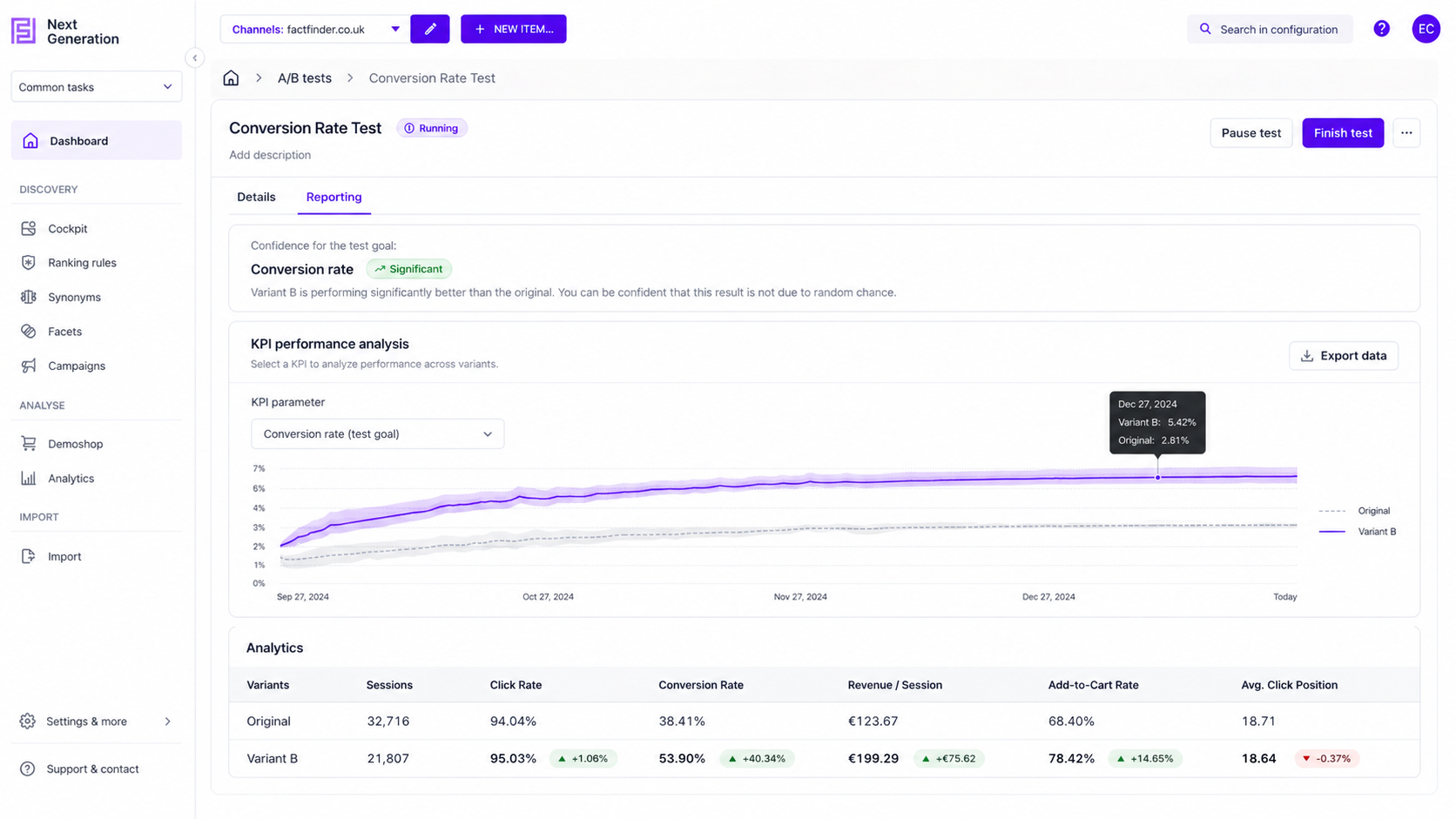
Open the **Reporting** tab to review the current test outcome.
### **Test goal**
The tab repeats the **selected test goal**.
It also shows the current **confidence for the test goal**:
* not significant 
* significantly positive 
* significantly negative 
### **KPI performance analysis**
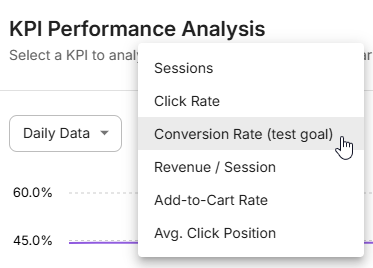
The **KPI performance analysis** graph defaults to the selected test goal.
You can switch it to any other available test goal:
* **Sessions**
* **Click rate**
* **Conversion rate**
* **Revenue/Session**
* **Add to cart rate**
* **Avg. Click Position**
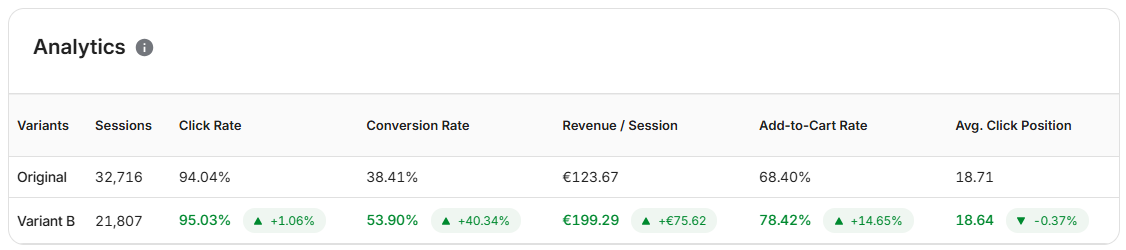
### **Analytics**
The table accompanying the graph provides the raw figures: positive results are highlighted in green, while negative results are highlighted in red.
### Evaluating Performance Metrics
Evaluate the result against the goal you selected for the test. Higher values are generally better.
When evaluating the result:
* Open the relevant metric for more detail.
* Focus on metrics that align with your goal.
* Avoid early conclusions when search volume is low.
Hover over the test difference to view significance for any KPI.
## Finalize the test
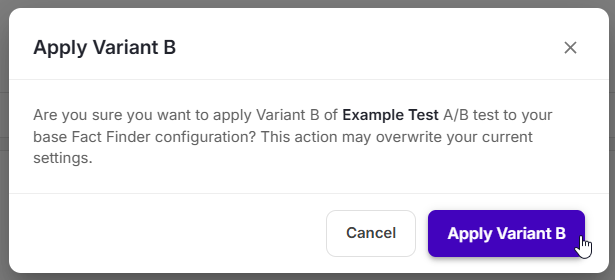
In the A/B tests overview, choose one of these actions after the test ends:
* **Apply variant B** to roll out the tested changes.
* **Do nothing** to keep the current baseline.

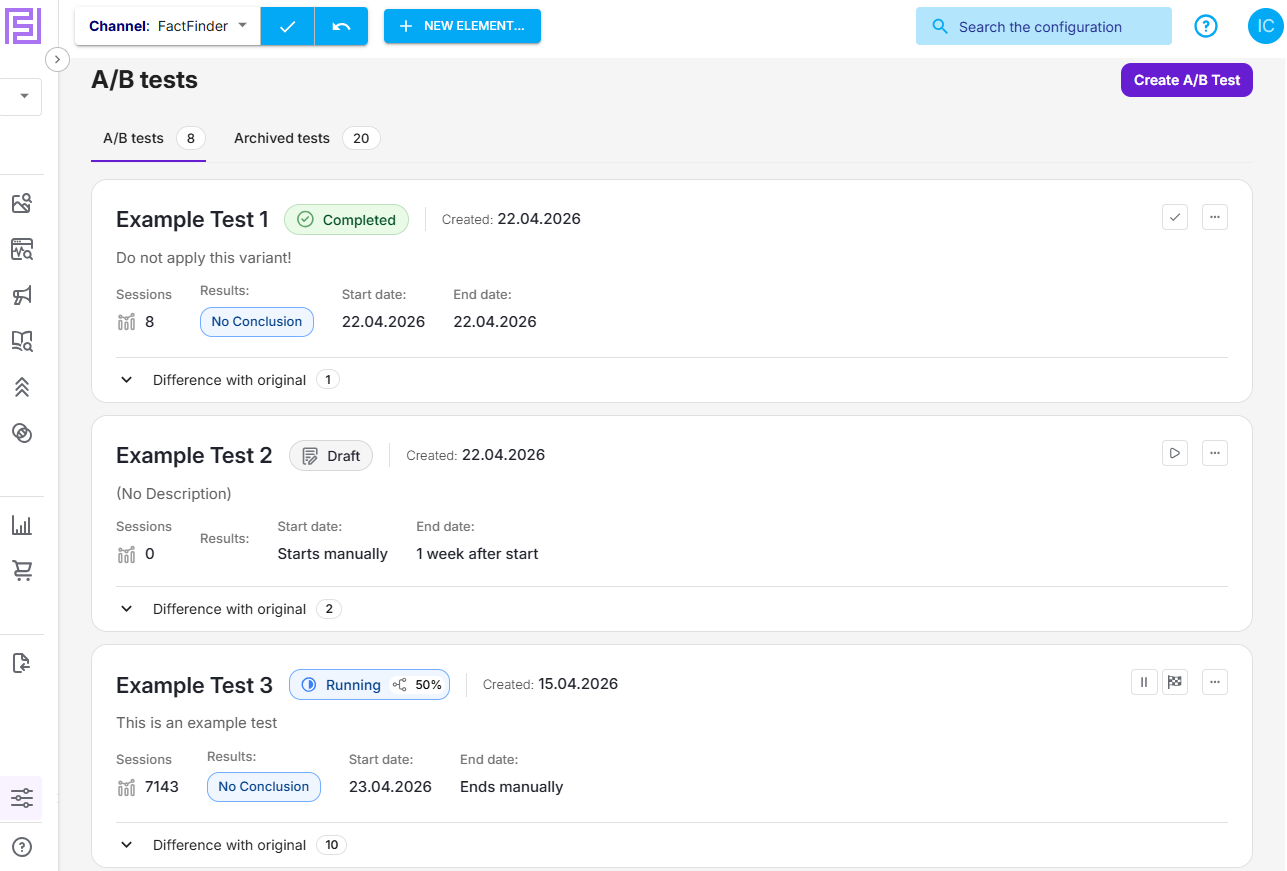
## A/B tests Overview Page
This overview page lets you view and manage your A/B tests for your current channel:
#### Action buttons
These buttons, on the right side of the overview page, control the test state and the final outcome.
**Start test** starts the A/B test.
This button starts the test right away, even if a start time is configured.

**Pause test** temporarily stops the test.
Use it when you need to interrupt traffic without finalizing the result.

**Resume test** continues a paused test.
The test keeps running with the existing setup.

**Finish test** permanently stops a running test.
The test ends and the tested variant can be applied.

## Best practices
* Test one hypothesis at a time.
* Let the test reach statistical significance.
* Keep the base variant A unchanged during the run.
* Prefer one active A/B test per channel.
* Use a clear test name that describes the expected effect.
* Use the description field for more detailed information about the test if necessary.
---
# Agent Instructions
This documentation is published with GitBook. GitBook is the documentation platform designed so that both humans and AI agents can read, navigate, and reason over technical content effectively. Learn more at gitbook.com.
## Querying This Documentation
If you need additional information that is not directly available in this page, you can query the documentation by asking a question.
Perform an HTTP GET request on the following URL with the `ask` and `goal` query parameters:
```
GET https://docs.fact-finder.com/docs/modules/ab-tests/using-the-new-a-b-tests-ui.md?ask=&goal=
```
`ask` is the immediate question: it should be specific, self-contained, and written in natural language.
`goal` is what the user is ultimately trying to achieve, the reason they need the answer. Sharing it helps GitBook give you a better, more relevant answer. A goal is most helpful when it describes the outcome the user wants rather than restating the question. For example, with `ask=how do I create an API token`, a goal like `automate deployments from our CI pipeline` lets GitBook tailor the answer to that use case.
The response will contain a direct answer to the question and relevant excerpts and sources from the documentation.
Use this mechanism when the answer is not explicitly present in the current page, you need clarification or additional context, or you want to retrieve related documentation sections.